
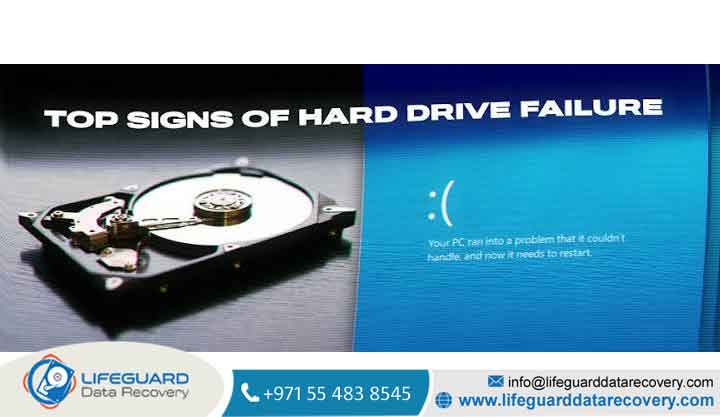
Every mechanical hard drive will eventually fail. Unlike software glitches that can be patched with an update, a mechanical hard disk crash is an inevitable hardware reality. The average traditional hard disk drive (HDD) has a operational lifespan of 3 to 5 years. Recognizing early warning signals is often the only difference between losing your irreplaceable files forever and migrating them safely to a new drive.
If your computer has recently slowed to a crawl, started making strange metallic clicking noises, or thrown unprovoked blue screen errors, your storage device may be dying. This comprehensive guide breaks down the physical, logical, and performance-based hard disk crash symptoms, gives you an immediate emergency response plan, and explains how to test drive health safely without causing further damage.
What Happens During a Hard Drive Crash?
To spot a failing drive, it helps to understand what is occurring inside the enclosure. A traditional hard disk drive operates like a high-speed record player. Magnetic platters spin RPM while ultra-thin read/write heads hover nano meters above the surface on a microscopic cushion of air.
A hard drive crash occurs when internal components degrade or break down, preventing the drive from reading or writing data accurately. Failure modes fall into two main categories:
-
Physical (Hardware) Failure: Damage to the mechanical components such as head assembly misalignment, motor spindle failure, or physical platter scratches.
-
Logical (Software) Failure: Integrity loss in the file system structure, corrupted master boot records (MBR), or damaged partition tables, while the physical drive remains intact.
Mechanical (HDD) vs. Solid-State (SSD) Failure Modes
While this guide focuses on traditional mechanical HDDs, note that Solid-State Drives (SSDs) fail differently:
-
HDDs (Mechanical): Give physical warnings (hard drive beeping symptoms, clicking, noise) and slow performance drops as bad sectors accumulate over time.
-
SSDs (NAND Flash): Fail silently and often instantly due to controller failure or cell wear limits, switching read-only unexpectedly without acoustic warning.
Top Hard Disk Crash Symptoms to Watch For
Recognizing symptoms of a failing hard drive early allows you to take action before a full head crash occurs.
Acoustic Warning Signs: Clicking, Beeping, and Grinding
A healthy hard drive produces a soft, uniform humming or light fluttering sound during heavy read/write activity. Loud, repetitive, or irregular physical sounds indicate immediate mechanical catastrophe:
-
The “Click of Death”: A distinct, rhythmic click-click-click sound. This occurs when the actuator arm attempts to recalibrate or read data, fails, hits the mechanical stop, and resets repeatedly.
-
Hard Drive Beeping Symptoms: High-pitched chirping or beeping usually indicates a seized spindle motor or read/write heads stuck directly on the platter surface (stiction), preventing the motor from spinning.
-
Grinding or Scraping Noises: Indicates physical contact between the read/write heads and the magnetic platter surface a head crash actively destroying data.
CRITICAL WARNING: If your hard drive makes grinding or rapid clicking sounds, power it off immediately. Continued operation will scrape the magnetic coating off the platters, making professional data recovery impossible.
System Performance Degradation & Frequent Freezes
Experiencing slow hard drive performance is often the first non-acoustic symptom. As the drive encounters unreadable sectors, the operating system hangs while attempting retries:
-
Opening simple folders takes minutes instead of seconds.
-
Boot times jump dramatically from 30 seconds to over 10 minutes.
-
Frequent system crashes occur during simple file transfers or background disk index updates.
-
Windows File Explorer or macOS Finder routinely displays “(Not Responding)” or locks up entirely.
File Corruption, Missing Data, and Read/Write Errors
Logical corruption often accompanies physical failure as degraded heads write incomplete data blocks:
-
Files suddenly fail to open, showing error messages like “File format not recognized” or “Corrupted file structure.”
-
Files or folders disappear completely without user action.
-
File names change into gibberish or scrambled characters.
-
Hard drive read error pop-ups appear when trying to copy large files to another location.
Boot Failures & Blue Screen Errors (BSOD)
When the drive containing your operating system degrades, system stability collapses:
-
Windows Blue Screen of Death (BSOD): Frequently shows stop codes like
CRITICAL_PROCESS_DIED,KERNEL_DATA_INPAGE_ERROR, orINACCESSIBLE_BOOT_DEVICE. -
Hard drive boot failure: The computer turns on, passes POST, but stops at a black screen displaying “No bootable device found,” “Operating System Not Found,” or drops straight into BIOS settings.
Bad Sectors and Accumulating S.M.A.R.T. Errors
Storage drives use Self-Monitoring, Analysis, and Reporting Technology (S.M.A.R.T.) to track internal health metrics. Accumulating hard disk bad sectors symptoms include:
-
Disk diagnostics showing a growing number of “Reallocated Sectors” or “Pending Sectors.”
-
BIOS/UEFI throwing a popup at startup warning: “S.M.A.R.T. Status BAD, Backup and Replace.”
Special Considerations: External vs. Laptop Hard Drives
Form factors introduce distinct physical vulnerabilities that accelerate hard disk damage symptoms.
Signs of External Hard Drive Failure
External drives face extra points of failure beyond the drive mechanism itself:
-
USB Disconnect Loops: The drive connects, disconnects, and reconnects every few seconds.
-
Enclosure/Bridge PCB Failure: The drive inside is spinning fine, but the USB-to-SATA controller board inside the external housing has burned out.
-
Power Starvation Clicking: Insufficient power from a damaged USB port or cable causes the drive to click, mimicking a mechanical crash. Always test a different cable and rear motherboard USB port before assuming the external drive is dead.
Laptop Hard Drive Failure Signs
Laptops subject mechanical drives to frequent vibration, shocks, and elevated temperatures:
-
Systems that freeze whenever the laptop is physically picked up or moved (indicates failing drop-sensor or damaged actuator arm).
-
High chassis heat centered right above the storage bay area.
-
Drive spindle winding down loudly when idle due to aggressive, worn power-saving head-parking mechanisms.
Root Causes Behind Hard Drive Failure
Why do hard drives fail? Breakdown stems from two distinct drivers:
Physical & Environmental Drivers
-
Mechanical Fatigue: Ball bearings wear down, lubricant evaporates, and motor spindles seize over thousands of operational hours.
-
Physical Impacts: Shocks, drops, or bumps while the platters are spinning cause the heads to slam into the magnetic surface (head crash).
-
Thermal Degradation: Operating continuously above 50°C (122°F) degrades mechanical lubricants and accelerates electronic component wear on the Printed Circuit Board (PCB).
Logical Drivers & Power Issues
-
Power Surges & Spikes: Voltage fluctuations destroy the drive’s controller PCB or TVS protection diodes.
-
Unclean Shutdowns: Sudden power loss while writing data can cause file system metadata corruption or leave heads parked improperly.
Immediate Action Plan: What to Do When You Notice Symptoms
If you encounter signs of hard drive failure, your actions in the next 5 minutes determine whether your data survives.
Emergency Stop Power Down Physical Failures
If you hear metallic clicking, grinding, or loud screeching:
-
Power down the computer or disconnect the drive immediately.
-
Do NOT restart the system.
-
Do NOT run disk repair utilities like CHKDSK or ScanDisk (doing so forces damaged heads to scan across sensitive platters millions of times, obliterating remaining data).
Backup Critical Files (Prioritize Uncorrupted Data)
If the drive is running slowly but quiet and responsive:
-
Connect a healthy external target drive or cloud storage connection.
-
Do NOT run a full system image or large clone first. Cloning stresses a weak drive across every sector.
-
Manually copy your most vital documents, photos, and databases first.
-
Once vital files are safe, copy secondary files.
Check S.M.A.R.T. Status & Diagnostics Safely
Once critical files are secure, evaluate the drive’s health parameters using non-intrusive software.
Checking S.M.A.R.T. via Windows Command Prompt:
-
Open Command Prompt as Administrator (
cmd). -
Type the following command and press Enter:
DOS -
Results:
-
OK: Drive firmware reports parameters within normal bounds. -
Pred Fail: Drive failure is imminent. Backup immediately.
-
For deeper detail, download light third-party monitoring software like CrystalDiskInfo (Windows) or DriveDx (macOS). Pay close attention to these critical attributes:
-
05Reallocated Sectors Count: Sectors that failed and were remapped. Any number above 0 indicates wear; a rapidly growing number means imminent crash. -
C5Current Pending Sector Count: Unstable sectors waiting to be remapped. -
0ASpin Retry Count: Count of physical spinup retries; indicates motor or bearing issues.
Safe Fixes vs. When to Seek Professional Recovery
Running Software Diagnostics (Logical Failures Only)
If S.M.A.R.T. checks pass, physical sounds are absent, and your issues stem from partition glitches or file system corruptions:
Knowing When DIY Attempts Will Destroy Your Data
Never attempt DIY repairs under the following conditions:
-
The Freezer Myth: Putting a damaged drive in a sealed bag in the freezer to unstick heads introduces internal condensation. Moisture destroys magnetic platter coatings once powered back on.
-
Opening the Drive Enclosure: Opening a hard drive outside an ISO Class 5 cleanroom exposes platters to ambient dust. A single dust particle under a read/write head acts like a boulder, causing an instant head crash.
-
Physical Damage: If data is invaluable and the drive is physically damaged, contact an established Professional Data Recovery Service with cleanroom facilities.
Best Practices for Hard Drive Crash Prevention
You cannot prevent eventual mechanical wear, but you can prevent catastrophic data loss.
Implement the 3-2-1 Backup Strategy
Never rely on a single storage drive for important records.
-
Maintain 3 total copies of your data.
-
Store backups across 2 different storage types (e.g., internal drive + external NAS/HDD).
-
Keep 1 backup copy offsite (e.g., encrypted cloud storage).
Drive Maintenance & Proactive Upgrades
-
Use Surge Protection: Plug equipment into an Uninterruptible Power Supply (UPS) to protect against voltage spikes and brownout shutdowns.
-
Maintain Airflow: Clean dust filters to keep drive operating temperatures below 45°C (113°F).
-
Migrate Proactively: Replace operating system drives every 4 years or upgrade to modern Solid-State Drives (SSDs) for better performance and drop resilience.
Frequently Asked Questions (FAQs)
Can a crashed hard drive be repaired?
Logical corruption (file errors, lost partitions) can often be fixed using software utilities like CHKDSK or disk recovery tools. However, physically crashed mechanical hardware (damaged heads, scratched platters) cannot be “repaired” for continued regular use. Professional recovery labs temporarily replace failed parts in cleanrooms only long enough to extract raw data to a healthy drive.
How long does a hard drive last before failing?
The average operational lifespan of a hard drive is 3 to 5 years. Drive longevity depends heavily on workload, ambient operating temperatures, power quality, and physical handling (especially in laptops and portable drives).
What is the “Click of Death” on a hard drive?
The “Click of Death” is the distinct, repeating clicking sound made by a failing drive. It occurs when the drive’s read/write heads cannot align with the track service or locate the master boot record. The head arm extends, fails to read data, snaps back to its starting position, and repeats continuously.
Can CHKDSK ruin a failing hard drive?
Yes. Running chkdsk /r or chkdsk /f forces the hard drive to perform intense read and write stress tests across every sector. If the drive is suffering from physical mechanical failure or a weak read/write head, running CHKDSK can cause a total head crash, scratching the platters and destroying recoverable data.


















