
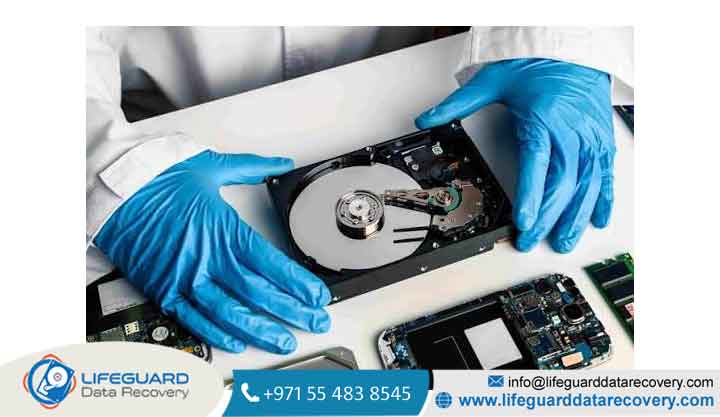
How to Recover Corrupted Hard Disk Data Safely Step-by-Step Guide Experiencing a sudden drive error, a missing partition, or an inaccessible external drive can trigger immediate panic. However, in most cases, your data remains fully intact on the magnetic platters or flash blocks; the operating system simply lost the “map” required to locate your files.
This guide outlines a safety-first, non-destructive workflow to recover corrupted hard disk data on Windows and macOS. Before attempting to repair file systems or run diagnostic commands, follow these verified steps to safely extract your critical files.
Understanding Hard Drive Corruption: Logical vs. Physical Damage
To successfully restore your files without causing permanent data loss, you must first identify the type of failure your drive is experiencing.
Signs Your Hard Drive Is Corrupted (Symptoms & Error Messages)
-
RAW File System: Windows identifies the drive file system as
RAWinstead ofNTFSorexFAT, prompting the error: “You need to format the disk in drive X: before you can use it.” -
Inaccessible Location: Opening the drive throws location errors like
Location is not accessible. Access is deniedorThe file or directory is corrupted and unreadable. -
Extreme System Sluggishness: Connecting the drive causes Windows File Explorer or Mac Finder to freeze or crash repeatedly.
-
Bad Sector Warning: The operating system regularly reports I/O device errors (Input/Output errors) when copying files.
Common Causes of Hard Disk Corruption
-
Improper Ejection: Unplugging external drives while write operations are active, causing corrupted Master Boot Records (MBR) or Partition Tables.
-
Sudden Power Outages: Abrupt power loss while the OS is writing system metadata.
-
Bad Sectors: Degradation of physical storage sectors holding critical file system metadata.
-
Malware Attacks: Viruses encrypting or altering system structures.
The Golden Rule: Create a Sector-by-Sector Disk Image Before DIY Fixes
WARNING: The “CHKDSK Danger” Trap
Running native repair utilities like Windows
CHKDSK /ron a physically degrading or corrupted drive can be disastrous.CHKDSKis designed to fix the file system structure, not preserve user files. If it encounters corrupted sectors, it may permanently purge or strip unreadable file fragments, rendering data unrecoverable.
Always follow the Data Recovery Priority Law:
How to Create a Clone Image:
-
Windows: Use non-invasive imaging software (or free utilities like FTK Imager) to create a full
DD/ bit-stream image file stored on a separate, healthy hard drive. -
macOS / Linux: Open Terminal and use
d drescueto duplicate the drive block-by-block while safely skipping damaged sectors:Bash(
-dbypasses system cache;-nskips damaged blocks on the first pass to avoid overheating the drive).
How to Recover Data From Corrupted Hard Drive (Step-by-Step)
Follow these non-destructive steps to access and extract your files.
Step 1: Basic Hardware & Connection Checks
-
Bypass Hubs: Connect external hard drives directly to motherboard USB ports (preferably back-panel ports on desktop PCs) rather than unpowered USB hubs.
-
Swap Cables and Enclosures: Faulty SATA-to-USB bridge chips inside external enclosures often mimic drive corruption. Remove the internal drive from its casing and connect it via a SATA-to-USB dock.
-
Check Disk Management: Press
Win + Xand open Disk Management. Verify if the drive appears with its correct physical capacity (even if listed as RAW or Unallocated).
Step 2: Use File Recovery Software to Scan the Disk Image
-
Download a reputable data recovery tool on a healthy internal or external drive</span> (never install software onto the corrupted drive).
-
Select your sector-by-sector
.img/.ddclone file as the target directory. -
Initiate a Deep Scan / RAW File Recovery scan.
-
Preview detected files (documents, JPEG images, video files) to confirm file integrity before recovering.
-
In your recovery software, select the specific target files you want to retrieve.
-
Choose a destination folder located on a completely different drive (e.g., your primary SSD or another healthy external drive).
-
Complete the file extraction process and verify that the recovered files open correctly.
How to Fix Corrupted Hard Disk Without Losing Data
Perform these repair methods ONLY after you have extracted and verified your recovered files.
Method 1: Repairing File Systems via Windows CHKDSK Command
Once your data is safely backed up, you can attempt to fix file system tables using the Command Prompt.
-
Press
Win + S, typecmd, right-click Command Prompt, and select Run as Administrator. -
Input the following command (replace
Xwith your drive letter):DOS-
/rlocates bad sectors and attempts to recover readable information.
-
-
Allow the 5-stage process to complete (this may take anywhere from 30 minutes to multiple hours depending on drive size).
Method 2: Running System File Checker (SFC) and DISM
If Windows services or system drivers are causing disk access errors:
-
Open Command Prompt (Admin).
-
Run the Deployment Image Servicing and Management (DISM) command first:
DOSDISM.exe /Online /Cleanup-image /Restorehealth -
Run System File Checker: DOS
Method 3: Fixing Corrupted Drive Files on macOS (Disk Utility & First Aid)
-
Open Finder ➔ Applications ➔ Utilities ➔ Disk Utility.
-
Click View ➔ Show All Devices.
-
Select your corrupted drive volume and click First Aid in the top navigation bar.
-
Click Run to let macOS detect and resolve volume catalog errors.
Method 4: Assigning a New Drive Letter or Updating Disk Drivers
-
Open Disk Management (
Win + X➔Disk Management). -
Right-click the corrupted volume and select Change Drive Letter and Paths…
-
Click Change, assign a new letter (e.g.,
M:orZ:), and hit OK. -
Open Device Manager, expand Disk drives, right-click your drive name, and select Update driver.
Recovering Data From Damaged Hard Disk: When to Seek Professional Services
Not all data loss issues can be resolved using DIY software tools. Continuing to run software or supply power to a mechanically compromised drive can physically scrape magnetic coating off the platters, destroying data permanently.
Best Practices to Prevent Future Hard Drive Corruption
-
Follow the 3-2-1 Backup Strategy: Maintain 3 copies of your data on 2 different media types, with 1 copy stored securely off-site or in the cloud.
-
Always Use “Safely Remove Hardware”: Never unplug external storage devices while read/write LEDs are flashing.
-
Monitor Drive Health with S.M.A.R.T.: Run SMART monitoring utilities regularly to check critical attributes like Reallocated Sectors Count and Un correctable Sector Count.
-
Invest in an Uninterruptible Power Supply (UPS): Protect desktop drives against unexpected power outages during write operations.
Frequently Asked Questions (FAQs)
Can I recover data from a corrupted hard drive for free?
Yes. You can create a sector-by-sector clone using free open-source tools like ddrescue or Test Disk. Furthermore, free versions of major recovery suites allow scanning and recovering smaller batches of critical files (typically up to 1GB–2GB) at no cost.
Does formatting a corrupted hard drive delete all my files?
A Quick Format erases the file system index table (making the space appear empty) but leaves the underlying raw data on the drive until overwritten. A Full Format writes zeroes across all sectors, making file recovery virtually impossible. Always recover files before attempting any format.
How can I restore corrupted hard drive files if CHKDSK fails?
If CHKDSK reports errors like “The type of the file system is RAW. CHKDSK is not available for RAW drives,” do not panic. Use specialized partition recovery tools like TestDisk to scan for backup boot sectors and rebuild partition tables directly.
How do I know if my HDD failure is physical or logical?
Logical failure presents as system errors, RAW file system alerts, and prompt messages while the drive spins normally. Physical failure is accompanied by unusual mechanical sounds (repetitive clicking or grinding), severe vibration, or complete failure to spin up.


















