
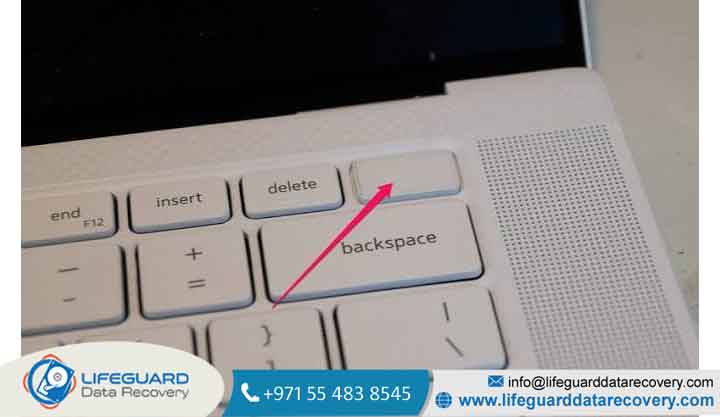
Few things trigger instant panic quite like pressing the power button on your Dell laptop and being met with total silence, a blank screen, or an endless loading loop. Whether you rely on your machine for daily work, university assignments, or home tasks, a non-responsive laptop halts everything in its tracks.
The good news? A Dell laptop that appears “dead” often isn’t dead at all. Most power and start up failures are caused by residual static electricity, software glitches, depleted power reserves, or minor firmware freezes all of which can be resolved at home without a costly repair bill.
This comprehensive guide breaks down the underlying causes behind Dell power failures and provides step-by-step diagnostic solutions to get your laptop back up and running.
Understanding Why Your Dell Laptop Won’t Turn On (Power States Breakdown)
When troubleshooting a Dell laptop not powering on, identifying the exact behavior of the machine immediately narrows down the solution. Technicians categorize power and boot issues into four distinct states:
-
No Power: The laptop shows zero signs of life. No LED indicators light up, fans remain silent, and the keyboard backlight stays dark.
-
No POST (Power-On Self-Test): The power light turns on, fans may spin, or LED diagnostic codes flash, but the system fails to initialize hardware and doesn’t display the Dell logo.
-
No Video: The system powers up and passes initialization (you may hear fan movement or system chimes), but the screen remains entirely black.
-
No Boot: The system turns on, displays the Dell logo, but gets stuck before reaching the Windows desktop often displaying a blue screen, a spinning wheel, or an error message.
Common Causes: From Dead Batteries to Dell Laptop Motherboard Issues
Understanding what causes these power failures helps prevent them from happening again. The most common underlying causes include:
-
Flea Power (Static Buildup): Residual electrical charge trapped in circuit capacitors can lock the motherboard’s power logic, preventing power distribution.
-
Power Supply Problems: A failed AC adapter, broken DC jack, or depleted lithium-ion battery prevents energy from reaching the power rails.
-
Display or GPU Errors: The system boots fine, but a faulty backlight, loose display cable, or graphics logic failure leaves the screen dark.
-
Corrupted BIOS or Boot Files: Interrupted Windows updates or corrupted system firmware can freeze the boot process before the operating system loads.
-
Internal Hardware Failures: Unseated RAM modules, failing storage drives, or a damaged motherboard can block the Power-On Self-Test (POST).
Key Symptoms: How to Diagnose Your Dell Laptop Power Problems
Before jumping into mechanical fixes, observe what your computer does when you press the power button. Identifying the specific visual symptom speeds up the fix.
Dell Laptop Won’t Turn On But Power Light Is On
If your Dell laptop won’t turn on but power light is on, your main system board is receiving electricity, but the system cannot finish initializing its hardware.
You may notice the power button LED stay solid white, glow amber, or cycle through a sequence of blinks. This behavior typically points to a stuck power state, unseated memory (RAM), or corrupted system firmware rather than a dead motherboard.
Dell Laptop Turns On But Screen Is Black
When your Dell laptop turns on but screen is black, pay close attention to system audio and lighting. If you can hear internal fans spinning, notice the keyboard backlight turning on, or hear the Windows start up chime, your laptop is running it simply isn’t outputting a visual signal.
This distinction is critical: if the screen is black due to a display panel failure, the core computer hardware is intact, and your data remains entirely safe.
Step-by-Step Fixes: What to Do When Your Dell Laptop Won’t Start
Follow these diagnostic steps in order. They progress from non-invasive, high-probability fixes to more advanced troubleshooting.
Step 1: Perform a Hard Reset (Draining Static Charge)
Performing a hard reset clears “flea power” trapped electricity stored in system capacitors that can trick the motherboard into thinking a short circuit exists.
For Removable Battery Models (Older Inspiron/Latitude)
-
Turn off the laptop and disconnect the AC power adapter.
-
Remove the main battery pack from the bottom latch mechanism.
-
Disconnect all external devices (USB drives, external mice, printers).
-
Press and hold the power button for 15 to 20 seconds.
-
Reconnect the AC power adapter (leave the battery out for now).
-
Press the power button to test if the system turns on.
For Non-Removable Battery Models (Dell XPS, Modern Inspiron & Latitude)
-
Turn off the system and unplug the AC power cord.
-
Disconnect all peripherals, docks, and external drives.
-
Press and hold the power button for 20 to 30 seconds. (You may see the power light flash briefly; keep holding).
-
Plug the AC adapter back in directly to a wall outlet.
-
Press the power button normally to check for startup.
Check the AC Adapter and Power Outlet
If your Dell laptop won’t charge or turn on, the issue often stems from the power delivery chain rather than the laptop itself.
-
Inspect the LED on the Charger: Official Dell power bricks feature an LED indicator on the brick or the barrel connector. If the light is completely off, the charger is faulty. If the light turns off the moment you plug it into the laptop, there is an internal short on the motherboard’s power rail.
-
Bypass Power Strips: Plug the charger directly into a known-working wall outlet, skipping extension cords or surge protectors.
-
Inspect the DC Charging Port: Check inside the laptop’s charging port for bent center pins, debris, or loose physical play.
Decode Dell Diagnostic LED Blink Codes
Modern Dell laptops use the battery status LED or power button light to communicate precise diagnostic error codes when hardware initialization fails. These codes usually present as a sequence of amber blinks followed by white blinks.
Here is how to decode common modern Dell LED diagnostic sequences:
| LED Blink Pattern (Amber , White) | Problem Category | Probable Cause | Recommended Action |
| 2 Amber, 1 White | CPU Failure | Processor initialization fault | Requires motherboard inspection or repair |
| 2 Amber, 3 White | System Board / Firmware | System Board or BIOS Corruption | Perform BIOS Recovery procedure |
| 2 Amber, 4 White | Memory (RAM) | Memory/RAM module failure | Reseat or test individual RAM sticks |
| 2 Amber, 7 White | Display Panel | LCD screen failure | Run LCD Built-In Self-Test (BIST) |
| 3 Amber, 4 White | Power Rail | Main board power component failure | Disconnect battery; check AC adapter |
Run the Screen Diagnostic Test (LCD BIST)
If your laptop turns on but displays a continuous black screen, use Dell’s LCD Built-In Self-Test (BIST) to isolate whether the issue lies with the display panel or the system board.
-
Ensure the laptop is powered down completely.
-
Press and hold the
Dkey on the keyboard. -
While holding
D, press the Power Button once, then release both keys. -
The system will initiate the display test. If the screen is working, it will flash a series of solid colors (Red, Green, Blue, White, Black).
-
If you see the solid colors: The display panel, cabling, and backlight are functional. The black screen is being caused by an internal GPU, RAM, or motherboard issue.
-
If the screen remains black: The LCD panel or its video ribbon cable is damaged and requires hardware replacement.
Fix Dell Laptop Stuck on Star tup or Boot Loop
When your Dell laptop is stuck on star tup, displays a boot failure message, or continuously loops at the Dell logo, the core hardware is working, but the operating system cannot load.
-
Power on the system and immediately begin tapping the repeatedly at the Dell splash screen until the One-Time Boot Menu appears.
-
Select Diagnostics (or ePSA Diagnostics) to run an automated hardware scan. This will verify if your hard drive or SSD has failed.
-
If hardware checks pass, restart, tap again, and select Support Assist OS Recovery.
-
Use the built-in repair tools to restore system boot files without losing your personal data.
How to Prevent Dell Laptop Power and Star tup Failures
Taking a few proactive maintenance steps significantly reduces the chances of encountering power or boot issues in the future:
-
Avoid Complete Battery Drains: Try not to let your lithium-ion battery drop to 0% frequently. Deep discharge cycles accelerate battery cell degradation and trigger power-rail lockouts.
-
Keep Firmware Updated: Use official tools like Dell Command | Update or Dell Support Assist to keep your BIOS and system chipset drivers current.
-
Manage Heat & Dust Build-Up: Overheating can cause modern laptops to initiate thermal shutdowns that mimic power failures. Use your laptop on hard, flat surfaces to keep air intakes clear.
-
Use Genuine Chargers: Uncertified third-party USB-C chargers often fail to deliver clean power rails, which can trigger voltage protection circuits on Dell motherboards.
Frequently Asked Questions (FAQs)
Why is my Dell laptop power button light flashing amber?
An amber power button light usually indicates a power delivery or hardware initialization problem. A solid amber light often points to a deeply discharged battery or power rail issue, while a flashing amber light (in sequence with white blinks) is a diagnostic code communicating an issue with system RAM, the processor, or the motherboard.
How do I force restart a dead Dell laptop with a non-removable battery?
Disconnect the charger, press and hold the power button down continuously for 25 to 30 seconds, and then release it. This cuts internal power connection logic and forces a hardware reset on non-removable battery models. Plug the charger back in and attempt to turn it on.
Can a completely dead battery stop a Dell laptop from turning on even when plugged in?
Yes. If an internal battery suffers a severe short circuit or cell failure, it can pull down the system’s main voltage line, preventing the AC adapter from supplying power to the motherboard. Disconnecting the battery internally allows the laptop to power on using the charger alone.
What should I do if my Dell laptop screen stays black after a BIOS update?
If a BIOS update stalls and leaves your system unresponsive, perform a Dell BIOS Recovery:
-
Turn off the laptop and unplug the AC power cord.
-
Press and hold simultaneously.
-
While holding those keys, plug the AC power adapter back into the laptop.
-
Release the keys once the BIOS Recovery screen appears, then follow the on-screen prompts to reset or flash the firmware back to working order.


















