
Discovering that your hard drive has bad sectors can trigger immediate panic. Files freeze, folders take forever to open, or your operating system warns that a drive is failing.
The short answer is yes, a hard drive with bad sectors can usually still be recovered provided you follow the correct recovery protocol. However, treating a failing hard drive like a healthy one by running intensive utility scans can permanently destroy your files.
This comprehensive guide explains what bad sectors are, how to recognize the warning signs, the exact step-by-step workflow for safe hard drive bad sectors recovery, and how to avoid catastrophic mistakes.
Hard Drive Bad Sectors What Are They & How Do They Form?
A sector is the smallest unit of storage on a hard disk drive (HDD). When a sector becomes damaged, it can no longer read or write data reliably. Understanding hard drive sector damage recovery starts with identifying which type of bad sector you are dealing with.
Physical (Hard) vs. Logical (Soft) Bad Sectors
-
Logical (Soft) Bad Sectors: Occur when the operating system attempts to read data, but the Error Correction Code (ECC) signature does not match the sector content. This is caused by sudden power outages, abrupt shutdowns, malware, or interrupted writes. Logical bad sectors can often be repaired by zero-filling the drive.
-
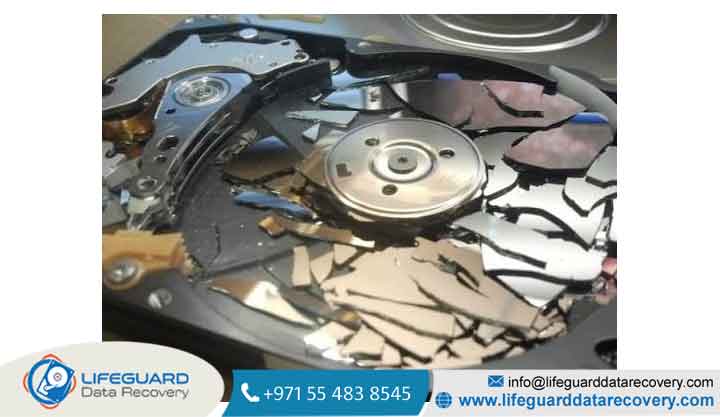
Physical (Hard) Bad Sectors: Caused by physical damage, such as a read/write head touching the spinning platter surface (head crash), physical impact from a drop, manufacturing defects, or natural degradation of the magnetic coating. Physical bad sectors cannot be repaired.
How HDD vs. SSD Bad Blocks Differ
While traditional mechanical drives suffer from platter sector decay, Solid-State Drives (SSDs) experience “bad blocks.” SSDs utilize NAND flash memory managed by a controller.
When flash cells wear out or fail, the controller automatically reallocates data to spare blocks via Wear Leveling. However, when an SSD controller fails or runs out of spare blocks, data loss can occur instantly without the auditory warnings typical of mechanical drives.
Recognizing Hard Drive Bad Sector Symptoms
Catching a failing drive early dramatically increases the chances of failing hard drive data recovery. Watch for these warning signals:
Performance Indicators
-
System freezes or severe lagging when opening specific files, folders, or partitions.
-
Operating system boot times increase exponentially.
-
Files take an abnormally long time to copy or move, often hanging at 99%.
File-Level & Operating System Errors
-
The file system unexpectedly reports as RAW in Windows Disk Management.
-
Frequent “Cyclic Redundancy Check (CRC)” or “Location is not accessible” errors when accessing drives.
-
Random file corruption where previously accessible files refuse to open.
S.M.A.R.T. Signals & Mechanical Clues
-
S.M.A.R.T. Warnings: Monitoring tools report high counts in attributes like Reallocated Sectors Count, Current Pending Sector Count, or Uncorrectable Sector Count.
-
Auditory Signs: Clicking, grinding, buzzing, or ticking noises. Physical clicking indicates immediate mechanical failure.
Is Your Drive Safe for DIY Data Recovery?
Before attempting to recover data from hard drive with bad sectors, evaluate whether your device is safe for home software recovery.
If your drive exhibits physical clicking or severe hardware defects, DIY software scans will cause the drive read heads to scrape across the magnetic platters, permanently destroying data. In such cases, stop immediately and seek professional hard drive recovery.
How to Recover Data from a Hard Drive with Bad Sectors (The Safe Workflow)
If you are performing hard drive recovery with bad sectors on a physically stable drive, follow this non-destructive 3-step protocol.
Stop Active Use & Disconnect the Drive:Prevent further data degradation.
Do not run an active operating system from the failing drive. Background processes, automatic updates, and temporary log writes force the read/write heads to pass over bad sectors continuously, accelerating physical degradation.
Create a Sector-by-Sector Disk Image:Create a safe clone of the raw media.
Never run recovery software directly on a failing drive. Instead, create a byte-for-byte image clone (using tools like ddrescue, HDDSuperClone, or specialized cloning software). Set the tool to clone readable sectors first and skip non-responsive/bad sectors on initial passes.
Run Data Recovery Software on the Image:Extract files from the virtual clone.
Mount the newly created byte-for-byte image file on a healthy computer. Run your choice of bad sector data recovery software against the virtual image rather than the physical hardware. This eliminates stress on the degraded physical drive.
What NOT to Do: Common Recovery Pitfalls That Destroy Data
Attempting corrupted hard drive recovery without technical precautions often leads to permanent data loss. Avoid these dangerous mistakes:
The CHKDSK Trap: Why You Should Never Run chkdsk /r First
One of the most damaging pieces of advice online is running chkdsk /r or chkdsk /f on a drive with bad sectors.
CHKDSK is a file-system repair utility, not a data recovery tool. When run on a failing drive, CHKDSK attempts to read corrupted sectors repeatedly, reallocate them, and truncate unreadable files. This process subjects failing hardware to extreme stress and frequently corrupts entire file directory structures beyond repair. Always recover your files first before running repair utilities.
Avoiding Excessive Scanning & Unverified “Thermal Fixes”
-
Repeated Deep Scans: Running multiple automated recovery programs subjects fragile hardware to hours of intense read cycles.
-
The “Freezer Trick”: Putting a hard drive in a freezer introduces condensation inside the sealed chamber, shorting electronic components and destroying platter surfaces when powered back on.
Can Bad Sectors Be Repaired or Fixed?
When addressing hard disk bad sector recovery, it is essential to distinguish between repairing data accessibility and physically fixing hardware:
-
Logical Bad Sectors: Can be “repaired” by writing zeros across the drive (Low-Level Format). This resets the Error Correction Code signatures, allowing sectors to be written to again.
-
Physical Bad Sectors: Cannot be repaired. However, drive microcode handles them through Sector Remapping. The drive marks bad sectors in its G-List (Grown Defect List) and reassigns operations to spare sectors on an internal reserve track. Once the drive exhausts its spare sector pool, S.M.A.R.T. warnings trigger, and the drive must be replaced.
When to Seek Professional Data Recovery for Bad Sectors
If you are dealing with critical business files or severe unreadable hard drive recovery scenarios, DIY methods carry inherent risks. You should engage a hard drive recovery service if:
-
The drive is making mechanical noises (clicking, squealing).
-
The drive is not detected in system BIOS or Disk Management.
-
The disk image process stalls completely due to extensive platter damage.
-
The data is mission-critical and cannot be replaced under any circumstances.
A professional data recovery for bad sectors lab utilizes hardware-level tools (such as PC-3000) to isolate failing heads, disable automatic drive read-retries, control power states, and work inside ISO Class 5 Cleanrooms to recover raw data safely.
Best Practices to Prevent Bad Sectors and Data Loss
While bad sectors are an inevitable part of drive aging, you can protect your data through proactive habits:
-
Monitor S.M.A.R.T. Health: Use utilities like CrystalDiskInfo or SmartMontools to check drive temperature and sector reallocations weekly.
-
Use Uninterruptible Power Supplies (UPS): Prevent sudden power cuts while your system is writing data to storage.
-
Safely Eject External Drives: Always use the “Safely Remove Hardware” option before unplugging external HDDs.
-
Follow the 3-2-1 Backup Rule: Keep 3 copies of your data across 2 different media types, with 1 copy stored securely offsite or in cloud storage.
Frequently Asked Questions
Can bad sectors spread to other parts of the hard drive?
Yes. If bad sectors are caused by physical wear or head instability, microscopic debris from media degradation can scratch adjacent platters as the heads move, causing bad sectors to multiply rapidly.
Does formatting a hard drive fix bad sectors?
A Quick Format does not fix bad sectors because it only rebuilds the file table. A Full Format checks the disk for bad sectors and instructs the operating system to map them out so data isn’t written to them in the future, but it does not physically repair damaged media.
Can I recover files directly from a bad sector?
If a file was stored directly inside a physically destroyed sector block, that specific portion of data is lost. However, bad sector HDD recovery tools can reassemble the rest of the file structure from surviving healthy sectors.
What is the success rate of recovering data from drives with bad sectors?
For logical bad sectors or early-stage physical degradation, the recovery success rate is typically 90% to 95% when using byte-for-byte imaging workflows. For severe mechanical failures handled in cleanroom environments, success rates vary depending on platter surface condition.


















