
It’s a scary feeling when your hard drive suddenly stops working, especially if you have important family photos, school files, or work documents saved inside. When your computer just won’t open the drive, the first big question that pops into your head is: how can data be recovered from a dead HDD
Well, the good news is that in many cases, your files are not actually gone forever! You can still get them back. But what you need to do next depends on whether the issue is a software problem (logical failure) or a physical hardware breakdown.
Trying the wrong fix on a broken drive can accidentally destroy your files permanently. So, let’s take a calm look at how to check your drive safely and fix things step by step.
What Does a “Dead” Hard Drive Actually Mean? (Logical vs. Physical Failure)
To figure out the right way for dead HDD data recovery, you first need to understand what kind of damage happened to your disk. Usually, hard drives fail in two very different ways: logically or physically.
Logical Failure (Drives That Are Unrecognized or Corrupted)
A logical failure means the inside parts of your drive are still physically okay and spinning fine, but the computer system gets confused and cannot read the folders. You might see weird messages like “RAW format” or missing drive partitions. Because the mechanical parts are still working fine, doing hard drive not working data recovery at home using special recovery software is usually safe and effective.
Physical Mechanical Failure (Drives with Hardware Breakdown)
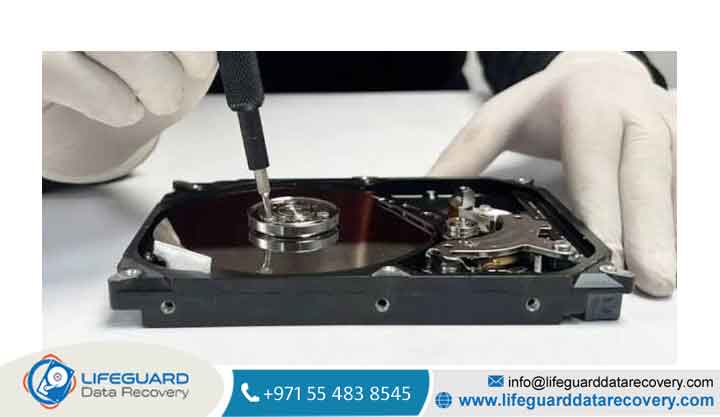
A physical failure is totally different. This means the small mechanical parts inside or the green circuit board outside got damaged physically. This includes things like broken read/write heads, a stuck motor, scratched disk platters, or burned electronic chips.
When you are dealing with physically damaged hard drive recovery, software tools won’t help you at all. You will need expert technicians working inside a specialized lab to fix the hardware first.
Causes of Hard Drive Failure
Old-school hard drives have tiny parts moving inside at super fast speeds. The little read/write head actually floats super close above the spinning disks without touching them. So a lot of simple things can ruin this delicate setup:
-
Bumps and Drops: Dropping your external hard drive especially while it is plugged in and spinning can make the read head crash into the disk platter. This scratches away the thin magnetic layer where your files are kept.
-
Power Surges: A sudden power spike or using the wrong power charger can instantly fry the little chips on the drive’s control board, leading to hard drive PCB failure recovery problems.
-
Bad Environment: High heat, too much moisture, or no proper air cooling can quickly wear out the internal parts and spoil the storage surface.
-
Old Age and Bad Sectors: Just like anything else, hard drives get old. Over time, parts of the disk wear out and turn into “bad sectors”. If the important system areas wear out, your computer won’t be able to open any files.
Signs and Symptoms of a Failing or Dead HDD
If you notice these warning signs early, you can quickly turn off the drive before it completely breaks down.
Auditory Warning Signs: Clicking, Beeping, and Grinding Noises
-
Clicking Sounds: Hearing a steady clicking sound over and over (people call this the “click of death”) means the little read head is trying to find its place but keeps slipping back.
-
Beeping/Humming: Hearing a faint beeping or buzzing sound usually points to hard drive motor failure recovery issues, where the tiny motor is jammed tight and cannot spin the internal disks.
-
Grinding Sounds: A harsh grinding noise is the absolute worst sign. It means the metal head is dragging right on top of the magnetic disk and scraping it away.
If your drive makes any of these strange sounds, unplug it immediately. Keeping it turned on while it’s physically damaged will destroy your data forever!
System Recognition Issues
When you face a HDD not detected recovery situation, your computer might freeze up the moment you plug the USB in. Or maybe the drive doesn’t show up in your File Explorer at all, or shows up as an empty “RAW” drive in your disk manager settings.
Step-by-Step Solutions: How to Recover Data from a Dead Hard Drive
When trying to recover data from dead hard drive, always follow these careful, step-by-step checks.
Using Data Recovery Software (Logical Corruptions Only)
If your drive spins normally and shows up inside your computer settings:
-
Make a Complete Copy (Disk Image): Use a cloning software to copy the whole broken drive into an image file saved on another fresh, good hard drive. This keeps your old drive safe from extra stress.
-
Scan the Cloned File: Run your failed hard drive data recovery software on that cloned file, not the real broken drive! This lets you scan for lost photos, documents, and videos safely.
Professional Cleanroom Data Recovery Services (Physical Failures)
If your drive has real internal physical damage, you will need specialist repair:
-
Cleanroom Labs: Specialists must open the drive case inside a super clean room (ISO Class 5) so that tiny dust floating in normal room air won’t land on the sensitive platters.
-
Replacing Internal Parts: An HDD recovery specialist will use special tools to swap out broken read heads or unstick jammed motors using parts taken from a matching donor drive.
-
Advanced Reading Tools: They connect the drive to expensive hardware tools (like the PC-3000 machine) to read out the raw data smoothly while skipping bad parts.
-
You can look for reliable [professional HDD data recovery] labs near your area to get a proper check.
-
If your drive suffered an electrical short-circuit, you might need a specialized [hard drive PCB failure recovery] service to fix the circuit board.
-
For urgent situations with business files, opting for [emergency hard drive data recovery] is the fastest path to get your files back safely.
Debunking Dangerous DIY Data Recovery Myths
You might read strange tricks on internet forums for fixing hard drives at home. Please be careful, because most of them don’t work and can break your drive completely!
| Popular DIY Myth | The Technical Reality | Actual Outcome |
| “Put the dead drive in the freezer.” | Water drops will form inside the drive when it warms back up. | The water turns into tiny ice crystals on the platters, tearing off the data layer when it spins. |
| “Tap or hit the drive to unstick heads.” | Internal drive parts are micro-sized and super delicate. | Hitting it will bend the tiny arms inside and scratch the metal disks badly. |
| “Swap the PCB controller board yourself.” | Modern hard drives carry unique code (ROM) matched only to that exact drive. | The drive still won’t read files, and using the wrong board can burn the drive completely. |
| “Open the drive cover at home.” | Just one tiny dust particle in normal air is huge compared to the head gap. | Dust lands on the platter, causing immediate scratches as soon as it spins up. |
Best Practices to Prevent Future Hard Drive Data Loss
-
Use the 3-2-1 Backup Rule: Always keep 3 copies of important files across 2 different places (like one on your PC, one on an external drive), and keep 1 copy off-site in cloud storage.
-
Keep an Eye on Drive Health: Download free disk tools to check your drive’s S.M.A.R.T. health status once in a while. Look out for warnings like bad sector counts or high temperature numbers.
-
Use Surge Protectors: Plug your desktop computers and external drives into a good power surge protector or UPS battery so power spikes don’t fry your electronics.
Frequently Asked Questions (FAQs)
Can data be recovered from a hard drive that won’t spin at all?
Yes, definitely! A good recovery lab can fix the board micro-chips or move the internal metal platters into a working drive body to read out your files.
How much does professional dead hard drive recovery cost?
It really depends on what kind of damage happened rather than how many gigabytes you have inside. Simple software fixes are usually cheaper, while physical mechanical repairs needing cleanroom work and donor spare parts take more specialized effort and cost more. Most good labs will test your drive first to give you a price quote.
Can I run CHKDSK on a dead or failing hard drive?
No, please don’t do that! Running Windows commands like on a physically failing or unstable drive is risky. It forces the drive to rewrite index paths, which can accidentally overwrite your lost files and make them unrecoverable.
Is it possible to recover data from an encrypted dead hard drive?
Yes, it is possible. But you must fix the physical hardware problems first so the drive can read normally. After that, you just need to enter your original password or BitLocker recovery key to unlock the files.


















