
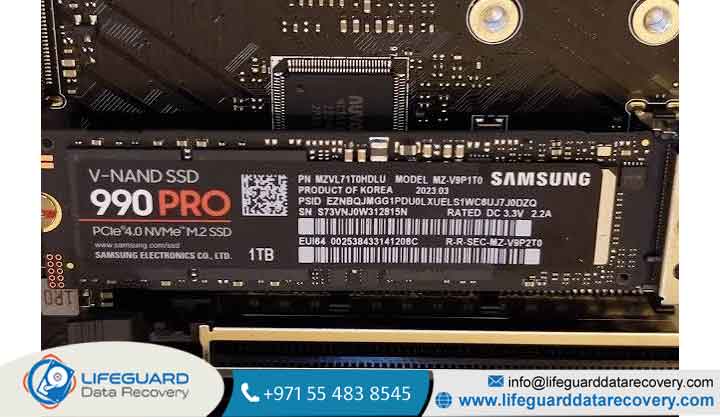
An SSD entering read-only mode can bring your work to a sudden halt. One moment you are saving files, and the next you are hit with a “Disk is write-protected” error, unable to modify, delete, or create new data.
While this issue is frustrating, it is actually a built-in safety mechanism. Unlike traditional hard drives that fail abruptly, solid-state drives are engineered to protect your existing files when critical errors occur.
Below is a complete guide to understanding why your SSD locked write access, how to safely recover your data, and step-by-step methods to fix the underlying issue.
What Does It Mean When an SSD Is Stuck in Read-Only Mode?
When an SSD enters read-only mode (also known as write-protected mode), your operating system can view and open existing files, but it cannot write new data, alter existing documents, or execute delete commands to the storage blocks.
This behavior is controlled directly by the SSD’s onboard controller and firmware. NAND flash memory has a finite number of Program/Erase (P/E) cycles. When the controller detects that memory cells are failing or that internal wear thresholds have been reached, it locks write access. By preventing further write operations which require higher electrical voltage and risk corrupting adjacent cells the drive preserves your stored data so you can copy it safely.
Symptoms of an SSD Read-Only Error
Identifying an SSD read-only error early helps prevent accidental data loss. Common indicators include:
-
Write-Protection Alerts: Windows displays messages such as “The disk is write-protected” or “Access Denied” when saving files.
-
Inability to Delete Files: Files and folders disappear when deleted, only to reappear immediately upon refreshing File Explorer.
-
Application Crashes: Software fails to open or crashes during launch because it cannot write temporary cache files or system logs to the drive.
-
System Boot Failures: If the affected SSD is your primary OS boot drive, Windows may throw a Blue Screen of Death (BSOD) or mount the file system as read-only during startup.
-
Read-Only Flags in Disk Management: Windows Disk Management lists the drive state as “Read-Only” or “Write-Protected.”
Why Does an SSD Suddenly Become Read-Only? Key Causes
Understanding why an SSD suddenly becomes read-only requires looking at both physical hardware limitations and software-level triggers.
Exhausted NAND Flash Endurance (TBW Limit): Every SSD has a rating for Total Bytes Written (TBW). Once memory cells exhaust their P/E cycles, the controller permanently blocks writes to stop data corruption.
-
Depleted Reserve Spare Blocks: SSDs reserve extra memory blocks to replace worn-out ones over time. When these spare blocks are fully depleted, the controller locks the drive into read-only protection.
-
Controller Panic Mode: Physical power surges, sudden shutdowns, or critical firmware glitches can push the drive controller into a protection mode to prevent physical damage.
-
File System Corruption: Unsafe removals, sudden power outages, or bad blocks can corrupt the file system structure (NTFS, FAT32, or exFAT), forcing the OS to mount the volume as read-only.
-
Software and OS Permissions: Windows registry keys, third-party antivirus utilities, or full-disk encryption like BitLocker can mistakenly flag a healthy volume as write-protected.
-
Faulty Enclosures and Cables: If you use an external NVMe/SATA enclosure or USB adapter, a failing bridge controller or loose cable can interrupt write signals, triggering an SSD write failure.
Crucial First Step: Secure Your Files Before Attempting Any Fixes
WARNING: Running diagnostic commands like
chkdskor forced format utilities on a physically failing SSD can stress the controller and make remaining data unrecoverable. Always back up your data first.
Before attempting any troubleshooting steps, follow this safety protocol:
-
Copy Files to a Secondary Drive: Connect an external drive or secondary storage unit and manually copy your critical files off the read-only SSD.
-
Create a Bit-Level Disk Image: If manual copying fails or freezes, use disk imaging software to create a sector-by-sector clone of the drive.
-
Know When to Stop: If the drive disconnects frequently, drops read speeds to zero, or makes your system freeze, cease DIY attempts immediately and seek a professional SSD recovery service.
How to Fix an SSD Stuck in Read-Only Mode: Step-by-Step Guide
Follow this logical troubleshooting order starting with health verification before executing command-line changes.
Check Drive Health via S.M.A.R.T. Attributes
Before changing software settings, verify whether your SSD has suffered permanent physical wear.
-
Download your SSD manufacturer’s diagnostic utility (e.g., Samsung Magician, Crucial Executive, or Western Digital Dashboard) or a universal tool like CrystalDiskInfo.
-
Inspect the Health Status and key S.M.A.R.T. attributes:
-
Percentage Used / Wear Level Indicator: If this reads 100%, the NAND flash has reached its end of life.
-
Available Spare: If this value drops to 0%, spare memory blocks are exhausted.
-
Critical Warning: Any non-zero value indicates imminent hardware failure.
-
If S.M.A.R.T. indicates hardware failure, the read-only lock is permanent. You must replace the drive. If S.M.A.R.T. status reads “Good,” proceed to Step 2.
Clear Read-Only Flag Using Diskpart (Windows)
Software bugs can sometimes toggle a logical write-protection attribute on the drive within Windows.
-
Right-click the Start Menu and select Terminal (Admin) or Command Prompt (Admin).
-
Type
diskpartand press Enter. -
Type
list diskand press Enter to locate your SSD’s disk number. -
Type
select disk X(replace X with your SSD’s actual disk number) and press Enter. -
Type
detail diskto review current attributes. -
Type
attributes disk clear readonlyand press Enter. -
Type
exitto close Diskpart, then restart your PC and test write access.
Run Disk Diagnostics and Repair Corrupted File Systems
If file system corruption is preventing write access, use native command-line repair tools.
-
Open Command Prompt (Admin).
-
Type
chkdsk X: /f /r(replace X with the drive letter of your read-only SSD) and press Enter. -
Allow the repair scan to complete. If prompted to dismount the volume, type
Yand press Enter.
Check Third-Party Antivirus, BitLocker, or Encryption Locks
Security layers can trap an SSD in a protected, read-only state:
-
BitLocker Interruption: If BitLocker encryption was interrupted by a power failure, open Control Panel > BitLocker Drive Encryption and choose to complete or pause encryption.
-
Antivirus Restrictions: Security software may lock a drive to block perceived ransomware activity. Temporarily disable your antivirus to test write access.
Test Physical Hardware, Enclosures, and Firmware Updates
External factors can alter how the OS communicates with the storage controller:
-
Bypass Adapters: If using an external USB/NVMe dock, remove the SSD and connect it directly to a motherboard SATA or M.2 PCIe slot.
-
Update Firmware: Open your manufacturer’s SSD management application and check for pending firmware updates, which can resolve controller lock bugs.
What to Do If the SSD Is Permanently Locked (Hardware Wear-Out)
If you cleared software flags, checked registry keys, and tested cables, but the drive remains write-protected, your SSD has likely reached its physical end-of-life write limits.
When an SSD controller triggers a permanent hardware lockup, formatting will fail with a “Disk is write-protected” error. The drive cannot be repaired it must be replaced.
How to Prevent Your SSD from Going Read-Only in the Future
While all SSDs eventually wear out, proper care extends drive lifespan significantly:
-
Monitor Drive Health Regularly: Keep vendor diagnostic software installed to receive early alerts when TBW or spare blocks drop below safe thresholds.
-
Maintain Free Capacity: Keep at least 15–20% of your SSD space unallocated or free. This allows the controller to perform efficient wear leveling and garbage collection.
-
Use Uninterruptible Power Supplies (UPS): Sudden power losses corrupt file allocation tables and trigger panic states in drive controllers.
-
Avoid Unnecessary Benchmarking: Excessive stress-testing and write-heavy benchmarks burn through finite P/E cycles unnecessarily.
Frequently Asked Questions (FAQs)
Can I format an SSD that is stuck in read-only mode?
If the read-only state is caused by a software permission error, formatting will work. However, if the read-only lock was triggered by hardware wear-out or controller failure, format operations will fail with a write-protection error.
Will running CHKDSK fix a read-only SSD or lose my data?
Running chkdsk on a drive with logical file system corruption can restore normal write operations. However, running chkdsk on an SSD experiencing physical NAND wear can cause additional drive stress and potential file corruption. Always back up your data before running disk checks.
Does read-only mode mean my SSD is completely dead?
No. Read-only mode means the drive’s write capabilities are disabled, but read functions usually remain intact. This design allows you to access and recover files from read-only SSD hardware before replacing the drive.
When should I contact a professional SSD recovery service?
You should seek professional SSD recovery if the drive fails to mount, disconnects repeatedly during file transfers, crashes your computer upon connection, or if S.M.A.R.T. health checks indicate severe critical hardware failures.


















