
A laptop that refuses to boot can be stressful, especially when it contains important photos, documents, business files, or other personal data. The good news is that a laptop not starting does not automatically mean your files are lost.
In many cases, the problem is related to the operating system, boot configuration, battery, display, motherboard, or another component while the data remains stored safely on the internal HDD or SSD. However, if the storage device itself is failing, continuing to use it or attempting the wrong repair can make recovery more difficult.
This guide explains how laptop data recovery works when a laptop will not boot, what you can safely try, and when it is better to stop troubleshooting and protect the original storage device.
Can You Recover Files From a Laptop That Won’t Boot?
Yes, files can often be recovered from a laptop that will not boot, provided the storage device is still accessible and the data has not been seriously damaged or overwritten.
A boot failure and a storage failure are two different problems. For example, corrupted Windows system files may prevent the computer from loading even though personal files remain intact. Similarly, a failed laptop screen or motherboard can make the device appear unusable while its internal drive continues to contain the data.
The recovery process depends on what is actually preventing the laptop from starting.
A Laptop That Won’t Turn On vs. One That Won’t Boot
These symptoms are often confused:
- Won’t turn on: No lights, fan activity, charging response, or other signs of power.
- Turns on but won’t boot: The laptop powers up but stops at a logo, error screen, blank display, or boot loop.
- Windows starts and crashes: The operating system begins loading but fails before reaching the desktop.
- Drive-related error: The computer reports that no boot device or operating system can be found.
Identifying which situation you have is an important first step in laptop not booting data recovery.
Why Is Your Laptop Not Booting?
There are several possible reasons a laptop may fail to start. The cause does not necessarily involve the files themselves.
Battery, Charger, or Power-Related Failure
A failed charger, battery, charging port, power circuit, or motherboard component can prevent a laptop from powering on.
If the storage device has not been affected, the files may still be recoverable even if the laptop itself requires significant repair.
Motherboard or Logic Board Failure
A damaged motherboard can prevent communication between the processor, memory, storage, display, and other components.
This is particularly important with newer laptops where storage may be integrated into the motherboard. In such cases, simply removing a drive and connecting it to another computer may not be possible.
Operating System or Bootloader Corruption
Windows may fail to start because of damaged system files, boot configuration problems, incompatible drivers, or other software issues.
Microsoft’s Windows Recovery Environment includes tools such as Startup Repair, System Restore, Startup Settings, and Command Prompt to troubleshoot startup problems.
Hard Drive or SSD Failure
A damaged HDD or SSD can also cause a boot failure. Warning signs can include:
- The storage drive is not detected.
- The laptop repeatedly freezes during startup.
- Files become inaccessible.
- The system reports a missing boot device.
- An HDD produces unusual clicking or grinding sounds.
When physical storage failure is suspected, repeated boot attempts are not a good recovery strategy.
Liquid Damage, Drops, Overheating, or Power Surges
Physical damage can affect the motherboard, storage device, or both. A laptop may stop working after being dropped, exposed to liquid, overheated, or affected by an electrical event.
If important files are stored on the laptop, avoid repeatedly powering on a device that has suffered liquid or serious physical damage.
Signs Your Laptop’s Data May Still Be Recoverable
Certain symptoms can provide clues about whether recover files from laptop that won’t start is likely to be possible.
The Laptop Turns On but Windows Won’t Start
If the laptop powers on and reaches a Windows error or recovery screen, the issue may be related to the operating system rather than complete storage failure.
Windows Recovery Environment can automatically launch after repeated startup failures and provides several troubleshooting tools.
The Laptop Shows a Boot Error or Blue Screen
A boot error does not automatically mean the personal files are gone. The message may point toward damaged system files, boot configuration, drivers, or storage problems.
Before performing a reset or reinstall, important files should be protected whenever possible.
The Laptop Shows Lights or Fan Activity but No Display
If the laptop appears to power on but the screen remains blank, the problem could involve the display, graphics system, memory, or motherboard.
In this situation, the storage device may still be completely readable.
The Drive Is Detected in BIOS/UEFI
If the internal drive appears in the laptop’s BIOS or UEFI settings, that can be a useful indication that the system can still communicate with the storage device.
However, detection alone does not guarantee that every file is readable.
The Drive Is Clicking, Grinding, or Completely Undetected
A clicking or grinding HDD should be treated differently from a normal software boot problem. A completely undetected drive can also indicate hardware or firmware failure.
If the data is important, stop unnecessary testing rather than repeatedly restarting the laptop.
How to Recover Files From an Unbootable Laptop
The safest recovery approach depends on the condition of the laptop and its storage.
Stop Repeatedly Trying to Boot
If you suspect a storage problem, minimize unnecessary power cycles.
Microsoft also recommends minimizing use when trying to recover deleted files because continued use can overwrite available storage space.
Check for an Existing Backup
Before attempting complicated recovery, check whether the required files already exist in:
- External backups
- OneDrive
- iCloud
- Google Drive
- File History
- Time Machine
- Business or network backups
A backup can be the simplest way to recover files without modifying the original laptop.
Perform Basic Power Checks
If the laptop does not appear to power on, check the charger, power connection, and other obvious external causes.
For Mac users, Apple recommends checking the power connection, disconnecting accessories, and holding the power button for about 10 seconds as part of its basic startup troubleshooting.
Try the Manufacturer’s Recovery or Boot Environment
If the laptop powers on but does not load the operating system, use the appropriate recovery environment when the storage appears healthy.
For Windows, Windows RE provides access to Startup Repair, System Restore, Startup Settings, Command Prompt, and other recovery tools.
Use Startup Repair When Appropriate
Windows Startup Repair is specifically designed to diagnose and repair certain startup problems, including damaged system files and boot configuration problems.
This can be useful when the issue is with Windows rather than the physical storage device.
Be Careful With Reset and Reinstallation Options
Do not automatically choose a reset or reinstall simply because Windows will not start.
Some recovery operations can alter the system or remove files. Microsoft notes that resetting a device can remove personal files depending on the selected option.
If the files are important and no backup exists, prioritize data recovery before destructive operating-system repairs.
Remove a Removable HDD or SSD When Appropriate
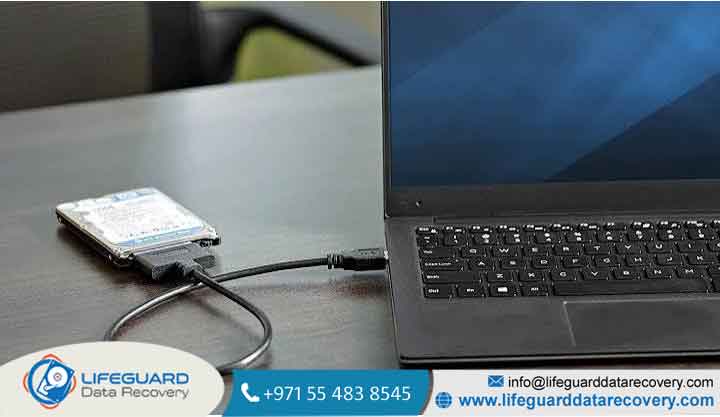
If the laptop uses a removable SATA HDD, SATA SSD, or compatible M.2 SSD, the storage device may be connected to another computer using the correct adapter or enclosure.
This can allow access to the files even when the original laptop itself is not operational.
Copy Important Files to a Separate Device
If the drive is readable, copy the most important files to another storage device first.
Do not use the original drive as the destination for recovered files. Keeping the source and recovered data separate reduces the risk of overwriting information you are trying to preserve.
Laptop Hard Drive Recovery: What You Need to Know
Laptop hard drive recovery can range from a simple file copy to specialized recovery work, depending on the condition of the HDD.
Healthy HDD With a Failed Laptop
If the laptop’s motherboard, screen, keyboard, or power system has failed but the HDD remains healthy, accessing the drive from another compatible computer may be enough to retrieve the files.
Corrupted HDD File System
A hard drive can remain physically functional while its file system becomes corrupted. The drive might appear as RAW, show an incorrect capacity, or display inaccessible partitions.
Avoid immediately formatting such a drive when important files are present.
Physically Damaged HDD
Mechanical HDDs contain moving components. Clicking, grinding, repeated spin-up attempts, or severe detection problems can indicate physical damage.
If valuable files are stored on a physically failing HDD, professional data recovery from laptop hard drive may be safer than repeatedly scanning or repairing it.
Why You Should Not Open a Hard Drive at Home
Opening a traditional HDD exposes its internal components to contaminants and can introduce additional problems.
A physically damaged HDD should be handled using appropriate equipment and procedures rather than opened casually at home.
Laptop SSD Data Recovery: Is It Different?
Laptop SSD data recovery can be more complicated than ordinary HDD file recovery because SSDs use flash memory, controllers, firmware, and storage-management technologies.
Why SSDs Have No Moving Parts
Unlike HDDs, SSDs have no spinning platters or mechanical read/write heads. This means an SSD can fail without producing the familiar clicking sound associated with some failing HDDs.
SSD Controller or Firmware Failure
An SSD can become inaccessible because of controller, firmware, electrical, or NAND-related problems.
A drive that suddenly disappears from the system should not automatically be assumed to be empty.
TRIM and Deleted Data
Deleted-data recovery can be more difficult on SSDs because technologies such as TRIM can affect how deleted blocks are handled.
This is different from recovering files from a laptop that simply cannot boot. If the files still exist but the operating system will not start, the recovery situation may be considerably better.
Encryption on Modern SSDs
Encryption can protect data but also means that the appropriate password or recovery key may be necessary for access.
Windows Device Encryption and BitLocker can require a recovery key after certain hardware or security changes. Microsoft describes the BitLocker recovery key as a 48-digit key used to regain access to an encrypted drive.
What If the Laptop Has a Soldered SSD?
Some modern laptops use storage configurations that cannot simply be removed and placed into an external enclosure.
Removable vs. Integrated Storage
With a removable M.2 or SATA drive, the storage may be accessible independently from the laptop.
With integrated storage, the recovery process can depend heavily on the condition of the motherboard and storage architecture.
What Happens When the Motherboard Fails?
A motherboard failure does not necessarily mean the stored data is gone, but it can make access substantially more complicated.
This is one reason why recover files from failed laptop situations should be assessed based on the specific laptop model and storage design.
Why Modern MacBooks Need Special Consideration
Apple provides macOS Recovery and startup options for Macs that fail to start. On Apple silicon Macs, holding the power button during startup can bring up startup options, from which macOS Recovery can be accessed.
Apple also provides Recovery Assistant on supported newer macOS versions for certain startup problems.
Windows Laptop Data Recovery: What Should You Try First?
For Windows laptop data recovery, first determine whether Windows itself is failing or whether the storage device is inaccessible.
Windows Recovery Environment
Windows RE provides tools for troubleshooting computers that cannot start normally. Startup Repair, System Restore, Startup Settings, and other options can be accessed from this environment.
Safe Mode
Windows Startup Settings includes Safe Mode options that load Windows with a limited set of files and drivers, which can help diagnose certain software and driver problems.
Avoid Reinstalling Windows Before Securing Important Files
If important files exist only on the laptop, avoid jumping directly to a clean installation.
The goal should be to protect the data before making major changes to the operating system.
What If Windows Says “You Need to Format the Drive”?
Do not automatically format the drive.
A formatting prompt can appear when Windows cannot correctly interpret the file system. If important files are stored there, investigate the cause before accepting the format.
What If My Laptop Won’t Turn On at All?
If there are no obvious signs of power, the recovery question becomes slightly different.
No Lights, Fan, or Charging Response
The problem may be the charger, battery, charging circuit, motherboard, or another power component.
The storage may remain unaffected.
Black Screen but Signs of Power
A laptop that powers on but displays nothing may have a screen, graphics, memory, or motherboard problem rather than a storage problem.
Water-Damaged Laptop
If the laptop has suffered liquid damage, avoid repeatedly powering it on to “see if it works.”
The priority should be preventing further electrical damage and preserving the storage and other components.
Laptop Damaged After a Drop or Surge
Physical impact or electrical damage can affect both the laptop’s main electronics and its storage.
If the laptop contains irreplaceable files, repeated testing may not be worth the risk.
When Should You Stop DIY Laptop Data Recovery?
DIY recovery can be reasonable when the storage is healthy and accessible. However, there are situations where continuing can increase the risk.
The HDD Is Clicking or Grinding
Stop unnecessary operation if a mechanical drive is producing abnormal sounds.
The Drive Is Not Detected
If the storage device is completely missing from BIOS/UEFI or another computer, ordinary file-copying methods may not work.
The Drive Shows as RAW or Unallocated
Do not format an important drive simply because Windows cannot recognize its file system.
The Laptop Has Soldered Storage
If storage is integrated into the motherboard, ordinary drive removal may not be an option.
The Laptop Has Been Exposed to Liquid
Avoid repeated power attempts after liquid damage, particularly when valuable data is involved.
Common Mistakes That Can Make Laptop Data Recovery Harder
Don’t Format the Drive
Formatting can change the file system and complicate recovery.
Don’t Reinstall Windows Before Recovering Important Files
A reinstall can change or overwrite information on the storage device.
Don’t Run Intensive Recovery Software on a Failing HDD
A physically damaged HDD may deteriorate further when subjected to prolonged scanning.
Don’t Open a Hard Drive Outside a Proper Environment
Opening an HDD can expose sensitive internal components to contamination and additional damage.
Don’t Keep Powering a Clicking Drive On and Off
Repeated operation of a mechanically failing drive is not a sensible recovery strategy.
Don’t Assume a Motherboard Replacement Automatically Solves Data Access
Modern laptops can use storage architectures where motherboard replacement has implications for access to the original data.
DIY Recovery vs. Professional Laptop Data Recovery
Not every laptop data recovery service situation requires specialized intervention. The key is understanding when DIY recovery is appropriate.
When DIY Recovery May Be Reasonable
DIY recovery may be appropriate when:
- The drive is detected normally.
- The laptop has a straightforward hardware problem.
- The drive is not showing physical failure symptoms.
- The files are backed up elsewhere.
- The data is not highly critical.
When Professional Recovery May Be Safer
Consider specialized recovery when:
- The HDD is clicking or grinding.
- The drive is not detected.
- The storage has suffered physical damage.
- The laptop has liquid damage.
- The drive contains critical business or personal files.
- Encryption prevents normal access.
- The laptop uses integrated storage.
- Previous recovery attempts have failed.
What a Professional Recovery Process Typically Involves
A specialized recovery process generally begins with diagnosis rather than immediately attempting file extraction.
Depending on the failure, the process can involve logical analysis, controlled imaging, hardware-level work, file-system reconstruction, or specialized access techniques.
The objective is to preserve the original storage device while recovering accessible data to a separate destination.
How to Choose a Data Recovery Service
If you search for laptop recovery near me, look beyond proximity.
Consider whether the provider has experience with HDD and SSD failures, appropriate diagnostic equipment, secure handling procedures, transparent recovery policies, and experience with the specific type of storage involved.
How Much Data Can Be Recovered From a Laptop That Won’t Boot?
There is no universal recovery percentage that can be accurately predicted from the symptom “laptop won’t boot.”
Recoverability depends on:
- Condition of the HDD or SSD
- Physical damage
- File-system condition
- Encryption
- Amount of overwritten data
- Storage architecture
- Previous repair attempts
- Whether the drive is detected and readable
A laptop with a failed motherboard and a healthy SSD can have a very different recovery outlook from a laptop with a severely damaged SSD.
How to Prevent Data Loss If Your Laptop Fails Again
The best laptop data recovery strategy is to avoid having recovery become the only option.
Keep Regular Backups
Maintain copies of important files on independent storage. For particularly important information, use more than one backup location.
Use Cloud Synchronization Carefully
Cloud synchronization can make files available across devices, but synchronization should not automatically be treated as a complete backup strategy.
Monitor Drive Health
Pay attention to unusual drive behavior, unexplained crashes, increasing file errors, or storage warnings.
Protect the Laptop From Heat, Moisture, and Power Problems
Avoid excessive heat, liquid exposure, and unstable power conditions where possible.
Keep Recovery Keys Accessible
If device encryption or BitLocker is enabled, keep the recovery key somewhere secure and accessible when needed. Microsoft notes that BitLocker recovery keys may be associated with a Microsoft account, work/school account, printed record, or other saved location depending on how encryption was configured.
Frequently Asked Questions About Laptop Data Recovery
Can I recover files from a laptop that won’t turn on?
Often, yes. If the laptop’s power or motherboard has failed but the internal storage remains healthy, the files may still be accessible.
Can I recover files from a laptop that won’t boot into Windows?
Yes, in many cases. A Windows boot problem can occur even when personal files remain intact. Windows RE provides several tools for diagnosing startup problems.
Can I recover data from a dead laptop?
Potentially. A “dead” laptop does not necessarily mean a dead storage device. The recovery path depends on whether the HDD or SSD can still be accessed.
Can I recover files from a laptop that won’t start?
Yes, depending on the cause. A failed screen, battery, motherboard, or other component may leave the storage untouched.
Is laptop data recovery possible after a hard drive failure?
It can be, but the outcome depends on whether the failure is logical or physical and how severely the HDD is damaged.


















