
Few technical alerts trigger immediate panic quite like an unresponsive hard drive. Whether it is an external drive holding years of irreplaceable family photos or a internal desktop drive storing critical work files, a hard drive failure threatens total data loss.
Understanding what causes hard drive failure is the first step toward preventing hardware crashes, diagnosing system errors early, and taking the right emergency steps to save your files. This guide breaks down the physical, environmental, and logical reasons hard drives fail, the early warning symptoms to watch out for, and an emergency action plan when a drive stops working.
Hard Drive Failure 101: Mechanical HDDs vs. SSDs
To understand why storage media degrades, you must first distinguish between traditional Mechanical Hard Disk Drives (HDDs) and Solid-State Drives (SSDs).
-
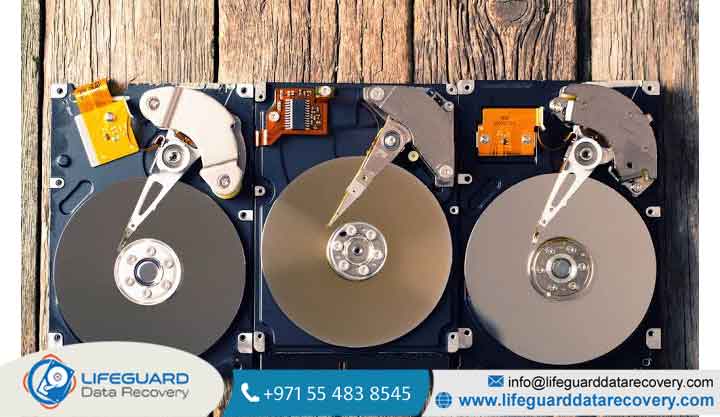
Mechanical Hard Drives (HDDs): HDDs rely on physical moving components. Inside an HDD, magnetic platters spin at speeds ranging between 5,400 to 7,200 RPM while micro-actuator arms position read/write heads just nano meters above the spinning surface. Because HDDs depend on high-precision mechanical motion, they are vulnerable to physical shock, mechanical wear and tear, and manufacturing fatigue.
-
Solid-State Drives (SSDs): SSDs have no moving parts. Instead, they store data on flash memory chips (NAND flash). While SSDs are immune to mechanical motor failures, they experience electronic cell wear over time and are susceptible to controller failures and voltage spikes.
Note: This article focuses primarily on traditional mechanical hard drives (HDDs), though many logical failure causes apply to both storage types.
Common Causes of Hard Drive Failure: Mechanical, Environmental, and Logical
According to industry data stats from Backblaze (which continuously monitors over 300,000 active enterprise storage drives), hard drive failure rates increase significantly as drives age past the 3-to-5-year mark. The primary reasons for hard drive failure fall into three categories: physical/mechanical, environmental, and logical.
Physical and Mechanical Component Degradation
Mechanical components wear out over time. One of the most severe failure causes is a head crash, which occurs when the read/write head touches the magnetic platter surface, scraping away the thin magnetic layer containing your data. Additionally, spindle motors that spin the drive platters can seize up due to worn-out bearings, preventing the drive from powering up at all.
Physical Damage, Drops, and Impact Exposure
Physical impact is among the leading hard drive failure causes in external drives and laptops. Even a short fall off a desk while the platters are spinning can cause the actuator arm to slam into the platter, causing permanent surface damage and rendering the drive unreadable.
Hard Drive Overheating Issues and Airflow Restrictions
Operating a hard drive in an environment with high ambient temperatures or clogged cooling vents drastically accelerates hardware failure. Severe hard drive overheating issues cause metallic internal parts to expand slightly, drying out spindle lubricants and creating internal friction. Prolonged thermal stress weakens electronic board components and degrades platter coatings.
Electrical Surges, Power Fluctuations, and Sudden Shutdowns
An unexpected power outage or high-voltage power surge can burn out the Printed Circuit Board (PCB) mounted on the exterior of the hard drive. Furthermore, if power drops while the drive is actively writing system indexes, data blocks can be partially written, triggering severe corruption.
Hard Drive Bad Sectors and File System Corruption
Hard drive sectors are small storage units on a platter. They are classified into two types:
-
Hard Bad Sectors (Physical): Permanent physical damage to a sector caused by head strikes or manufacturing defects.
-
Soft Bad Sectors (Logical): Logical errors occurring when the operating system’s ECC (Error Correcting Code) does not match the written data, often triggered by improper system shutdowns or malware.
As hard drive bad sectors accumulate, the operating system struggles to read files, resulting in severe performance throttling or system crashes.
Firmware Corruptions and Manufacturing Defects
Every hard drive relies on embedded firmware stored on controller chips to manage data access. If this microcode degrades or experiences firmware corruption, the drive may spin up normally but remain completely unrecognized by the host operating system’s BIOS.
Early Warning Signs of Hard Drive Failure
Catastrophic failure rarely happens without prior warning signs. Knowing why is my hard drive failing starts with recognizing these early indicators.
Clicking Hard Drive Causes and Mechanical Noises
Unusual physical sounds are clear indicators of mechanical hardware issues.
-
The “Click of Death”: A rhythmic clicking sound occurs when the drive’s read/write head attempts to read data, fails, and continuously snaps back to its home position.
-
Grinding or Whining Sounds: High-pitched grinding indicates that spindle bearings are seizing or that read/write heads are physically coming into contact with the spinning platter surface.
System Sluggishness, Freezing, and Blue Screens (BSOD)
If simple file transfers suddenly take hours, or if Windows frequently encounters Blue Screen of Death (BSOD) crashes when accessing specific folders, the operating system is likely encountering unreadable bad sectors.
Hard Drive Not Detected Causes and Disappearing Volumes
When an internal or external drive intermittently drops connection, disappears from Windows File Explorer/Mac Finder, or triggers “Drive Not Formatted” errors, the drive is likely experiencing controller failure, corrupt partition tables, or damaged power delivery pathways.
What to Do When Your Hard Drive Fails (Emergency Triage Flowchart)
When a hard drive fails, your immediate actions determine whether your data can be recovered or is permanently lost.
Immediate Triage – The “Emergency Stop” Rule
If your drive is clicking, grinding, or making loud metallic sounds, power off the computer or disconnect the external cable immediately. Allowing a damaged drive to continue spinning can cause the failed head to scrape the magnetic coating off the platters, permanently destroying the underlying data.
Safe DIY Troubleshooting for Non-Clicking Drives
If the drive spins quietly but files are missing or inaccessible:
-
Check Cables: Swap the USB port, SATA data cable, and power connector to rule out bad wiring.
-
Check Disk Management: On Windows, press
Win + Xand select Disk Management (or Disk Utility on macOS) to see if the drive appears as an unallocated volume. -
Check S.M.A.R.T. Status: Use free diagnostic software (like CrystalDiskInfo) to read the drive’s Self-Monitoring, Analysis, and Reporting Technology (S.M.A.R.T.) telemetry for reallocated sector counts.
Understanding Failed Hard Drive Recovery Options
When dealing with data loss due to hard drive failure, understand the difference between recovery tools and cleanroom services:
-
Software Recovery Tools: Effective ONLY for logical corruption, deleted partitions, or soft bad sectors on quiet, physically healthy drives. Running scanning software on a physically degraded drive will strain the hardware and accelerate total failure.
-
Professional Data Recovery Services: If your drive has suffered physical drops, head crashes, or PCB damage, specialized hardware recovery is necessary. Data recovery specialists open the drive inside ISO-certified cleanroom environments to repair mechanical components and extract raw disk images.
If your hard drive contains vital business or personal files and exhibits hardware errors, consult professional hard drive data recovery services before taking further troubleshooting steps that could risk permanent data loss.
How to Prevent Hard Drive Failure and Protect Your Data
While every mechanical drive will eventually fail due to hardware wear, these steps can prevent premature drive failure and protect your files:
Proactive Hardware Care and Thermal Management
-
Provide Ventilation: Ensure your PC tower or external enclosure has proper ventilation and clean out dust buildup every 6 months using compressed air.
-
Use Surge Protection: Connect your computer setup to an Uninterruptible Power Supply (UPS) or a quality surge protector to shield electronics from brownouts and voltage spikes.
-
Handle External Drives Safely: Never move or jar an external hard drive while it is plugged in and actively spinning.
S.M.A.R.T. Monitoring and Health Checks
Set up automated S.M.A.R.T. utility monitoring to alert you the moment reallocated sectors or write errors increase. Catching sector degradation early gives you a window to transfer your files before the drive fails completely.
The 3-2-1 Backup Strategy
Hardware failure is only a crisis if you lack backups. Implement the 3-2-1 backup rule:
-
3 total copies of your data.
-
Stored on 2 different storage media types (e.g., local external drive + internal drive).
-
With 1 copy stored securely offsite or in the cloud.
Frequently Asked Questions (FAQs)
How long does a standard hard drive usually last?
Under normal operating conditions, a consumer-grade mechanical hard drive typically lasts between 3 to 5 years. Environmental factors like excessive heat, high usage workloads, and physical vibration can shorten this lifespan.
Can a hard drive failure be fixed without losing data?
If the failure is caused by logical corruption or minor soft bad sectors, software repair utilities can often restore accessibility without data loss. However, physical mechanical failures (like a head crash) require cleanroom hardware repair to recover data. Once a mechanical drive fails physically, it cannot be permanently “fixed” for continued daily use; the goal is data extraction.
What is the most common cause of hard drive failure?
The most common causes are physical mechanical wear and tear on spinning components, head crashes from physical shock, and thermal degradation from overheating.
Can overheating permanently damage a hard drive?
Yes. Prolonged overheating dries out spindle motor lubricants, damages delicate controller board circuits, and can cause physical expanding of platter elements leading to head strikes.


















