
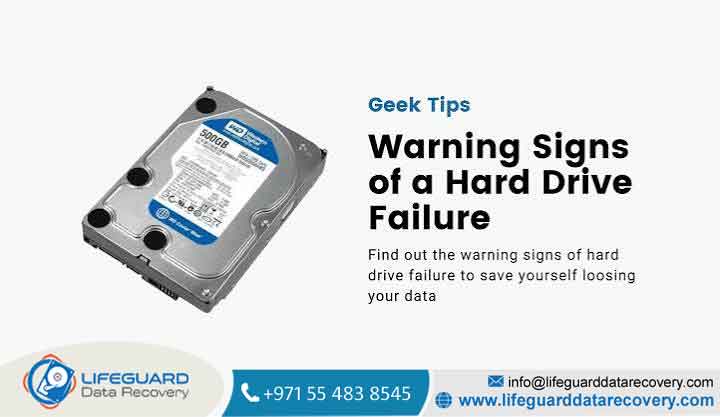
Every mechanical hard drive operates on borrowed time. Unlike software errors that can be patched or operating systems that can be reinstalled, physical hard drive degradation is an irreversible electro-mechanical decline.
Because modern drives store billions of bits across microscopic magnetic tracks spinning at speeds up to 7,200 RPM, even minor hardware wear can escalate into total data destruction. Identifying early warning indicators allows you to safeguard your files before the drive stops responding entirely.
Hard Drive Failure Explained: Mechanical HDDs vs. Solid-State SSDs
A hard disk drive (HDD) relies on moving mechanical components: magnetic platter disks, a spindle motor, and an actuator arm that positions read/write heads nano meters above the spinning surface. When an HDD begins to fail, physical degradation in these moving parts usually creates clear mechanical and acoustic warning signs.
In contrast, solid-state drives (SSDs) contain no moving parts, storing data on NAND flash memory chips. While this guide focuses primarily on mechanical HDDs, it is vital to recognize how failure modes differ:
-
HDDs typically exhibit a gradual decline giving users hours, days, or weeks of warning through physical noises, slow read times, and sporadic bad sectors.
-
SSDs frequently fail without acoustic warning. Flash drives often drop into a read-only mode or experience controller failure, causing the drive to disappear from the system without advance symptoms.
Physical Signs of Hard Disk Failure (Hardware & Audio Indicators)
Physical symptoms indicate mechanical or electrical degradation. When these signs appear, hardware failure is active and progressing.
The “Clicking Noise” & Grinding Sounds (The Click of Death)
A healthy hard drive produces a faint humming sound along with soft clicking during heavy read/write operations. However, loud, rhythmic clicking, sweeping, or metallic grinding indicates a serious mechanical failure:
-
Rhythmic Clicking: Known as the “Click of Death,” this occurs when the actuator arm attempts to position the read/write head over a track, fails to read the servo position data, and recoils back to its home position before trying again.
-
Scraping or Grinding: Indicates direct physical contact between the read/write head and the magnetic platter surface (a head crash) or severe bearing wear within the spindle motor.
Critical Warning: If your drive begins grinding or clicking rhythmically, shut down the computer immediately. Continued power delivery spins the platters, allowing damaged read/write heads to scrape away the magnetic storage layer and permanently destroy your data.
Excessive Heat, Burning Smells, and Spindle Motor Stalls
Hard drives naturally warm up during operation, but excessive heat indicates internal failure:
-
Overheating: If the drive chassis becomes too hot to touch, the spindle motor bearing may be seizing, forcing the motor to draw extra power and build up heat.
-
Spindle Motor Stalls: When powered on, a failing drive may emit a high-pitched whine that quickly drops in pitch followed by complete silence. This means the motor lacks the torque required to overcome bearing friction or sticky read/write heads stuck to the platter surface (stiction).
-
Electrical Smells: A acrid, chemical odor indicates that a power surge or component breakdown has burned the drive’s printed circuit board (PCB).
System Performance & Software Symptoms of Hard Disk Failure
Software anomalies occur when the operating system encounters bad storage sectors or hardware read errors while attempting to load critical system files.
Frequent Blue Screens of Death (BSOD), Crashes, and System Freezes
When an operating system reads or writes to a section of the drive containing bad sectors, the I/O request hangs:
-
Windows BSODs: Errors such as
KERNEL_DATA_INPAGE_ERRORorCRITICAL_PROCESS_DIEDoften occur when the OS attempts to access system files stored on unreadable drive sectors. -
System Freezes: File Explorer may stop responding, or the entire OS may freeze for 30 to 60 seconds at a time while the hard drive controller repeatedly attempts to read a failing sector before giving up.
Extremely Slow File Transfer Rates and Abnormally Long Boot Times
As a hard drive degrades, its internal controller spends extra time executing error-correction algorithms:
-
Read Retry Delays: If opening a small document takes several minutes or copying a 1 GB file slows to kilobytes per second, the drive is attempting hundreds of internal retries to recover data from damaged sectors.
-
Extended Boot Times: If Windows or macOS takes ten times longer to boot than usual, the system is struggling to read initial startup configuration files scattered across failing disk tracks.
Sudden File Corruption, Missing Files, and Folder Access Errors
Data corruption occurs when magnetic decay causes stored bits to flip, rendering files unreadable:
-
Corrupted Documents: Files that previously opened cleanly suddenly report “File Format Not Recognized” or display scrambled characters.
-
Disappearing Files: Entire folders or files may vanish from directories if the drive’s Master File Table (MFT) or GUID Partition Table (GPT) loses index data stored on corrupted sectors.
-
Access Denied Errors: Operating systems may throw “Location is Not Accessible” or “Cyclic Redundancy Check (CRC) Error” pop-ups when you attempt to move or open a folder.
How to Tell If a Hard Drive Is Failing: Diagnostic Testing
To confirm hardware degradation without risking further damage, use native operating system interfaces and low-overhead diagnostic software.
Step 1: Checking Hardware Health via Windows PowerShell & macOS Terminal
Operating systems monitor hard drive health using built-in self-testing protocols.
On Windows (PowerShell)
To check your drive status without using deprecated tools like WMIC, open PowerShell as Administrator and run:
-
OK: The drive’s internal self-check has passed.
-
Pred Fail (Predictive Failure): The drive’s firmware has detected that operational thresholds have been crossed. Back up data immediately.
On macOS (Terminal)
Open Terminal and query Disk Utility’s system profile:
-
Verified: The drive is reporting normal operating parameters.
-
Failing: The drive has exceeded its internal error thresholds and requires immediate replacement.
Step 2: Interpreting S.M.A.R.T. Attributes
S.M.A.R.T. (Self-Monitoring, Analysis, and Reporting Technology) tracks internal operational metrics. Using diagnostic applications like CrystalDiskInfo (Windows) or DriveDx (macOS), focus on these raw attributes:
| S.M.A.R.T. Attribute Name | Attribute ID | Diagnostic Significance |
| Reallocated Sectors Count | 05 |
Shows the number of damaged sectors that have been retired and remapped to spare storage space. Any raw value above zero signals physical platter wear. |
| Current Pending Sector Count | C5 / 197 |
Tracks unstable sectors currently waiting to be reallocated due to read errors. A rising number indicates spreading surface damage. |
| Uncorrectable Sector Count | C6 / 198 |
Measures read/write errors that the internal controller could not fix using ECC (Error-Correcting Code). Signals imminent failure. |
| Power-On Hours | 09 |
Tracks the drive’s cumulative operating time, helping assess hardware age. |
Step 3: Resolving “Hard Disk Not Detected” Anomalies
If a drive fails to show up in File Explorer or Finder, determine whether the issue is logical or physical:
-
Check Disk Management / Disk Utility: Press
Win + Xand select Disk Management. If the drive appears as “Uninitialized” or “RAW,” the hardware is readable, but the partition table is corrupted. -
Check the System BIOS/UEFI: Restart your computer and enter the BIOS setup screen. If the drive is not listed under SATA or NVMe storage devices, the drive has suffered a total PCB, controller, or power supply failure.
-
Inspect Physical Connections: Swap the SATA data cable and power connector, or move the drive to an external enclosure to rule out port or cable defects.
Immediate First Aid: What to Do When Failure Symptoms Appear
When you spot failure signs, your primary goal switches from fixing the drive to rescuing your data.
Triage Rule #1: Stop Writing New Data & Avoid Stressful Scans
Do not run intensive diagnostic utilities like chkdsk /r or full surface scans on a physically failing hard drive. These commands force the drive heads to perform millions of rapid read/write operations over unstable magnetic sectors, which can overheat the drive motor or tear up the platter surface.
Triage Rule #2: Clone the Drive Instead of Copy-Pasting Individual Files
Manually selecting and copy-pasting individual files through Windows Explorer or macOS Finder forces the system to constantly update file indexes and directory trees, stressing a weak drive.
Instead, create a sector-by-sector clone or disk image using disk cloning utilities (such as ddrescue or specialized imaging tools). Imaging reads data sequentially, skipping unreadable bad sectors without hanging the system.
Primary Causes of Hard Disk Failure (And How to Prevent Them)
Preventing premature hard drive failure requires addressing the main environmental and mechanical stressors that degrade hardware.
| Cause Category | Primary Risk Factor | Prevention & Mitigation Strategy |
| Physical Damage | Drops, shocks, vibration during read/write operations | Avoid moving laptops or external hard drives while active; use anti-vibration rubber mounts in desktop cases. |
| Thermal Stress | Operating temperatures exceeding 50°C | Clean computer dust filters regularly; ensure unobstructed airflow across internal drive bays. |
| Electrical Issues | Voltage spikes, power outages, low-quality PSUs | Connect equipment to a surge protector or an Uninterruptible Power Supply (UPS) with Automatic Voltage Regulation (AVR). |
| Natural Wear | Component aging (typical lifespan: 3–5 years) | Track S.M.A.R.T. health attributes semi-annually and replace drives proactively after 4 years of heavy use. |
Frequently Asked Questions (FAQs)
How long does a hard drive last once it starts clicking?
A clicking hard drive can fail completely within minutes, or it may survive just long enough to complete a brief file transfer. Because clicking indicates mechanical failure in the actuator assembly, the drive should be powered off immediately to prevent total data destruction.
Can a failing hard drive be repaired without losing data?
No. Physical hard drive failure cannot be repaired through software updates or DIY fixes. Once physical components (like read/write heads or platters) are damaged, data can only be recovered by professional data recovery specialists operating in an ISO-certified cleanroom environment.
Is CHKDSK safe to run on a failing hard drive?
No. Running chkdsk /f or chkdsk /r on a physically failing drive is dangerous. CHKDSK attempts to stress-test unreadable sectors and rewrite file allocation tables. On a degrading drive, this extra workload can cause a total mechanical breakdown before critical files are backed up.
What is the difference between drive failure symptoms on Windows vs. Mac?
While internal hardware failures sound and act identical on both platforms, the software symptoms differ:
-
Windows typically responds with blue screens (
BSOD),Cyclic Redundancy Checkerrors, or File Explorer hangs. -
macOS often displays the “Spinning Beach Ball,” throws
Input/Output (I/O) Errordialogs, or fails Disk Utility’sFirst Aidverification.


















