
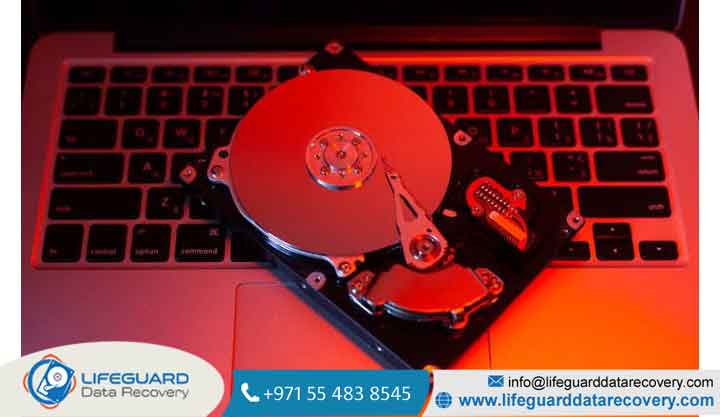
Whether you hear a sudden clicking sound, experience frequent system crashes, or find your files mysteriously corrupted, these anomalies are rarely random glitches. They are often early warning signs of a failing hard drive.
A traditional mechanical hard disk drive (HDD) relies on rapidly spinning magnetic platters and high-precision read/write heads operating on microscopic tolerances.
When these mechanical components degrade, failure can escalate from minor file lag to total, unrecoverable data loss in a matter of minutes. Knowing how to identify failing hard drive symptoms early allows you to backup your critical data before the drive dies permanently.
Understanding Hard Drive Health: How and Why Drives Fail
To recognize hard drive health symptoms, it helps to understand what is happening under the hood. Mechanical HDDs store data on coated magnetic platters that spin Tiny read/write heads float just nanometers above these platters on a cushion of air created by the spin.
When something disrupts this delicate balance, physical damage occurs.
Mechanical (HDD) vs. Solid-State (SSD) Failure Modes
While both store your files, HDDs and Solid-State Drives (SSDs) fail in fundamentally different ways:
-
Mechanical HDDs: Give acoustic and physical warnings such as clicking, grinding, or severe read slowdowns because they rely on moving parts that wear down over time.
-
SSDs: Rely on NAND flash memory and have no moving parts. They rarely make noise or show gradual warning signs. Instead, SSDs often fail suddenly due to controller panic or switch into a permanent read-only state.
Causes of Hard Drive Failure: What Triggers Drive Breakdown?
Hard drive components operate in a tightly sealed environment. When internal mechanisms or electronics degrade, catastrophic failure follows.
Mechanical Wear and Head Contact
Over years of operational cycles, the motor bearings holding the platters degrade, causing minor wobbles. Similarly, physical impacts (like dropping an external drive while it is running) cause the read/write head to slam directly into the magnetic platter an event known as a head crash.
Power Surges, Overheating, and Bad Sectors
-
Electrical Surges: Lightning strikes, poor power supplies, or improper cable disconnects send excessive voltage into the drive, burning out the controller board’s Transient Voltage Suppressor (TVS) diodes.
-
Overheating: Operating drives above 55°C (131°F) degrades internal lubricants and causes thermal expansion of internal metal components.
-
Bad Sectors: Repeated read/write strain degrades microscopic magnetic clusters on the platter, turning them into unreadable “bad sectors.”
Top Warning Signs of Hard Drive Failure
Recognizing these hard drive warning signs early gives you the window of opportunity needed to secure your files.
Unusual Mechanical Sounds (Clicking, Grinding, or Screeching)
A healthy drive produces a faint, smooth humming or quiet fluttering sound during file transfers. Clear, sharp mechanical noises indicate severe internal failure:
-
The “Click of Death”: A loud, repetitive ticking or clicking sound occurring every 1–2 seconds. This happens when the actuator arm fails to read alignment data off the platter and snaps back to its origin repeatedly.
-
Grinding or Screeching: Indicates a severe mechanical head crash where the read/write head is physically scraping against the rotating platter surface.
Critical Warning: If you notice clicking hard drive signs or grinding sounds, turn the power off immediately. Every second the drive runs while grinding destroys magnetic media and permanently erases data.
Extreme System Slowdowns, Freezing, and 100% Disk Usage
If Windows Task Manager continually displays 100% Disk Usage while the computer locks up or takes minutes to open simple text files, your operating system is likely stuck in an endless loop attempting to read unreadable or failing sectors.
Corrupted Files, Missing Folders, and Access Denied Errors
Are files suddenly refusing to open, displaying “File Format Not Recognized” errors, or vanishing entirely from your desktop? As sector magnetism degrades, files stored across those locations become scrambled. These are primary hard drive data loss signs.
Accumulation of Bad Sectors (Hard vs. Soft Bad Sectors)
A bad sector is a small storage cluster on the hard disk that appears defective:
-
Soft (Logical) Bad Sectors: Occur when operating system software shuts down improperly during a write cycle.
-
Hard (Physical) Bad Sectors: Caused by physical platter wear, dust contamination, or head contact. A rapidly increasing count of bad sectors is a definitive failing HDD symptom.
Frequent Blue Screen of Death (BSOD) & Boot Crashes
If your PC frequently encounters BSOD stop codes (such as core system files required to run Windows are residing on deteriorating sectors that the system can no longer read reliably.
Drive Not Recognized in OS or Missing from BIOS/UEFI
When a drive fails to appear in File Explorer, Disk Management, or the system BIOS during startup, it indicates that the drive’s firmware has crashed, the controller board has lost power, or the internal heads can no longer align to identify the drive ID.
Extremely Long Boot Times and File Search Delays
If turning on your computer suddenly takes 10 to 15 minutes instead of seconds, the operating system is struggling to parse the drive’s damaged Master Boot Record (MBR) or GUID Partition Table (GPT).
Frequent I/O Device Error Messages During File Transfers
Attempting to copy a large photo album or video to or from a dying drive often triggers popups reading: “The request could not be performed because of an I/O device error.” This indicates that input/output read channels are timing out due to mechanical failures.
Abnormally High Drive Temperatures
While drives warm up during heavy file transfers, a drive that becomes too hot to comfortably touch indicates a failing spindle motor bearing or shorted electrical component on the PCB.
Repeated Prompts to Format the Drive or RAW File System Errors
If Windows suddenly displays a message stating “You need to format the disk in drive X: before you can use it,” or if Disk Management lists your file system as RAW rather than NTFS or FAT32, the drive’s partition header has degraded beyond recognition.
How to Tell If a Hard Drive Is Failing: Step-by-Step Diagnostics
If you suspect your drive is degrading, perform a hard drive failure diagnosis safely without putting excessive strain on the mechanical components.
Checking SMART Health via Command Prompt & PowerShell
Modern hard drives feature S.M.A.R.T. (Self-Monitoring, Analysis, and Reporting Technology), which constantly monitors internal metrics.
-
Right-click the Windows Start Button and select Terminal (Admin) or PowerShell.
-
Type the following command and press Enter: PowerShell
-
If the status returns anything other than Healthy (e.g., Warning, Unhealthy, or Pred Fail), your drive requires immediate attention.
Interpreting Key SMART Attributes
Using lightweight, read-only diagnostic tools like CrystalDiskInfo or Hard Disk Sentinel, look closely at these critical raw attributes:
-
Attribute ID 05 (Reallocated Sectors Count): Shows how many bad sectors have been retired and remapped to spare sectors. Any value above zero indicates physical platter degradation.
-
Attribute ID 197 (Current Pending Sector Count): Unstable sectors waiting to be remapped due to read errors.
-
Attribute ID 188 (Command Timeout): The number of aborted operations due to drive unresponsiveness a strong signal of dying heads or PCB power failure.
Step 3: Running Non-Destructive Third-Party Diagnostic Scans
Always use passive, read-only monitoring software to read SMART data. Never initiate active read/write stress tests, sector repair benchmarks, or deep surface scans on a drive you suspect is physically failing.
Emergency Action Protocol: What to Do When Your Drive Shows Failure Signs
When you identify clear symptoms of a failing hard drive, every command you execute matters.
Immediately Cut Power to the Drive: Critical to prevent platter scraping.
If the drive is making unusual clicking or grinding noises, shut down the computer or disconnect the external USB cable right away. Do not attempt to reboot or perform software fixes while mechanical parts are physically colliding.
Do NOT Run CHKDSK or Disk Defragmenter: Avoid aggressive OS utilities.
Running utilities like or defragmenting software forces the failing read/write head to rapidly scan and write data across millions of damaged sectors. This intense workload frequently causes complete head collapse and permanent data loss.
Migrate Critical Data or Consult Experts: Assess data criticality.
If the drive still powers up silently, immediately copy your most essential files (documents, photos) off the drive first do not attempt full system image backups, which strain the drive. If the files are irreplaceable and the drive is non-responsive, contact a specialized cleanroom service for professional data recovery services.
Common DIY Fixes You Should ALWAYS Avoid (The Freezer Myth)
One of the most dangerous myths on the internet is the “freezer trick” placing a failing hard drive inside a sealed bag in the freezer. While cold temperatures historically helped unstick seized bearings on 1990s drives
doing this on modern drives causes internal moisture condensation. Water droplets form directly on the magnetic platters, permanently destroying your data when powered on.
How to Prevent Hard Drive Failure & Protect Your Data
While all mechanical drives will eventually fail due to wear and tear, proper care extends their lifespan and safeguards your digital life.
Implementing the 3-2-1 Backup Strategy
Never rely on a single hard drive to hold important data. Follow the industry-standard 3-2-1 Backup Rule:
-
Keep 3 total copies of your important data.
-
Store the copies on 2 different types of media (e.g., an internal drive and an external drive or NAS).
-
Keep 1 copy completely offsite (e.g., secure cloud backup).
Environmental Care: Temperature Regulation & Surge Protection
-
Ensure Adequate Airflow: Clean dust filters and ensure PC fans keep drive temperatures well below 45°C.
-
Use an Uninterruptible Power Supply (UPS): Connect external drives and PC towers to a battery-backed UPS to shield delicate electronics from sudden blackouts and voltage spikes.
-
Safely Eject Drives: Always click “Safely Remove Hardware” before unplugging external USB hard drives to ensure the read heads properly park off the platter surface.
Frequently Asked Questions (FAQs)
How long does a hard drive last before failing?
On average, a consumer mechanical hard drive lasts Server-grade or enterprise-class HDDs operating in controlled environments can last up to 5 to 7 years depending on workload, heat, and power quality.
Can a failing hard drive be repaired or fixed for daily use?
Physical mechanical failure (damaged heads, scratched platters, failing spindle motors) cannot be repaired for continued daily use. While cleanroom recovery engineers can temporarily replace broken components to extract files, a drive that has begun failing physically can never be trusted again and must be replaced.
What is the difference between a failing HDD and a failing SSD?
HDDs exhibit clear physical symptoms such as clicking, grinding, slow file transfer speeds, and bad sectors. SSDs have no moving parts and usually fail silently often locking into read-only mode, disappearing completely from BIOS, or experiencing sudden memory controller failure without prior acoustic warnings.
Why is my external hard drive clicking when plugged into USB?
Clicking on an external drive isn’t always a dead read head it can also be caused by insufficient electrical power. If the USB port or cable cannot deliver enough voltage, the drive’s motor will repeatedly spin up and reset. Try plugging the cable directly into the rear USB ports on your computer’s motherboard or replacing the USB cable before assuming mechanical failure.
Will running CHKDSK fix a clicking hard drive?
running CHKDSK on a clicking hard drive will make the damage worse. CHKDSK forces heavy read and write operations on every sector. If the read head is physically damaged, running CHKDSK causes the head to drag across platters, permanently destroying the magnetic coating that holds your files.


















