The moment you realize critical files have vanished whether due to an accidental click, a sudden system crash, or a drive that refuses to mount a rush of adrenaline takes over.
The most important rule of data recovery is simple: The first 60 minutes after a data loss event are critical. This is the “Golden Hour” of storage preservation. What you choose to do immediately following a data loss event will either set the stage for a 100% successful recovery or permanently destroy any chance of salvaging your files.
This guide outlines the immediate emergency steps to take, details how different storage media behave, and helps you safely navigate the road to recovering your lost files.
Triage First: Is Your Data Loss Scenario Logical or Physical?
Before taking any action, you must diagnose how your data was lost. Treating a mechanical hardware failure with software-based fixes is one of the most common ways files are permanently lost.
The “Golden Hour” Timeline: Steps to Take After
The sequence of your actions immediately following a data disaster dictates the survival rate of your files.
1.Stop Writing Data & Cut Power :First 60 Seconds.
Immediately cease all activity on the affected device. If you accidentally deleted a file on your system drive, do not browse the web, write documents, or close active programs.
2.Isolate the Affected Storage Medium: Minutes 1 to 10.
Unplug external media, or if it is an internal boot drive, shut down the computer. For mechanical drives, a hard power-down (holding the power button) is preferred to bypass long OS shutdown write sequences.
3.Assess and Document the Symptoms: Minutes 10 to 30.
Note down exactly what happened leading up to the data loss.
4.Choose Your Recovery Pathway Safely: Minutes 30 to 60.
Determine if your drive is healthy enough for DIY software scans or if it exhibits signs of physical failure that require cleanroom recovery engineers.
Storage-Specific Protocols for Immediate Data Loss Recovery
Different storage technologies store data using completely distinct physical architectures. Consequently, your emergency response must adapt to the specific media in use.
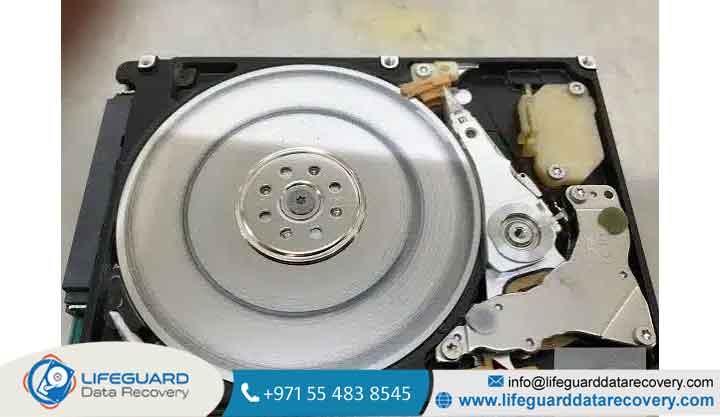
Hard Drive Data Recovery (Traditional Mechanical HDDs)
-
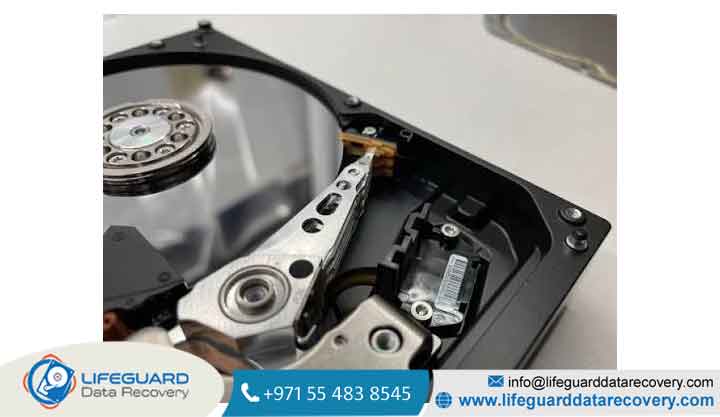
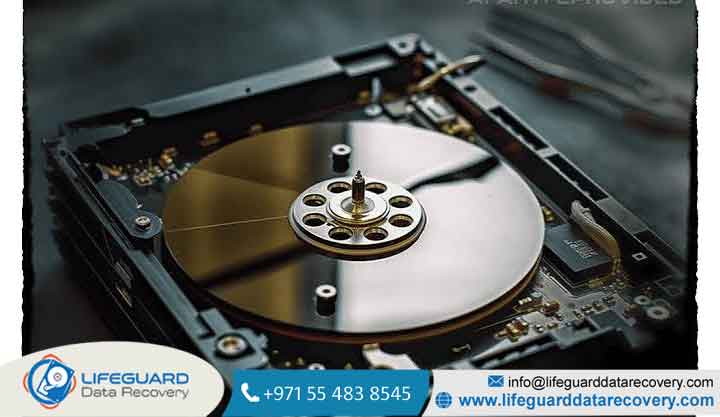
The Rule: If you suspect hard drive data recovery is necessary, minimize physical drive runtime. If the read/write heads are physically failing, powering up the drive can cause them to scratch the delicate magnetic surface, turning your data into physical dust.
SSD Data Recovery (Solid-State Drives & Modern Flash Storage)
Solid-state drives use silicon NAND flash memory chips. Unlike HDDs, SSDs cannot overwrite data in a single step; they must erase an entire block of cells before writing new information. To keep the drive running fast, modern operating systems use a background clean up protocol called TRIM.
-
The Reality: When you delete a file on a TRIM-enabled SSD, the OS sends a TRIM command telling the controller that those blocks are no longer needed. The SSD’s internal Garbage Collection will actively erase those
-
physical cells in the background often within minutes even if your computer is completely idle.
-
The Rule: If you suffer a data loss event on an SSD, pull the power immediately. Keeping the SSD powered on, even if you aren’t actively using it, allows the controller to permanently wipe the deleted data block-by-block.
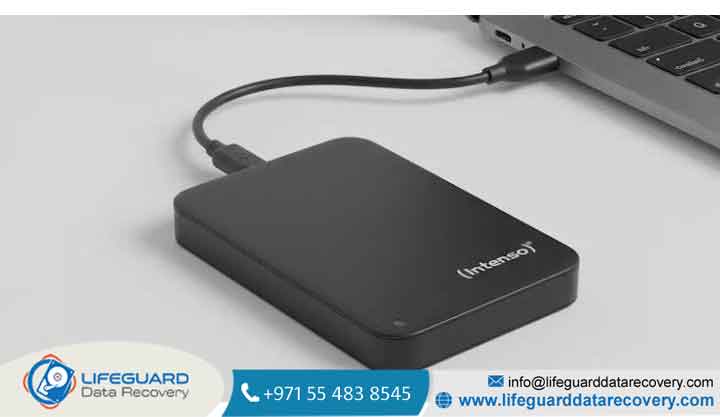
External Hard Drive Recovery & USB Flash Drive Recovery
External drives and USB flash drives are prone to sudden connection losses. If a drive is unplugged while the OS is writing metadata, it corrupts the Partition Table, turning the drive “RAW” or unreadable.
-
The Rule: Unplug the device immediately. When attempting external hard drive recovery or USB flash drive recovery, never run automated partition “repair” commands on the original drive. Always create a bitstream backup image of the drive first, then perform file recovery scans on that image.
Memory Card Data Recovery (SD & MicroSD Cards)
Camera and smartphone memory cards are prone to filesystem corruptions.
-
The Rule: Slide the physical write-protect lock switch on the side of the SD card adapter to the “Locked” position before plugging it into any computer. This prevents the host computer’s operating system from automatically writing hidden system files (like Spotlight index logs or Recycle Bin folders) over your lost photos.
The Critical Mistakes: What NOT to Do After Data Loss
When people panic, they often perform intuitive troubleshooting steps that inadvertently destroy their remaining chances of recovery.
Do Not Download or Install Recovery Software Directly to the Affected Drive
If you lose files on your computer’s primary drive, downloading a recovery tool directly to that same computer is highly dangerous. The download, installation process, and temporary file generation write hundreds of megabytes to the drive.
This active writing process will frequently overwrite the very sectors containing your deleted files.
The Safe Alternative: Always download and install recovery software on a separate, healthy computer. Connect the affected drive as a secondary, non-booting storage device to perform the scan.
Do Not Run Built-In Disk Repair Utilities (CHKDSK or First Aid)
When Windows detects a corrupted file system, it often prompts you to run (Check Disk). On macOS, the equivalent is “First Aid” in Disk Utility.
While these tools are excellent for fixing file system structures, they are destructive to deleted files.
-
CHKDSKprioritizes directory structure integrity over preserving raw user files. If it encounters orphaned data fragments, it will frequently strip away file names, truncate data, or dump raw fragments into a hiddenFOUND.000directory as generic.CHKfiles. -
Never run disk repair commands if you are trying to recover deleted data. Fix the files first, then repair the disk structure later.
Avoid the Loop of Endless System Reboots
If a drive is failing physically or logically, rebooting the machine forces the OS to repeatedly scan, read, and write to the system files. If the drive has a failing mechanical head, each reboot increases the risk of a catastrophic platter scratch.
Navigating the Data Recovery Process: DIY vs. Professional File Recovery Services
Deciding whether to handle a data loss event at home or trust a specialist depends entirely on your diagnostic triage.
When DIY Recovery Software is Safe (and How to Run It Securely)
DIY software is highly effective for simple accidental deletions, formatted drives, or logical corruptions where the storage media is physically healthy.
-
Clone the Drive First: Professional-grade software allows you to create a sector-by-sector copy (a
.dmgor.isofile) of your drive. -
Scan the Clone: Run your data recovery software against the clone image file rather than the live physical drive. This eliminates any wear and tear on the drive and prevents background operating system writes.
When Only Professional Data Recovery Services Can Save Your Files
If your storage media is clicking, buzzing, water-logged, or completely dead, software is useless. You must enlist the help of a lab equipped with:
-
Class 100 Cleanrooms: Air-filtered chambers that prevent airborne dust from landing on exposed drive platters.
-
Micro-soldering Workstations: For desol dering NAND flash memory chips from dead SSDs or repairing broken USB interfaces.
-
Firmware Repair Hardware: Tools capable of bypassing locked drive controllers and reading raw drive sectors directly.
Frequently Asked Questions (People Also Ask)
What is the very first thing I should do after accidental file deletion?
Stop typing, browsing, or running programs. Safely shut down the system. If the file was deleted from a secondary or external drive, immediately eject and unplug it to prevent any background writes.
Can I recover files from a drive that won’t turn on or makes clicking sounds?
Yes, but only through professional mechanical repair. A clicking sound indicates a physical head assembly failure. Powering on the drive in this state risks destroying the internal platters. A recovery expert must transplant the head assembly in a cleanroom before reading the data.
How does secure data recovery protect my private files during a salvage?
A reputable secure data recovery facility operates under strict privacy guidelines, typically backed by SOC 2 Type II compliance. The recovered data is copied to a securely encrypted external drive, and any copies remaining on laboratory servers are permanently wiped following a verification window.
Conclusion: Keeping a Cool Head Saves Your Data
Data loss is stressful, but acting impulsively is the only thing that makes it permanent. By pausing, assessing whether the issue is physical or logical, shutting down power, and bypassing dangerous myths like the “rice trick” or running active disk repairs, you keep your recovery success rate incredibly high.