
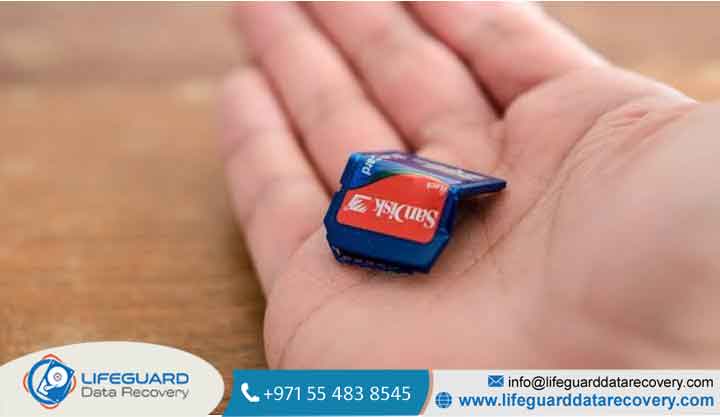
When an SD card corrupts, the actual photo files rarely disappear immediately. Instead, the “index” or file system that tells your computer where those photos live becomes damaged. Until those memory blocks are overwritten by new data, your photos remain intact on the physical memory chips.
This comprehensive guide walks you step-by-step through safely extracting your pictures, repairing minor file system glitches using free built-in tools, and knowing when to consult experts.
Critical Rules Before You Touch Your Corrupted SD Card
Before attempting any recovery steps, you must prevent further damage. Flash memory is sensitive, and wrong moves can permanently erase recoverable data.
-
Eject and Stop Using the Card Immediately: Do not take more photos, do not attempt to format the card, and do not let your camera attempt an “auto-repair.” Any new data written to the card will permanently overwrite your lost photos.
-
Never Format the Card First: Windows or Mac may prompt: “You need to format the disk in drive X: before you can use it.” Click Cancel. Formatting rebuilds the file system structure and can erase raw file signatures.
-
Use a Direct USB Card Reader: Avoid connecting your camera directly via a USB cable during recovery. Camera firmware often limits access to RAW storage blocks. Use a reliable external USB card reader plugged directly into your computer.
To maximize your chances to recover photos from SD card storage, set the physical write-protect switch on the side of the SD card to the “LOCK” position before plugging it into your computer.
How to Tell If Your Memory Card Is Corrupted (Signs & Symptoms)
Recognizing early warning signs helps you take action before total hardware failure occurs. A corrupted memory card recovery process is far easier when caught early.
Common Error Messages on PC, Mac, and Cameras
-
On Cameras: “Card Error,” “Read Error,” “No Memory Card,” or “Card Cannot Be Accessed.”
-
On Windows: “Location is not accessible,” “The file or directory is corrupted and unreadable,” or “Disk Not Formatted.”
-
On Mac: “The disk you inserted was not readable by this computer.”
Physical & Logical Symptoms of Card Failure
-
Files Missing or Greyed Out: Folders appear empty, or image thumbnails render as solid grey blocks.
-
RAW File System: The drive properties list the file system as RAW instead of FAT32 or exFAT,
-
Extremely Slow Read Times: Opening a simple JPEG takes minutes, or File Explorer freezes when accessing the drive letter.
Why SD Cards Become Corrupted (Root Causes)
SD cards use flash storage (NAND memory) controlled by a microchip. Understanding why corruption occurs helps determine if you can fix it at home.
Logical File System Corruption vs. Physical Damage
-
Logical Corruption: Caused by pulling the card out while the camera write-light was blinking, computer OS crashes mid-transfer, or malware altering file allocation tables. Result: Highly recoverable via software.
-
Physical Damage: Caused by bent pins, cracked plastic casing, water exposure, or worn-out NAND flash cells. Result: Requires specialized hardware extraction.
Can Photos Always Be Saved? (The Success Probability Matrix)
The likelihood of successful damaged SD card photo recovery depends on the exact scenario:
| Data Loss Scenario | Recovery Success Rate | Recommended First Action |
| Accidental Deletion / Minor Corruption | 95% – 99% | Software Scan / Native OS Commands |
| RAW File System Conversion | 85% – 95% | Windows File Recovery / Deep Scan Software |
| Quick Format in Camera/PC | 70% – 90% | Raw File Signature Scan |
| Full Format / Secure Erase | 0% – 5% | Overwritten memory blocks cannot be restored |
| Physical Fracture / Bent Card | 10% – 30% | Professional Micro-soldering Cleanroom Service |
Built-in Fixes for SD Card Not Readable Recovery
Before buying third-party software, try these built-in operating system repair tools designed for SD card not readable recovery.
Advanced Corrupted SD Card Photo Recovery Using Software
When built-in OS tools fall short, specialized corrupted SD card photo recovery utilities use deep sector-by-sector scanning to reconstruct file headers.
Create a Byte-to-Byte Disk Image (Crucial Safety Precaution)
Scanning a degrading SD card directly puts intense physical stress on the memory chips. If the card dies mid-scan, recovery fails entirely.
To prevent this, use tools like Disk Drill, FTK Imager, or DD-executable to create a Byte-to-Byte Clone of your SD card. Once created, unplug the physical SD card and run your recovery software directly on the disk image file on your hard drive.
Scanning the Card/Image File with Recovery Tools
Whether you use paid tools (e.g., Disk Drill, EaseUS Data Recovery) or reliable open-source software (e.g., PhotoRec / TestDisk), the process follows a simple pattern:
-
Select your target SD card drive
-
Choose Deep Scan or Signature Scan mode.
-
Allow the software to parse the drive. Open-source tools like PhotoRec bypass the damaged file system entirely and scan raw memory structures for standard photo headers (such as JPEG
signatures or camera RAW headers).
Filtering & Extracting RAW and Compressed Image Formats
Once the scan finishes, search and filter results by extension:
Always save recovered files onto your computer’s internal hard drive or an external SSD—never back onto the corrupted SD card itself.
What to Do If Recovered Photos Are Corrupted or Won’t Open
A common problem after SD card photo recovery is that files extract successfully, but images won’t open, display “Invalid Format,” or show large grey blocks across the lower half.
This occurs because file pointers were recovered, but underlying image data payload fragments were split up (file fragmentation).
-
Run dedicated image repair utilities (such as Stellar Repair for Photo or Aero Admin Repair) on the extracted, damaged JPEGs/RAWs.
-
If dealing with RAW files, use Adobe Lightroom or an open-source converter to batch-convert the corrupted RAW files into format, which often forces the software to render embedded backup preview thumbnails.
When to Use a Professional SD Card Recovery Service
Software cannot fix physical hardware failures. If your card is physically cracked, shorted out electronically, or completely unreadable by any computer device manager, you must hand it over to a laboratory SD card data recovery service.
Signs You Need Professional Lab Recovery:
-
The card gets burning hot to the touch within seconds of being plugged in.
-
The card is not detected at all in Windows Disk Management or Mac System Information (0 drive recognition).
-
The SD card has suffered physical bending, cracking, or saltwater corrosion.
Cleanroom technicians physically de-solder the NAND flash memory chip from the circuit board, place it into a specialized chip reader, and manually rebuild the data using custom controller logic.
How to Safely Format & Re-use a Corrupted Memory Card
Once your photos are safely backed up to your computer and cloud storage, you can test whether your SD card is safe to reuse or if it should be thrown away.
The Stress Test: Copy several large video files to the formatted card and verify their checksums. If the card drops offline again or errors out during writing, the NAND flash memory has reached the end of its lifespan. Trash the card immediately.
Proactive Tips to Prevent Memory Card Data Loss
-
Always Format in-Camera: Do not delete individual photos using your computer while the card is plugged in. Always format the SD card inside the specific camera you plan to shoot with.
-
Replace Cards Every Years: Flash memory degrades with read/write cycles.
-
Invest in Dual Card Slot Cameras: If shooting critical events, configure your camera to write images simultaneously to Card Slot 1 and Card Slot 2.
-
Safe Removal Only: Always click “Safely Remove Hardware” on Windows or “Eject” on Mac before pulling the card from your reader.
Frequently Asked Questions (FAQs)
Can I recover photos from a corrupted SD card without software?
Yes, if the corruption is limited to drive mapping errors or minor directory glitches. You can use native OS command-line tools like Windows, or Disk Utility First Aid on macOS, without installing paid third-party software.
Should I format my corrupted SD card before recovering photos?
No, absolutely not. Formatting overwrites file allocation tables and can wipe recovery markers. Always extract your photos first using command-line tools or recovery software before attempting any disk format.
Can photos be recovered if the SD card turns into a RAW file system?
Yes. A RAW status simply means the operating system no longer understands the file system structure. Deep scanning tools bypass file system indexes entirely, reading raw binary memory blocks to extract image files by their unique file signatures.
How much does professional SD card data recovery cost?
While DIY software options cost anywhere from $0 (open-source) to $80 for a pro software license, a physical professional SD card recovery service in a cleanroom lab typically costs between on the severity of chip damage and required micro-soldering.


















