Storage drives store critical personal photos, financial records, and operational databases. Experiencing a sudden partition failure where a drive volume becomes unreadable, inaccessible, or shows as RAW in Disk Managementcan feel like total data loss.
An unreadable partition can usually be recovered, provided the underlying disk platters or flash storage cells have not suffered catastrophic physical destruction and the data sectors have not been overwritten.
This comprehensive guide details why partition tables fail, how to diagnose drive health, and the exact step-by-step non-destructive workflows required to execute safe unreadable partition recovery.
Inaccessible Partition Recovery: What Happens When a Partition Becomes Unreadable?
To understand how to recover unreadable partition structures, you must first understand how an operating system interacts with hard disks (HDDs) and solid-state drives (SSDs).
A physical storage drive is divided into logical regions called partitions. Each partition relies on two critical layers of information:
-
The Partition Table (MBR or GPT): A master index located at the very beginning of the drive that defines where each partition starts, where it ends, and what type of file system it uses.
-
The File System Metadata (MFT, Superblock, or FAT): An internal database within the partition that tracks individual file names, folder structures, timestamps, and physical cluster allocations.
When a partition becomes unreadable, the physical data usually remains intact on the storage media. However, the operating system can no longer read the partition table index or interpret the file system metadata, rendering the volume invisible or inaccessible to normal user operations.
File System vs. Partition Table Corruption (RAW Drives and Missing Volumes)
Understanding whether damage resides at the partition table level or the file system level is essential for executing effective partition data recovery:
-
Partition Table Damage: The OS loses track of the volume boundaries entirely. The drive may show up in Windows Disk Management as “Unallocated Space” or completely missing.
-
File System Damage (RAW Status): The OS detects the partition boundaries, but the volume’s internal header (such as the NTFS Master File Table or exFAT Boot Sector) is unreadable. Windows flags the file system as RAW.
Common Error Messages Associated with Unreadable Partitions
When attempting to access an inaccessible partition recovery target in Windows or macOS, operating systems typically generate specific alert dialogs:
-
“The volume does not contain a recognized file system.”
-
“Location is not accessible. Access is denied.”
-
“You need to format the disk in drive X: before you can use it.”
-
“The parameter is incorrect.”
Critical Warning: Never click “Format disk” when prompted by your operating system. Formatting creates a brand-new file system structure and may execute TRIM commands on SSDs, permanently scrubbing the underlying data blocks.
Root Causes: Why Partition Tables and File Systems Fail
Identifying the root cause of corrupted partition recovery scenarios helps select the appropriate repair tool and prevents future storage failures.
Improper Disconnection and Abrupt System Shutdowns
External HDDs and flash drives utilize write-caching protocols. If you disconnect an external drive without using the “Safely Remove Hardware” option if your computer loses power during an active file write the OS may leave the file system metadata in an incomplete or corrupt state.
Development of Bad Sectors and NAND Cell Degradation
Physical storage media degrades over time:
-
Mechanical HDDs develop bad magnetic sectors due to thermal expansion, mechanical wear, or slight physical shocks.
-
SSDs and NVMe drives suffer from NAND flash cell degradation after reaching their maximum Terabytes Written (TBW) limits.
If a bad sector develops directly over the sector containing the Master Boot Record (MBR) or the NTFS Master File Table (MFT), the entire partition instantly becomes unreadable.
Malware, Ransomware, and Failed Disk Repartitioning Operations
Malicious software can intentionally overwrite the Master Boot Record (sector 0) to hijack system boot processes or lock access to storage volumes. Similarly, interrupting partition management software (such as disk resizing, merging, or converting from MBR to GPT) leaves partition boundaries half-written, corrupting the volume.
Golden Rules Before Attempting Partition Recovery (Avoiding Data Loss)
Before attempting any repair utilities to recover files from inaccessible drive locations, follow these mandatory safety protocols to avoid permanent data destruction.
The Dangers of Inappropriate Formatting and Destructive CHKDSK Commands
The most common mistake made during DIY recovery attempts is running the Windows Check Disk utility (chkdsk /f /r) on an unstable drive.
While CHKDSK is effective for minor file system fixes on healthy hardware, executing it on a drive with bad sectors or corrupted partition headers can cause severe damage:
-
CHKDSK attempts to “fix” inconsistencies by truncating, moving, or deleting corrupted file metadata blocks.
-
If bad sectors prevent CHKDSK from reading a directory index, it converts thousands of files into unusable
.CHKfragments in a hidden folder. -
It subjects struggling drive heads to high-stress read/write operations, potentially causing complete head crashes.
Creating a Byte-Level Image or Sector-by-Sector Clone First
Always create a complete bit-stream image (a byte-level duplicate) of the unstable storage device before applying any repair software.
-
A byte-level clone copies every sector including unallocated space and corrupt headers to a healthy secondary drive.
-
Once the image file is created, safely store the original unstable drive offline.
-
All subsequent partition scanning, repair attempts, and file extraction procedures should be executed directly against the image file, eliminating the risk of further hardware wear or data loss.
Step-by-Step Solutions: How to Recover an Unreadable Partition Safely
Follow these technical procedures in sequence, moving from basic system configuration fixes to deep sector-level carving.
Assigning or Changing the Drive Letter in Disk Management
Sometimes a partition is fully intact, but Windows fails to assign it a mounting point or drive letter following a system update or driver conflict.
-
Right-click the Start Menu and select Disk Management.
-
Locate the target disk volume in the visual block map.
-
If the partition displays as Healthy but lacks a letter (e.g.,
D:orE:), right-click the volume and select Change Drive Letter and Paths… -
Click Add, select an available drive letter from the dropdown menu, and click OK.
-
Refresh File Explorer to check if the volume opens normally. Rebuilding Partition Tables using Open-Source Tools (TestDisk)
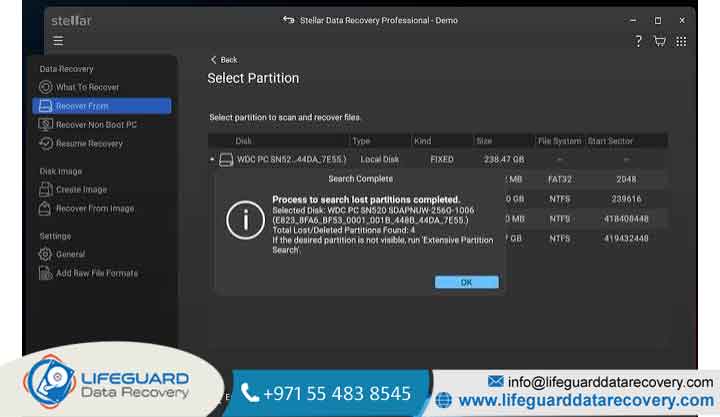
If your partition displays as Unallocated or RAW, the open-source utility TestDisk can scan the drive, locate missing backup boot sectors, and rewrite the original MBR or GPT partition table.
-
Launch TestDisk as an administrator and select Create a new log file.
-
Select the physical drive containing the unreadable partition (e.g.,
/dev/sdb) and choose your partition table type (Intel for MBR or EFI GPT for modern systems). -
Select Analyse to inspect the current partition structure, then click Quick Search.
-
TestDisk scans the disk sectors for historic boot headers. Once found, highlight the discovered partition and press P to list its files and confirm data integrity.
-
Press Q to return to the partition screen, press Enter, and select Write to save the restored partition table directly to the drive.
-
Reboot your computer to mount the restored volume.
Deep Scan Data Extraction Using Specialized Partition Recovery Software
If the file system metadata is too badly damaged for partition table reconstruction, use dedicated partition recovery software to perform raw file carving.
-
Launch a recognized file extraction tool and select the byte-level image file (or the isolated physical disk).
-
Initiate a Deep Scan / Full Scan. The software will bypass corrupted file tables and scan every sector for known file signatures (e.g., headers for
.JPEG,.PDF,.DOCX). -
Filter the scan results by file type or directory tree.
-
Preview recoverable files to verify integrity.
-
Select the target files and restore them to a completely separate, healthy hard drive.
When DIY Fails: Diagnosing Physical Drive Failure vs. Logical Damage
Software fixes are effective for logical file system corruption, but using them on physically failing hardware will lead to permanent data loss.
Hardware Warning Signs: Clicking Noises, S.M.A.R.T. Errors, and I/O Timeouts
Stop all DIY attempts immediately if your drive exhibits any of the following physical failure symptoms:
-
Audible Ticking or Clicking Noises: Indicates that the drive’s mechanical read/write heads are failing or crashing against the magnetic platters.
-
System Freezes on Connection: Connecting the drive causes Windows Disk Management or File Explorer to lock up completely.
-
Critical S.M.A.R.T. Telemetry Alerts: Drive diagnostic utilities report critical attributes for Reallocated Sectors Count, Current Pending Sector Count, or Uncorrectable Sector Count.
-
I/O Device Errors: Operating system prompts frequently return “The request could not be performed because of an I/O device error.”
Knowing When to Consult a Professional Partition Recovery Service
If a drive exhibits physical damage, hardware degradation, or firmware failures, running software scans will wear down the remaining media surface and destroy recoverable data.
In these cases, power down the device and contact a professional partition recovery service. Cleanroom data recovery engineers can replace damaged read/write head assemblies, stabilize failing firmware, and read drive platters directly using specialised hardware imagers.
Prevention Tips: Protecting Drives from Future Partition Corruption
Implementing proactive drive maintenance protocols significantly reduces the risk of future partition failure.
-
Enforce Safe Ejection Protocols: Always select “Safely Remove Hardware and Eject Media” in your OS before physically disconnecting external storage devices.
-
Utilize Uninterruptible Power Supplies (UPS): Protect desktop computers and external NAS arrays with battery-backed UPS units to prevent corrupted write cycles during unexpected power outages.
-
Monitor S.M.A.R.T. Health Metrics: Use background monitoring applications to track drive temperatures, reallocated sector trends, and total operational hours.
-
Implement the 3-2-1 Backup Strategy: Maintain at least three copies of your critical data across two different media types, with one copy stored offsite or in secure cloud storage.
Frequently Asked Questions
Can I recover an unreadable partition without formatting?
Yes. You can recover files without formatting by using non-destructive recovery software to extract data to another drive, or by rebuilding the damaged partition table using tools like TestDisk. Formatting is only necessary after data has been safely extracted to rebuild a clean file system for future use.
Why does my partition show up as RAW in Disk Management?
A partition displays as RAW when the operating system can no longer identify the file system format (such as NTFS, FAT32, or exFAT). This usually occurs because the volume boot sector or Master File Table (MFT) headers have been corrupted by improper ejection, power loss, or bad sectors.
Is it safe to run CHKDSK on an unreadable partition?
No. Running chkdsk /f or /r directly on an unreadable partition especially one with physical bad sectors can permanently delete orphaned files, corrupt directory structures, and stress failing hardware. Always clone the drive and recover your critical files before attempting CHKDSK repairs.
How long does unreadable partition recovery usually take?
Recovery times depend on the size of the drive, the interface connection speed (USB 2.0 vs. NVMe PCIe), and the extent of bad sectors. Scanning a 1TB mechanical hard disk via deep sector search usually takes between 2 to 6 hours, whereas damaged or heavily degraded drives may take much longer.