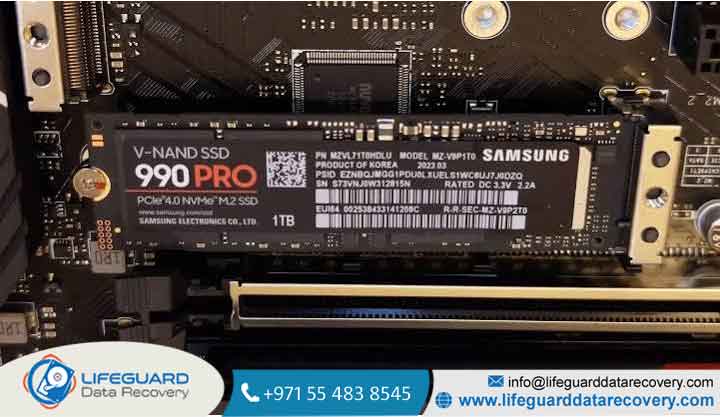
Few computer issues trigger as much immediate dread as powering on your system only to find your NVMe SSD has completely vanished from the BIOS. Whether your primary operating system drive refuses to boot or your secondary high-speed storage drive suddenly disappears mid-session, an NVMe drive detection failure halts work and raises immediate concerns about permanent data loss.
When an NVMe drive disappears from BIOS, it indicates that the motherboard’s UEFI/BIOS interface can no longer establish low-level communication with the SSD’s flash controller via the PCI Express (PCIe) bus. The issue stems from a variety of sources, ranging from simple power-state glitches to corrupt NVRAM or physical hardware degradation.
Understanding NVMe BIOS Detection Failure: Cold Boot vs. Sudden Mid-Session Dropouts
Diagnosing an NVMe SSD not detected in BIOS requires distinguishing when and how the drive vanished:
-
Cold Boot Non-Detection: The drive is missing upon turning the PC on for the day, or after a system restart/firmware update. This typically points to UEFI/CSM configuration conflicts, fast-boot power initialization timeouts, or outdated BIOS microcode.
-
Sudden Mid-Session Dropouts: The NVMe drive suddenly disappeared while actively using Windows (often freezing the system or throwing a Blue Screen of Death / BSOD). This usually signals thermal throttling cutoffs, power rail fluctuations, controller panic locks, or physical contact loss due to board flex.
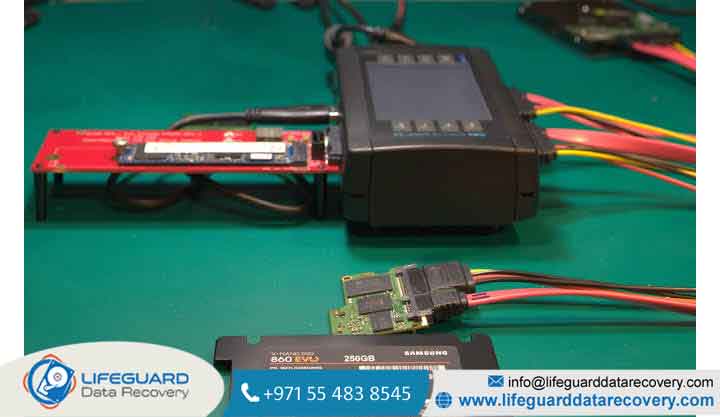
If physical hardware damage or controller burnout has occurred, self-troubleshooting may hit a wall. In such cases, consulting a specialized hard drive and SSD data recovery service is the safest path to retrieve critical files without risking further NAND degradation.
Primary Reasons Your NVMe Drive Disappears from BIOS
-
Power State Transitions (D3cold Sleep Glitches): Modern Windows power profiles use Fast Startup and ACPI deep sleep states. If an NVMe controller fails to wake up properly from a low-power state, the system reboots without re-initializing the drive on the PCIe bus.
-
Corrupted UEFI / NVRAM Settings: Incorrect storage controller configurations—such as Intel VMD/RST conflicts or legacy CSM (Compatibility Support Module) toggles can hide an NVMe not showing in BIOS.
-
PCIe Lane Bandwidth Sharing: Many consumer motherboards share PCIe lanes between M.2 slots, secondary PCIe x4 slots, and SATA ports. Populating certain slots can automatically disable an M.2 connector.
-
Thermal Throttling & Controller Shutdown: NVMe controllers operating without adequate heatsinks can exceed critical thermal limits under heavy write operations, causing the drive to enter a self-protective hardware lockup.
-
Physical Mounting & Sagging: Physical vibration, overtightened standoff screws, or minor board flex can unseat tiny M.2 pin contacts from the motherboard socket.
-
NAND Controller Failure: NAND flash controller failure prevents the drive from executing its internal microcode routines during the POST (Power-On Self-Test) sequence.
How to Troubleshoot an NVMe Drive Not Detected in BIOS
Follow these prioritized diagnostic steps to restore detection for an NVMe drive missing from BIOS.
Perform a Full Cold Power Cycle and Flea Power Discharge
A power drain forces the NVMe controller chip out of a frozen low-power state (D3cold) and resets hardware registers.
-
Shut down the computer completely and flip the PSU toggle switch to OFF (or disconnect the power cable).
-
Hold down the PC power button for 30 seconds to discharge residual capacitors on the motherboard.
-
Leave the unit unpowered for 3–5 minutes, restore power, and boot directly into BIOS.
Re-Seat the Physical M.2 SSD and Inspect Contacts
Physical contact issues account for a high percentage of NVMe SSD not recognized errors.
-
Power off the system, unplug it, and remove the M.2 thermal heatsink.
-
Unscrew the M.2 retaining screw or release the latch.
-
Carefully pull the NVMe drive out at a 30-degree angle.
-
Inspect the gold pins for dust or residue; clean them gently using an isopropyl alcohol wipe if necessary.
-
Firmly push the drive back into the M.2 slot until fully seated, then secure the screw snugly without overtightening.
Check PCIe Lane Bandwidth and SATA Port Sharing
If an NVMe is not detected by motherboard buses after installing new hardware, lane conflicts are often responsible.
-
Consult your motherboard manual’s Storage & PCIe Expansion Slots table.
-
Verify whether your primary M.2 slot shares bandwidth with SATA ports (e.g., SATA 5/6) or secondary PCIe slots. Re-locate conflicting SATA drives or move the NVMe drive to the dedicated CPU-attached M.2 slot (usually the top slot closest to the CPU socket).
Configure UEFI/BIOS Storage Settings
Incorrect storage mode options prevent the BIOS boot manager from enumerating PCIe storage.
-
Press Del or F2 during boot to enter UEFI.
-
Navigate to Advanced > Storage Configuration (or System Configuration).
-
If using a standalone NVMe drive (non-RAID), ensure Intel VMD Technology or RAID Mode is disabled unless specific system drivers are present. Set controller mode to AHCI / NVMe.
-
Disable CSM (Compatibility Support Module) to ensure pure UEFI boot mode. NVMe drives require native UEFI driver stacks to initialize during POST.
Reset CMOS / Clear Motherboard NVRAM
Clearing the CMOS resets the system hardware configuration table, forcing the motherboard to re-scan all connected hardware components.
-
Power off the PC and remove the coin-cell CR2032 CMOS battery from the motherboard for 5 minutes (or bridge the CLR_CMOS jumper pins with a screwdriver for 10 seconds).
-
Reinstall the battery and power on the system.
Flash Motherboard BIOS Firmware
An NVMe SSD BIOS detection issue can occur due to microcode incompatibilities between newer SSD controllers and older motherboard firmware.
-
Download the latest stable BIOS update from your motherboard manufacturer’s official support page onto a FAT32-formatted USB flash drive.
-
Use the motherboard’s built-in flash tool (e.g., ASUS EZ Flash, MSI M-Flash, Gigabyte Q-Flash) to update the firmware.
Test via External USB Enclosure or Secondary PC
To confirm whether the issue lies with the motherboard or the SSD:
-
Insert the M.2 drive into an external USB-to-NVMe enclosure.
-
Connect it to a working PC or laptop.
-
If the drive mounts properly, the issue stems from motherboard PCIe slots or BIOS configurations. If the drive remains completely unrecognized in Disk Management, the drive’s internal controller or power delivery circuit has failed.
Prevention Tips: Keeping Your M.2 SSD Stable and Recognized
To prevent an NVMe SSD from disappearing from the system in the future:
-
Disable Windows Fast Startup: Navigate to Control Panel > Power Options > Choose what the power buttons do, unlock admin settings, and uncheck Turn on fast startup.
-
Install Active or Passive Thermal Cooling: Ensure your M.2 drive utilizes a motherboard heatsink with a thermal pad to prevent thermal shutdown events under heavy writes.
-
Keep SSD Firmware Up-to-Date: Periodically run manufacturer utilities (e.g., Samsung Magician, Western Digital Dashboard, Crucial Executive) to apply critical controller microcode patches.
-
Monitor S.M.A.R.T. Attributes: Track drive health indicators like Available Spare and Critical Warning flags to detect impending hardware failure before total loss occurs.
Frequently Asked Questions
Can a failing NVMe drive prevent a PC from POSTing into BIOS?
Yes. If an NVMe SSD experiences a severe short circuit or controller lockup, motherboard safety mechanisms may halt the Power-On Self-Test (POST) to protect electrical traces, keeping the PC stuck on a blank screen or dram/vga debug LED.
Why does my NVMe SSD show in Windows Disk Management but not in BIOS boot priority?
If an NVMe drive contains no operating system partition or uses a partition table incompatible with your active boot mode (e.g., MBR on a pure UEFI BIOS), the BIOS will list the drive under general NVMe/PCIe hardware status but exclude it from the Boot Priority order list.
Does turning off Windows Fast Startup help fix disappearing drives?
Yes. Fast Startup saves kernel session data to a hibernation file rather than performing a complete cold shutdown. This frequently leaves PCIe controllers in an uninitialized sleep state upon reboot, preventing BIOS detection.
Will formatting my NVMe drive fix its detection issue in BIOS?
No. Formatting operates at the operating system file-system level. BIOS detection occurs at the low-level hardware interface layer before any disk formatting or partition data is read.