
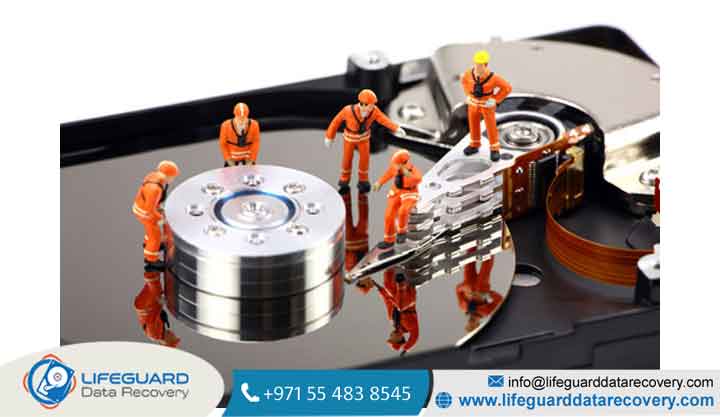
How Does Data Recovery Work The Science of Retrieving Lost Files
When a file suddenly vanishes from your computer screen, it is completely normal to panic a little. Whether you accidentally formatted a folder you needed, your old external drive started making a weird clicking sound, or your laptop won’t boot up at all, the first thing that pops into your head is probably
The good news is that digital data is actually pretty tough. What feels like a total disaster to most of us is usually just a puzzle for data experts. To understand how data recovery works, we just need to look past our normal computer screens and see how these devices actually save things under the hood.
The Core Concept: What Actually Happens When Data is Lost?
To get how you can recover lost data, it helps to know how computers write your files first. Your drive doesn’t save things in one long, neat row. Instead, it works a lot like a huge school library that has a main book catalog and thousands of storage shelves.
When you save a document, the drive writes the actual data across different spaces, and then makes a quick note in its index table to remember the exact spot. When a file gets lost, the actual data isn’t destroyed right away. Instead, the link between the library catalog and the physical shelf just breaks.
File Systems Explained: Index Pointers vs. Raw Master Boot Records
Every operating system uses a hidden structure called a file system (like Windows uses NTFS, and Macs use APFS). This system keeps a master list that acts like your main map.
When you hit delete, format your drive quickly, or run into a minor file system repair issue, your computer doesn’t actually spend time wiping your file with zeros. Doing that would make everyday computers run super slow. Instead, it just changes a tiny piece of code called an index pointer.
Once that pointer is gone, the computer marks that space as “free.” But until you save new files that end up using those exact same spots, the original data is still sitting right there on the drive, just hidden. This little window of time is exactly why the file recovery process works so well.
Categorizing Data Loss: Logical vs. Physical Failures
Not all data loss problems are the same. Recovery experts usually split these issues into two very different categories. Knowing which one you are dealing with tells you if you can fix it at home using software, or if you need to ship it to a specialized lab.
Understanding Logical Data Recovery (Software-Level Interventions)
We talk about logical data recovery when your actual drive hardware is totally healthy it spins fine or turns on normally but you just can’t open the files. This usually happens because of software glitches, like:
-
Accidentally deleting important files or formatting a whole drive
-
Viruses or malware locking you out
-
A corrupted drive recovery screen showing up out of nowhere
Since the hardware still works fine, special tools can scan the raw code directly to patch up the broken folders and files.
Understanding Physical Data Recovery (Hardware-Level Interventions)
On the flip side, physical data recovery is when your drive has real, physical damage. Maybe it took a bad fall, or it is just too old. Common examples are:
-
Hard drive failure: The inside motors stop spinning, or the little read/write arms break and scratch the internal disks.
-
The main circuit board gets fried because of a sudden power surge.
-
Your device got wet, or fell hard on concrete.
If this happens to you, running recovery software at home is a bad idea—it won’t help and can actually make things worse. The physical parts need to be fixed or bypassed inside a special lab before anyone can copy your data out.
The Technical Step-by-Step Data Recovery Process
When a broken drive gets sent into a professional data recovery lab, the technicians handle it very carefully, almost like a doctor in a hospital. They follow a strict step-by-step plan to make sure they don’t accidentally ruin whatever data is left.
1.Stabilization and Mechanical Triage:
First, engineers look closely for any physical damage. If it is an old-school hard drive, they check if the read heads are bent or if the inside disks are stuck. They might also fix fried parts on the circuit board so the drive can turn on safely.
2.Low-Level Disk Imaging:
Pros never work directly on your original broken drive because it is too risky. Instead, they use special hardware to make an exact sector-by-sector clone of it. This is called disk imaging, and they do all their remaining work on this copy.
3.Signature Scanning and File Carving:
If the main index map is totally gone, they use a trick called “file carving.” Special algorithms search the empty sectors of the clone for specific binary patterns. For example, JPEG photos always start with the same code which helps them pull the photo out even without a directory map.
4.Logical File System Repair:
In the final step, they piece everything back together. They fix broken folder lines and repair partition maps inside the clone. Once everything looks good, they save your recovered folders onto a brand new, healthy drive to give back to you.
Media-Specific Extraction: How Hard Drives vs. SSDs Differ
The way your device is built changes everything when it comes to recovery. A trick that works perfectly fine on an old desktop hard drive will completely fail on a fast modern laptop drive.
Platter Architecture and Cleanroom Data Recovery
Traditional hard disk drives have shiny magnetic disks inside that spin incredibly fast sometimes up to rounds a minute while tiny read heads hover just a tiny bit above them. If you drop the drive, these heads can smash into the disks and scratch them.
Opening a hard drive in a normal room exposes it to floating dust. Since the gap between the read head and the disk is so microscopic, a single speck of dust can act like a tiny knife, scratching away your data when the drive spins up.
Because of this danger, physical repairs have to happen inside a certified cleanroom data recovery lab. These rooms use special air filters to get rid of all dust particles, so engineers can safely open the drive and swap out broken parts.
The SSD Failure Recovery Challenge: The TRIM Command Conundrum
Solid-State Drives (SSDs) are totally different. They don’t have any moving parts inside. Instead, they save everything electronically on NAND flash memory chips, all managed by a central controller chip.
While SSD failure recovery doesn’t have to worry about broken mechanical parts, it has a different, tricky problem called TRIM.
To keep the drive running fast, your computer uses the TRIM command to clear out space whenever you delete a file. Instead of leaving the data alone like an old hard drive does, the SSD actively wipes those memory spots in the background when the computer is idle. Because of this, if your drive stays turned on after you lose data, SSD data recovery can become incredibly difficult.
Enterprise Multi-Disk Array Extraction: RAID and NAS Environments
When a big company loses data, things get a lot more complicated. Systems like Network Attached Storage (NAS) boxes spread files across several different drives at the same time using special mathematical formulas so that if one drive dies, the system keeps working.
During a tough RAID recovery or NAS data recovery job, engineers have to:
-
Take apart the system and make an exact clone of every single drive.
-
Figure out the exact pattern and order the original system used to split the files.
-
Use software to manually stitch those data pieces back together in the right order.
Evaluating Data Recovery Software vs. Professional Labs
If you just lost some really important files, you have a big choice to make: do you download a tool online, or do you ship your device to a professional lab? Making the wrong call here can mean losing your files forever.
How Consumer Data Recovery Software Works Under the Hood
Good data recovery software works by simply reading your drive without changing anything. It skips the broken parts of the operating system and scans the empty spaces of the drive directly, looking for old folder structures or file patterns. These are great for finding files you accidentally deleted from a healthy USB drive, an SD card, or a working hard drive.
The Irreversible Risk of Misusing DIY Scan Software
But if your hard drive is making a weird clicking, ticking, or scratching sound, please do not run recovery software.
A clicking sound means something inside is physically broken. Running a software scan forces that broken drive to keep spinning for hours. The broken metal arm can scratch right against the delicate disks, literally scraping away your files into dust. Once those scratches happen, no one can get your data back.
Fail-Safe Prevention Tips to Maximize Recovery Success Rate
If you ever experience sudden data loss, what you do in the first few minutes can completely decide whether you get your files back or not.
-
Turn off the Power Right Away: If you think your data is gone, turn off the computer immediately. Don’t even do a normal software shutdown, because the computer might save background logs that could overwrite your lost files.
-
Don’t Install Software on the Same Drive: If you are trying to get files back from your main C: drive, never download a recovery tool onto that same drive. The download itself might save directly over the files you are trying to rescue.
-
Try the 3-2-1 Backup Rule: The absolute best way to handle data loss is to make sure it doesn’t hurt you in the first place. Keep three (3) copies of your files, on two (2) different types of devices (like your laptop and an external drive), and store one (1) copy somewhere else, like on Google Drive or iCloud.
Frequently Asked Questions
Does formatting a hard drive delete everything permanently?
Not usually. A standard “Quick Format” doesn’t actually erase your data slots. It just wipes the main index table so the drive looks empty. The files are still sitting there until you save new things over them. But a “Full Format” is different it checks the whole drive and overwrites everything with zeros, which makes recovery impossible.
Can data be recovered from a physically snapped or crushed flash chip?
It depends where it broke. If a USB thumb drive snaps but the black silicon memory chip inside is still whole, engineers can fix the broken tracks or read the chip directly using special tools. But if the actual memory chip inside is cracked or crushed in half, the internal electrical pathways are destroyed, and the data is gone for good.
How does encryption impact your chances of successful data retrieval?
Encryption makes things a lot tougher. If your drive uses passwords or tools like Windows BitLocker, and the drive gets corrupted, the recovered files will just look like random text garbage. You absolutely need the original password or recovery keys to turn that scrambled data back into normal, readable files.
Why do some files come back corrupted or broken after data recovery?
This happens because files get split up over time, which is called fragmentation. When a drive gets full, the computer cuts large files into smaller pieces and scatters them wherever they fit. If the main index map breaks, recovery software has to guess how to piece them back together.
If some of those pieces were already overwritten by new computer tasks, the file will open up looking broken or corrupted.


















