A slow hard drive can bring an entire computer to a crawl. Applications take forever to open, large file transfers stall mid-way, and File Explorer freezes unexpectedly.
Understanding why your drive is lagging is essential before taking corrective action. While some performance drops stem from simple software bottlenecks, others indicate hardware failure. Pushing a degraded storage drive through heavy tasks can cause irreversible data loss.
Key Symptoms: How to Tell if Your Hard Drive Is Slowing Down Before Failure
Recognizing early warning signs helps you take precautions before your storage medium fails completely.
Unusually Slow Read Speed vs. Slow Write Speed
-
Hard drive slow read speed: Files take an unusually long time to open, applications lock up during boot, or video playback stutters.
-
Hard drive slow write speed: Copying files to the drive starts at normal speeds (e.g., 150–200 MB/s) and suddenly drops to a few kilobytes per second or halts completely.
Frequent System Freezing, Hanging, and File Corruption
A hard drive slow and freezing symptoms frequently occur when the operating system encounters bad sectors. When Windows attempts to read data from a damaged block, the OS waits for an I/O response. This causes the entire user interface to lock up until the operation times out.
If you notice files disappearing or throwing checksum errors, your hard drive slowing down before failure is reacting to physical surface degradation on the platters.
Root Causes: Why Does a Hard Drive Become Extremely Slow?
Accumulation of Bad Sectors and Physical Wear
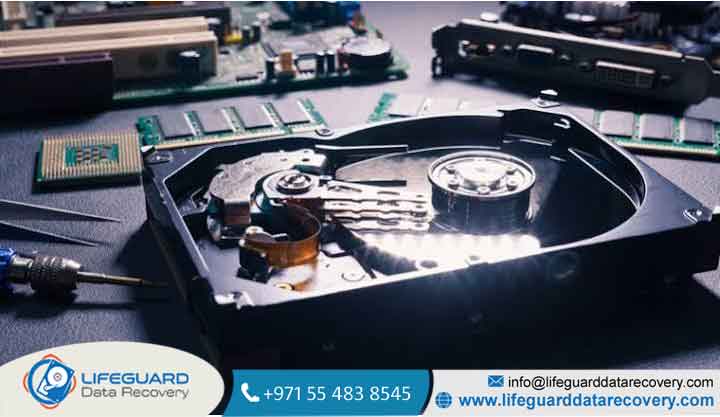
Mechanical hard disk drives (HDDs) store data magnetically on spinning platters read by moving actuator arms. Over time, magnetic media degrades, creating physical bad sectors. When the drive encounters these areas, its internal controller re-reads the sector repeatedly, creating severe latency spikes.
Sustained Loads on SMR (Shingled Magnetic Recording) Drives
Many modern consumer HDDs use SMR technology to pack data more densely. SMR drives write data tracks that overlap like roof shingles. While fine for light tasks, during large file transfers, the drive exhausts its high-speed PMR cache and must read, modify, and rewrite adjacent tracks simultaneously. This drops transfer speeds dramatically from 200 MB/s to under 30 MB/s.
Excessive File System Fragmentation
Unlike Solid-State Drives (SSDs), mechanical hard drives suffer heavily from file fragmentation. When a large file is broken into scattered pieces across the platter, the physical read/write head must constantly sweep back and forth across the spinning disk, drastically increasing seek times.
Background System Processes and 100% Disk Utilization
Windows services such as SysMain (formerly Superfetch), Windows Search Indexing, and real-time antivirus scans frequently cause HDD slow performance. When these services continually execute background read/write requests, your active programs are forced into an I/O queue, making the hard drive running slow during routine work.
High Storage Capacity Utilization (Over 85–90%)
Operating systems rely on free disk space to write temporary cache files, perform pagefile swapping (virtual memory), and manage file system indexing. When a drive exceeds 85% to 90% capacity, available contiguous space disappears, forcing extreme fragmentation and stalling operating system performance.
Drive Overheating and Thermal Throttling
Internal components generate heat during sustained read/write operations. If an internal desktop bay or external drive enclosure lacks proper ventilation, the drive controller throttles performance down to lower operational temperatures, slowing transfer speeds.
Damaged Cables, Ports, or Faulty Controllers
Faulty SATA cables, damaged USB bridge boards in external enclosures, or worn system ports cause CRC (Cyclic Redundancy Check) transfer errors. The system repeatedly resends data packets to clear interface errors, cutting real-world speed in half.
Step-by-Step Fixes for a Slow Hard Drive
If your drive shows signs of performance degradation, run through these sequential troubleshooting steps.
Backup Critical Data First
Before attempting diagnostic fixes, back up your vital files immediately. Running disk-intensive repair utilities on a physically failing drive can cause mechanical stress that leads to total drive failure. If your drive freezes during manual copies, consult a professional hard drive recovery service to safely clone the storage media using hardware-level tools.
Check S.M.A.R.T. Health Status and Drive Temperature
Download a diagnostic tool like CrystalDiskInfo to read the drive’s S.M.A.R.T. (Self-Monitoring, Analysis, and Reporting Technology) attributes.
-
Check Reallocated Sectors Count, Current Pending Sector Count, and Uncorrectable Sector Count.
-
If these values are non-zero or marked as Caution/Bad, hardware degradation is underway. Replacement is necessary.
Identify and Stop Resource-Heavy Background Processes
-
Press
Ctrl + Shift + Escto open Task Manager. -
Click the Disk column header to sort processes by active disk usage.
-
If SysMain or Windows Search consumes 100% disk usage, press
Win + R, typeservices.msc, locate the service, right-click, select Properties, and set Startup type to Disabled.
Run Disk Error Checking (CHKDSK)
If S.M.A.R.T. status is “Good”, check for logical file system corruption:
-
Open Command Prompt as an Administrator.
-
Type
chkdsk C: /f /r(replaceC:with your target drive letter). -
Press
Enter. If prompted, schedule the scan on the next reboot.
Caution: Do not run
chkdsk /rif the drive exhibits clicking or grinding noises, as forcing the heads to scan bad sectors can damage platter surfaces.
Optimize and Defragment the Drive (HDDs Only)
-
Type Defragment and Optimize Drives in the Windows search bar and open it.
-
Select your mechanical hard drive and click Analyze.
-
If fragmentation exceeds 10%, click Optimize.
Note: Never run defragmentation on Solid-State Drives (SSDs). It causes unnecessary write wear without performance benefits.
Free Up Storage Space
Use the built-in Storage Sense or Disk Cleanup utility in Windows to clear system caches, temporary update files, and old installation folders. Aim to keep at least 15% to 20% of your drive capacity free.
Slow HDD Data Recovery: What to Do If Your Drive Is Barely Responsive
When a drive takes hours to index or locks up during simple file access, traditional copy-pasting will fail.
-
Stop active scanning: Avoid running heavy antivirus or file indexer commands.
-
Avoid chkdsk loops: Cancel automated repair loops if the operating system hangs on startup.
-
Create a sector-by-sector image: Use disk cloning software (like ddrescue) to clone data onto a healthy drive before attempting software data recovery.
How to Prevent Hard Drive Slow Performance
To maintain health and transfer speeds over the lifespan of a mechanical drive:
-
Maintain Airflow: Keep internal desktop enclosures free of dust build-up.
-
Automate Optimizations: Enable weekly automated defragmentation schedules in Windows.
-
Safe Removal: Always eject external drives safely to prevent unwritten metadata blocks from corrupting the file allocation table (FAT/NTFS).
-
Power Protection: Use an Uninterruptible Power Supply (UPS) to prevent sudden power loss while the read/write heads are actively operating on platters.
Frequently Asked Questions
Why does my hard drive start fast and then become extremely slow during transfers?
This behavior usually points to an SMR (Shingled Magnetic Recording) drive exhausting its high-speed DRAM or PMR cache. Once the temporary buffer fills up, the drive controller is forced to slow down while it rearranges overlapping tracks on the physical disk.
Can a slow hard drive cause the entire computer to freeze?
Yes. When the operating system requests files from a hard drive with unreadable bad sectors, system threads enter an “Uninterruptible Sleep” state while waiting for the storage controller to respond. This manifests as total system UI freezing.
How do I know if my slow hard drive is failing or just needs optimization?
Check the drive’s S.M.A.R.T. health status. If S.M.A.R.T. reports zero reallocated or pending sectors, the issue is likely software-related (fragmentation, full capacity, or background processes). Non-zero sector warnings indicate physical drive failure.
Is it worth fixing a slow HDD, or should I upgrade to an SSD?
If your mechanical drive is healthy but slow due to aging technology, upgrading your boot drive to an SSD provides up to a 5x to 10x increase in read/write speeds. HDDs are best reserved for secondary, low-cost long-term data archiving.