Few tech mishaps induce panic quite like a computer suddenly failing to boot, accompanied by a missing storage drive. Yesterday, your system was running smoothly; today, your solid-state drive (SSD) isn’t showing up in File Explorer or BIOS, and your files appear unreachable.
When an SSD fails, the immediate question is simple: Can you recover data from a dead SSD?
The short answer is yes data recovery is often possible. However, the process for retrieving files from solid-state storage differs significantly from traditional hard drives. Understanding how your SSD failed, how flash storage operates, and what steps to take immediately can mean the difference between recovering your files and losing them permanently.
How SSD Architecture Changes the Data Recovery Process
To understand why SSD data recovery requires specialized techniques, it helps to compare how solid-state drives store data versus traditional mechanical hard disk drives (HDDs).
On a traditional HDD, data is written sequentially onto spinning magnetic platters. When you delete a file, the drive simply marks that physical sector as “available,” but the actual magnetic data remains on the platter until new data overwrites it. This makes HDD file recovery relatively straightforward using standard scanning tools.
An SSD has no moving parts. Instead, it relies on complex microelectronics:
-
NAND Flash Memory Chips: These microchips store your data in electronic memory cells (SLC, MLC, TLC, or QLC).
-
The Controller: The internal processor or “brain” of the SSD. It manages where data is stored, handles read/write operations, and performs wear leveling.
-
Flash Translation Layer (FTL): A complex map managed by the controller that links the logical block addresses (what your operating system sees) to the physical memory locations on the NAND chips.
Because wear leveling scatters file fragments across multiple NAND chips to prolong the drive’s lifespan, your files do not live in a single physical location. If the controller dies or the FTL map becomes corrupted, the raw data remains on the memory chips, but the drive no longer knows how to assemble those fragments into coherent files.
Hardware Encryption at Rest
Most modern NVMe and SATA SSDs use hardware-level self-encrypting drive (SED) standards, BitLocker (Windows), or FileVault (macOS). On many current drives, the encryption key is tied directly to the drive controller or system security chip (such as Apple’s M-series processors or a motherboard TPM). If the controller fails, extracting raw data from the NAND chips yields only scrambled, unreadable ciphertext unless the decryption key can be accessed.
Understanding the TRIM Command: When Deleted Data Is Truly Gone
One of the most critical factors in SSD data recovery is an operating system command known as TRIM.
On mechanical drives, writing over existing data is simple. On flash storage, memory cells must be erased before new data can be written into them a slow process if done on the fly. To keep SSDs running at peak performance, modern operating systems send a TRIM command whenever you delete a file or format a drive.
TRIM instructs the SSD controller to erase unused memory blocks in the background during “garbage collection.”
-
If you deleted a file on an active SSD with TRIM enabled: The drive may zero out those data blocks within seconds or minutes. Once garbage collection runs, software cannot recover those deleted files.
-
If the SSD is physically dead or undetected: TRIM cannot run. Because the controller is powered off or unresponsive, the data that existed on the NAND chips before the failure remains intact. Paradoxically, a completely dead SSD often has a higher recovery success rate for existing files than a working drive where files were accidentally deleted.
Scenarios Where TRIM Does NOT Run
TRIM does not execute in every setup. Your data may still be present on the drive if:
-
The SSD is connected via an external USB bridge or enclosure that doesn’t pass TRIM commands.
-
The drive is part of certain legacy RAID configurations.
-
The file system is corrupted, preventing the OS from sending the command.
-
The drive experienced sudden power loss or controller lockup before TRIM could execute.
Common Causes of SSD Failure and Success Odds
SSDs rarely give audible warnings like clicking hard drives before they fail. Understanding how your drive broke helps determine the likelihood of recovering your files.
| Failure Type | Primary Cause | Typical Symptoms | Recovery Success Odds |
|---|---|---|---|
| Controller Lockup / Firmware Fault | Corrupted FTL map, bad firmware update, sudden power loss. | Drive shows 0 MB capacity, reports generic name, or disappears from BIOS. | High (60% – 80%) via lab service mode. |
| Electrical / PCB Component Damage | Power surge, short circuit, blown fuse, or faulty power supply. | Drive will not power on; computer refuses to boot with SSD attached. | High (70% – 90%) via PCB micro-soldering. |
| NAND Flash Cell Degradation | Reached write endurance limits (TBW); natural wear over time. | Slow read/write speeds, bad sector errors, drive flips to Read-Only mode. | Moderate (40% – 70%) depending on cell wear. |
| Logical Damage / Corruption | Improper ejection, malware, interrupted file transfer. | RAW file system prompt, missing partitions, file system errors. | High (80% – 95%) if TRIM hasn’t run. |
| Soldered SSD / Board Failure | Physical damage or logic board component failure on modern laptops. | System won’t power on; onboard flash storage inaccessible. | Moderate (Requires board-level repair). |
Early Warning Signs of an Impending SSD Failure
While SSDs can fail without notice, catching subtle red flags early gives you time to back up your data before total drive shutdown:
-
Drive Enters Read-Only Mode: The controller detects excessive memory cell wear or errors and locks the drive to prevent further writes while allowing you to copy existing files off.
-
System Freezes and BSODs: Frequent “Blue Screen of Death” crashes during file saving or system boot, often indicating bad memory blocks.
-
Files Become Corrupted or Unreadable: Documents fail to open, or the OS prompts you to run file system repair utilities.
-
Disappearing Act: The drive occasionally drops out of Windows Explorer or Disk Management, only to reappear after a reboot.
-
S.M.A.R.T. Errors: Diagnostic utilities report high reallocated sector counts or critical temperature spikes.
Safe DIY Troubleshooting: How to Diagnose Your SSD Without Losing Data
If your SSD isn’t showing up, do not panic or rush to run aggressive repair utilities. Follow these non-destructive steps to isolate the issue:
Check Detection in Device Manager, Disk Management, or BIOS
Shut down your computer, boot it back up, and open your system’s BIOS/UEFI settings. Check if the drive’s actual model number is listed.
-
If using Windows, right-click the Start menu and open Disk Management. Look to see if the drive appears as “Unallocated,” “RAW,” or with an incorrect capacity (e.g., 0 MB or 20 MB).
Test with a Secondary PC or External Enclosure
An unresponsive drive is sometimes caused by a faulty motherboard PCIe slot, bad SATA cable, or corrupted controller driver rather than a dead SSD. Remove the drive and test it using a known-working external USB-to-NVMe/SATA enclosure on a second computer.
Inspect S.M.A.R.T. Health Attributes
If the drive is recognized by the operating system, download a read-only monitoring utility such as CrystalDiskInfo. Check the drive’s health status, percentage of remaining lifespan, and critical S.M.A.R.T. flags. If the health status shows “Bad” or “Caution,” stop using the drive normally and prepare to image it immediately.
Step-by-Step Solutions: How to Recover Data From Your SSD
How you approach recovery depends entirely on whether the drive is recognized by your computer.
Drive Is Recognized by the OS (Logical Failures)
If your drive shows up in Disk Management—even as RAW or unformatted software-based recovery may be possible.
-
Do NOT install software onto the failing SSD. Always connect the failing drive as a secondary drive to a working computer.
-
Create a Bit-by-Bit Image First: Use software like R-Studio, DDRescue, or Disk Drill to create a full image clone (an
.imgor.ddfile) of the drive. Scanning a physically degrading drive directly stresses its failing cells and can cause a complete shutdown mid-scan. -
Scan the Clone, Not the SSD: Run your recovery software against the saved disk image file to extract your missing files safely.
Drive Is Dead, Unrecognized, or Reporting 0 MB (Hardware Failures)
When an SSD does not register in BIOS or fails at the electronic level, software recovery tools cannot communicate with it. Resolving this requires specialized professional hardware:
-
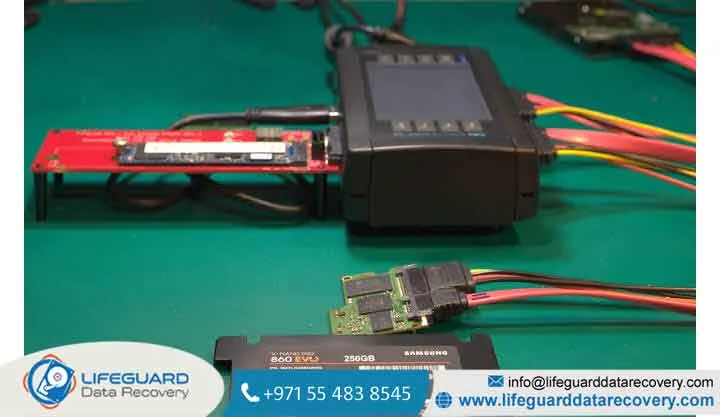
Manufacturer Diagnostic Service Mode: Data recovery specialists use specialized hardware (such as the PC-3000 Flash system) to boot the SSD controller into factory service mode, bypassing corrupt firmware or FTL blocks to image the drive directly.
-
PCB Repair & Micro-soldering: If power delivery components (MOSFETs, fuses, or capacitors) burned out during a surge, technicians replace those surface-mount components to restore power long enough to extract the data.
The Truth About Chip-Off Recovery on Modern NVMe Drives
Historically, “chip-off recovery” desoldering the NAND flash chips from the circuit board and reading them in an external programmer was the standard fix for dead flash storage.
On modern NVMe SSDs, chip-off recovery is often a last resort or technically unviable. Because modern controllers use complex inter-chip interleaving, hardware-level encryption, and proprietary XOR patterns, reading raw NAND chips without an operational controller usually yields unreadable data.
Essential Best Practices to Prevent SSD Data Loss
Because solid-state drives fail electronically rather than mechanically, preventing data loss relies on proactive backup habits rather than repair:
Follow the 3-2-1 Backup Strategy: Keep at least 3 copies of your important data across 2 different storage media types (e.g., an internal SSD and an external HDD), with 1 copy stored securely offsite (cloud backup).
Monitor Drive Endurance: Keep an eye on your drive’s TBW (Total Bytes Written) rating using vendor tools like Samsung Magician or Crucial Storage Executive to replace aging drives before they reach their write limits.
Use an Uninterruptible Power Supply (UPS): Sudden power outages are a leading cause of SSD controller lockup and corrupted FTL maps. Connecting desktop workstations to a UPS prevents abrupt power loss during critical write operations.
Frequently Asked Questions
Can I recover data from a dead SSD at home for free?
Free DIY recovery software only works if the SSD powers on, is recognized by your operating system, and suffers purely from logical corruption (such as a deleted partition). If the drive is physically dead, undetected in BIOS, or shorted, software cannot access it.
Why is SSD data recovery often more expensive than HDD recovery?
SSD recovery requires specialized equipment capable of interfacing with proprietary controller firmware, rebuilding complex scattered FTL maps, and working around hardware encryption processes requiring significant engineering expertise.
How long can an unpowered SSD hold data?
Unlike hard drives that store magnetic data for decades, unpowered NAND flash chips gradually lose their electronic charge over time. A healthy, disconnected SSD typically retains data for 1 to 3 years at room temperature, but worn-out or degraded drives can lose data much faster if left unpowered.