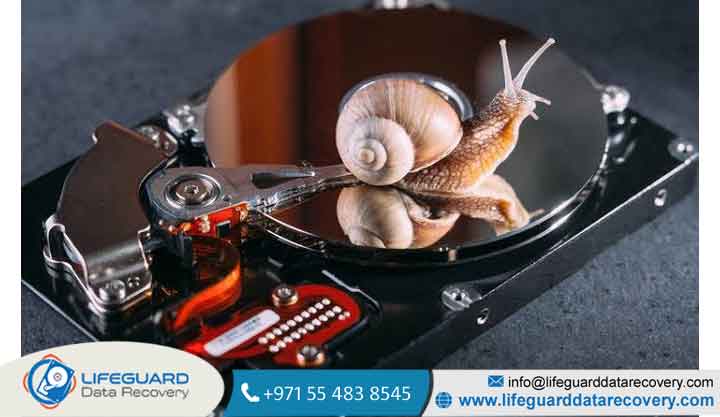
When your system freezes, file transfers crawl at bytes per second, or Task Manager shows a constant disk utilization, your mechanical hard drive is crying out for help. A hard drive suddenly slow or unresponsive can bring entire workflows to a standstill.
Understanding why does a hard drive become extremely slow requires looking at both physical drive health and logical system processes. This comprehensive diagnostic guide breaks down the root causes of slow HDD performance, provides a safe troubleshooting framework, and helps you determine whether your drive can be saved or needs immediate replacement.
How Hard Drive Speed Works and What “Slow” Means
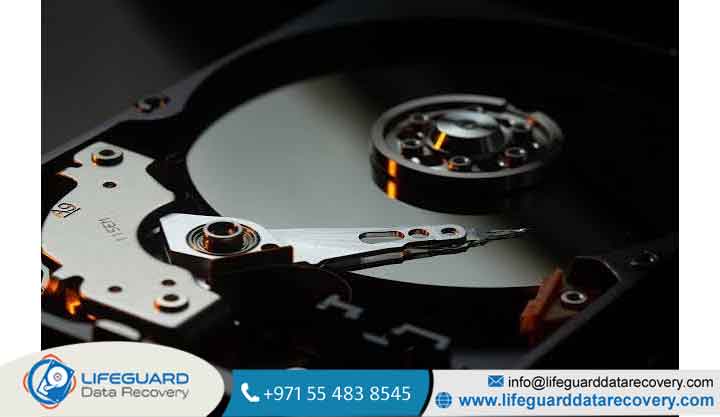
Unlike Solid State Drives (SSDs) that rely on flash memory, a traditional Hard Disk Drive (HDD) is an electromechanical device. It relies on magnetic platters spinning at specific speeds typically (Revolutions Per Minute) and a physical read/write head moving across sectors to access data.
Critical Signs & Symptoms of a Slow or Failing Hard Drive
Recognizing early warning signs allows you to recover sensitive data before a total drive crash occurs.
-
100% Disk Utilization in Task Manager: The drive is constantly running at full capacity, even when no active programs are open.
-
Hard Drive Slow Response & Freezing: Opening File Explorer or loading a basic folder takes tens of seconds or freezes the system entirely.
-
Degraded Transfer Rates: Experiencing hard drive write speed slow behavior during large file copy operations, dropping to zero intermittently.
-
Unusual Mechanical Sounds: Clicking, grinding, or high-pitched whining indicates physical actuator arm or bearing failure.
Primary Causes: Why Does a Hard Drive Become Extremely Slow?
To fix a hard disk running slow, you first need to identify the bottleneck. The root causes fall into hardware failure, architecture limits, file corruption, or background software demands.
Hardware & Physical Failures (Bad Sectors and Mechanical Wear)
Over time, the magnetic substrate on mechanical platters degrades, creating bad sectors unreadable blocks of storage.
-
Soft Bad Sectors: Logical cluster errors caused by sudden power loss during a write cycle.
-
Hard Bad Sectors: Physical damage caused by head crashes, manufacturing defects, or thermal expansion.
When the drive controller Encounters bad sectors, it repeatedly retries reading the damaged area, causing severe hard drive read speed slow behavior and system freezes.
SMR vs. CMR Architecture Limits (The Hidden Bottleneck)
Modern hard drives use one of two recording technologies:
-
CMR (Conventional Magnetic Recording): Data tracks are written parallel to each other. Read/write speeds remain consistent during long transfer sessions.
-
SMR (Shingled Magnetic Recording): Data tracks overlap like shingles on a roof to maximize drive capacity at lower cost.
When writing large files to an SMR drive, the controller must read, rewrite, and modify overlapping tracks simultaneously. This can cause slow HDD performance, dropping sustained write speeds down to $1-5\text{ MB/s}$.
File System Corruption, Extreme Fragmentation, & Bad Cables
-
Fragmentation: Mechanical drives read data fastest when files are stored sequentially. Highly fragmented drives force the actuator arm to seek across thousands of physical locations for a single file.
-
Interface & Cable Bottlenecks: A damaged SATA cable or an underpowered USB cable on a slow external hard drive forces the system to drop connection speeds down to legacy standards or trigger constant re-transmissions.
Software Conflicts (100% Disk Usage, Background Indexing, Malware)
Background operating system services can overwhelm older mechanical drives:
-
SysMain (Superfetch): Preloads frequently used apps into RAM, constantly thrashing low-RPM drives.
-
Windows Search Indexer: Struggles with corrupted search catalogs, causing continuous background indexing.
Defragment & Optimize File Placement
If you are using a mechanical HDD (never perform this on an SSD):
-
Type Defragment and Optimize Drives in the Windows search bar.
-
Select your mechanical hard drive and click Analyze.
-
If fragmentation exceeds $10\%$, click Optimize to reorder file blocks contiguously.
Prevention Tips to Maintain Hard Drive Speed & Longevity
-
Maintain Adequate Free Space: Keep at least of your total drive capacity free. Mechanical drives struggle to find contiguous clusters when filled to capacity.
-
Safe Ejection Protocols: Always safely eject external USB drives before disconnecting them to prevent partial write interruptions and MFT corruption.
-
Monitor Thermal Levels: Ensure your PC case has proper airflow. Operating temperatures above accelerate mechanical degradation.
Frequently Asked Questions (FAQs)
Why is my hard drive running at 100% usage but showing 0 MB/s speed?
This typically occurs when the drive controller is unresponsive while attempting to read from bad sectors or physically damaged platters. The operating system queues requests (causing $100\%$ active time), but no data successfully transfers .
Can a slow hard drive cause my entire computer to freeze?
Yes. When Windows requests a system file or pagefile data from a slow or unresponsive hard drive, the entire operating system thread halts while waiting for the drive controller to respond, causing global system freezes.
Should I repair a slow HDD or replace it with an SSD?
If the slowdown is caused by minor file fragmentation or temporary software background tasks, the HDD can be restored. However, if the drive is showing physical S.M.A.R.T. errors or age-related wear, replacing it with a modern Solid State Drive (SSD) will provide a massive speed upgrade ($5\times \text{to} 25\times$ faster read/write throughput).