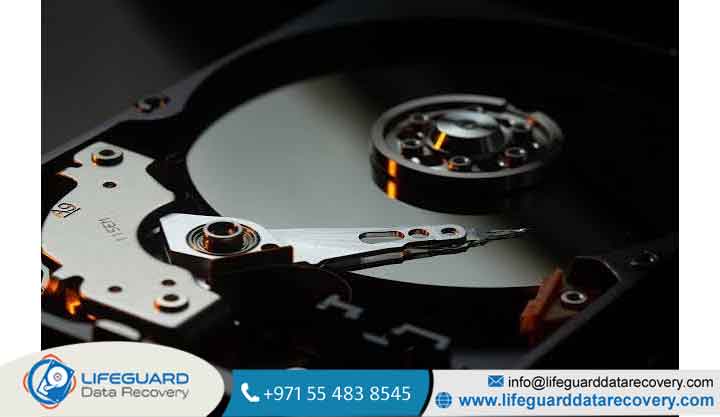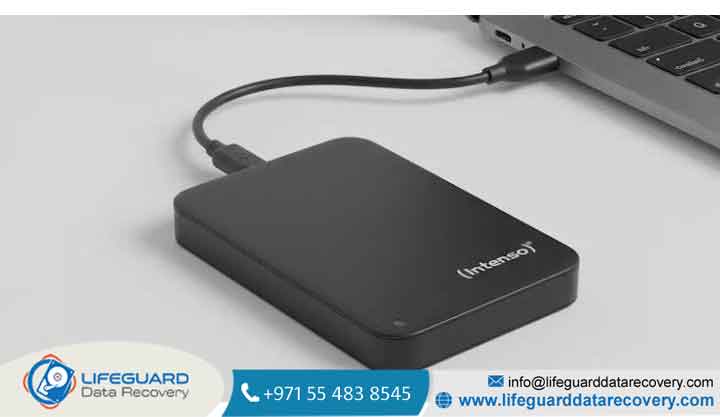
Accidentally formatting an internal or external hard drive is one of the most nerve-wracking experiences in data management. Whether it happens during an operating system reinstallation, an accidental click in Disk Management, or a sudden system prompt urging you to format a corrupted volume, the immediate question is always the same: Is that data gone forever, or can it be saved?
In most cases involving traditional Hard Disk Drives (HDDs), the underlying binary data remains intact on the magnetic disk platters long after a format command is executed.
This technical guide explains how formatting alters disk structures, breaks down the critical mechanics of Quick vs. Full formatting, outlines safe DIY software recovery methods, and helps you determine when professional laboratory assistance is required.
Understanding Formatting Mechanics: How Data Persistence Works
To successfully execute formatted HDD data recovery, you must first understand how file systems organize data and what actually changes when a formatting command is issued.
What Happens Behind the Scenes When an HDD Is Formatted?
A file system manages data using an index table such as the Master File Table (MFT) in NTFS or the File Allocation Table (FAT) in FAT32. This table acts as a directory map, storing file names, file sizes, timestamps, and the exact physical sector locations of your files on the drive’s magnetic platters.
Quick Format vs. Full Format vs. Low-Level Format
The likelihood of recovering data from a formatted drive depends almost entirely on the type of format executed:
-
Quick Format: Wipes the file system index table (MFT/FAT) and builds a new, empty file structure. It does not scan for bad sectors or overwrite raw data clusters. Files remain 100% physically intact and are fully recoverable using specialized file-carving software.
-
Full Format (Windows 7, 10, 11): In modern operating systems, running a Full Format goes beyond checking the disk for bad sectors it actively writes zeros across all physical sectors (
zero-fill). Once sectors are zero-filled, standard consumer data recovery software cannot reconstruct the original binary signatures. -
Low-Level Format: Performed at the factory level (or using low-level utility software), this process re-initializes physical tracks and sectors, permanently destroying all existing magnetic patterns.
HDD vs. SSD Formatting: Why Drive Technology Matters
A critical distinction in data recovery is the physical storage medium:
-
Magnetic Hard Disk Drives (HDDs): Store data as magnetic charges on physical rotating platters. HDDs retain unallocated data passively until explicitly overwritten by new file write operations.
-
Solid-State Drives (SSDs): Utilize flash memory controlled by an internal firmware feature called TRIM.
Causes and Scenarios of Formatted HDD Data Loss
Understanding how your drive was formatted helps determine the correct recovery strategy:
-
Accidental Formatting During OS Setup: Accidentally selecting the wrong drive letter (e.g.,
Drive D:instead of a flash drive) during a clean Windows, Linux, or macOS installation. -
Forced Formatting Due to RAW File System Errors: Connecting an external hard drive and receiving operating system prompts like “You need to format the disk in drive X: before you can use it” or “The volume does not contain a recognized file system.” This typically stems from partition table corruption, safe removal failures, or sudden power loss.
-
Malware and Third-Party Partition Errors: Malicious scripts or failing third-party disk management software corrupting boot sectors (MBR/GPT) and forcing unprompted format cycles.
Immediate Rules Before Attempting Data Recovery
If you have accidentally formatted a hard drive, immediate action is required to prevent permanent data destruction.
Immediately Stop Writing Data to the Drive
Because the OS treats a formatted drive as empty, “unallocated” space, any new file saved to that drive whether downloading a web file, taking a screenshot, or installing a software program will overwrite the raw sectors holding your lost data. Once overwritten, that data is permanently unrecoverable.
Do Not Install Recovery Tools on the Formatted Volume
Never download or install data recovery software onto the same formatted drive you are trying to restore. Always download and run recovery applications on a completely separate drive (such as your primary C:\ drive or an external secondary disk) and save recovered files to an independent storage location.
Distinguish Between Logical and Physical HDD Failure
If your hard drive exhibits physical failure symptoms such as clicking, grinding, scraping sounds, or failing to spin up in BIOS stop using the drive immediately.
Attempting to run software recovery tools on a physically damaged drive will scrape magnetic platter coatings and cause irreversible data destruction.
Step-by-Step Methods to Recover Data from Formatted HDD
Follow these technical procedures to safely recover data from formatted hard drive volumes.
Recovering Partition Structures via Open-Source Tools (TestDisk)
-
Connect the formatted HDD to a working computer as a secondary drive.
-
Launch TestDisk, select the target formatted disk, and select its partition table type (typically
Intel/PCfor MBR orEFI GPT). -
Select Analyze to perform a
Quick Searchfor lost partition entries. -
If TestDisk identifies the original file allocation table, preview the files to verify integrity.
-
Select Write to restore the partition structure and restart the system to remount the original drive.
Sector-Level Raw Data Recovery via Specialized Recovery Software
Software file carvers scan raw unallocated sectors for recognizable file headers and footers (e.g., identifying as the starting byte header of a JPEG image) to recover photos from formatted HDD and recover documents from formatted hard drive storage:
-
Download a verified data recovery utility (such as R-Studio, DMDE, TestDisk/PhotoRec, or Recuva) onto a healthy secondary drive.
-
Select the formatted drive volume and initiate a Deep Scan / Full Sector Scan.
-
Allow the software to complete a full pass across all physical LBA (Logical Block Addressing) sectors.
-
Filter the results by file
-
Select a separate, secondary storage drive as the destination path and execute the file extraction process.
Recovering Formatted HDDs with Bad Sectors via Disk Imaging First
The Safe Approach:
-
Use disk imaging tools (such as
ddrescuein Linux or image creation features in enterprise recovery software) to create a byte-for-byte raw clone (.imgor.ddfile) of the physical drive. -
Disconnect the unstable physical hard drive safely.
-
Mount the byte-for-byte image file on a healthy computer and run file recovery software safely against the image file.
Proactive Prevention: How to Protect Hard Drives from Format Disasters
-
Implement the 3-2-1 Backup Strategy: Maintain at least 3 total copies of your data across 2 different storage media types (e.g., internal HDD + external storage drive), with 1 backup copy stored offsite or in encrypted cloud storage.
-
Drive Labeling and Confirmation Prompts: Give every partition a clear volume name (e.g.,
WORK_BACKUP_2026) in Disk Management rather than relying on generic drive letters (D:,E:), preventing accidental selection during OS formatting prompts. -
Monitor S.M.A.R.T. Hard Drive Health: Periodically run S.M.A.R.T. diagnostic tools (such as CrystalDiskInfo) to monitor reallocated sector counts, read error rates, and temperature spikes before drive degradation triggers forced formatting prompts.
Frequently Asked Questions (FAQs)
Can I recover files from a formatted HDD after a Full Format?
Standard consumer software cannot recover data after a modern Windows Full Format because the OS writes zeros across all sectors. In specialized hardware laboratory settings, forensic specialists evaluate whether residual magnetic traces remain, but standard software-based recovery is generally impossible after zero-filling.
How long does formatted HDD data recovery take?
Recovery times depend on drive capacity, connection interfaces, and physical drive health. A deep sector scan on a healthy 1TB HDD connected via SATA or USB 3.0 typically takes between 2 to 5 hours. On larger 8TB+ drives or drives with bad sectors, scans can take
Can photos and documents be recovered with their original file names?
If the format was a Quick Format and the Master File Table (MFT) metadata survives intact, files can often be restored with original file names and folder paths. If the metadata is destroyed and the software relies on raw sector file carving, files will be recovered with generic names based on their sector sequence.
Is free data recovery software safe for formatted hard drives?
Open-source tools like TestDisk and PhotoRec are safe and effective when used correctly. However, always ensure you download tools from official developer repositories and strictly avoid installing software executables onto the target formatted drive.