When your computer suddenly emits unusual noises, panic is a natural response. Mechanical Hard Disk Drives (HDDs) are electro-mechanical devices that rely on rapidly spinning magnetic platters and ultra-precise read/write heads. When these internal components degrade or misalign, they produce distinct acoustic signals long before the operating system reports a total crash.
Understanding what a failed hard drive sounds like helps you recognize emergency symptoms early, prevent permanent platter scoring, and protect your critical data before total mechanical failure occurs.
Healthy vs. Unhealthy HDD Acoustics: What is Normal?
Not every sound coming from your storage drive indicates an emergency. Because HDDs contain moving mechanical parts, a baseline level of operational sound is expected.
-
Normal Spindle Whirring: A smooth, continuous humming sound caused by the spindle motor spinning platters at high speeds (typically 5,400 to 7,200 RPM, or up to 15,000 RPM in enterprise units).
-
Normal Read/Write Chatter: Soft, irregular tapping or quiet clicking noises during intensive file transfers or background OS indexing. This is simply the actuator arm rapidly repositioning over data tracks.
-
Normal Shutdown Parking: A single, faint metallic click when the drive powers down. This occurs as the voice coil motor steers the read/write heads safely onto a static parking ramp outside the platter boundary.
Unhealthy sounds, by contrast, are repetitive, harsh, or rhythmic. Continuous clicking, high-pitched screeching, metallic grinding, or persistent beeping indicate severe mechanical or electrical failure.
Acoustic Diagnostic Guide: Distinct Failed Hard Drive Sounds (And What They Mean)
Identifying the specific sound profile your drive makes narrows down the exact mechanical or electronic component that has failed inside the drive chassis.
Continuous Clicking, Ticking, or Sweeping (“The Click of Death”)
The most infamous symptom of HDD failure is a rhythmic, repeating clicking sound. This occurs within a closed mechanical loop:
-
The drive spins up and attempts to calibrate.
-
The read/write heads sweep across the platters searching for embedded magnetic markers called servo tracks.
-
When the read/write head slider or the preamplifier (preamp) chip on the head stack fails, the drive becomes “blind” and cannot lock onto these servo signals.
-
The drive controller aborts, steering the actuator arm abruptly back to its home position where it strikes the mechanical crash stop.
-
The cycle repeats continuously, creating the sound of an HDD making clicking noise.
High-Pitched Beeping, Buzzing, or Screeching
Hard drives do not have built-in audio speakers. When an external or internal drive emits a high-pitched beeping sound, the sound is generated by the spindle motor struggling against a physical jam.
-
Head Stiction: The read/write heads fail to retract to their parking ramp during an abrupt power outage or impact, landing directly on the magnetic platter surface. The micro-smooth platters bond to the heads like suction cups, locking the motor in place.
-
Spindle Motor Seizure: Physical drops can bend the central spindle shaft or damage the fluid dynamic bearings, preventing the drive platters from rotating.
Harsh Grinding, Scraping, or Metal-on-Metal Noise
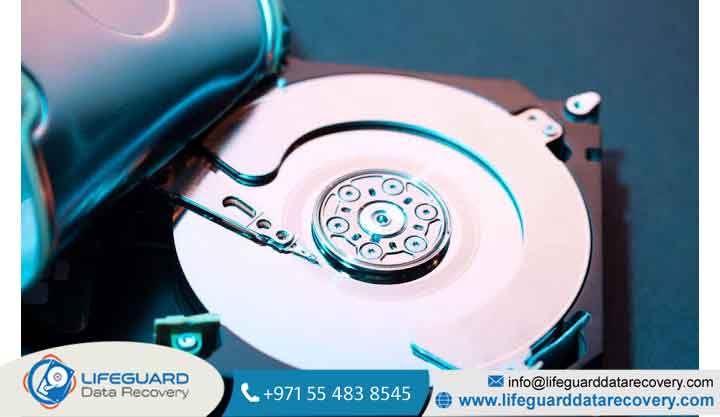
Grinding is the most dangerous sound a hard drive can make. This noise confirms a head crash, where the read/write head sliders which normally fly nanometers above the platters on an aerodynamic air cushion have made direct contact with the magnetic media coating.
At rotational speeds exceeding 80 km/h at the platter edge, the hard ceramic slider acts like fine sandpaper, physically scraping away the magnetic substrate and turning your stored files into unrecoverable dust. If you hear an HDD clicking and grinding noise, disconnect power immediately.
Loud Whirring, Winding Up and Down, or Repetitive Spindown
If your drive repeatedly revs up to full speed, slows down to a stop, and spins up again, it is experiencing speed instability. Common causes include:
-
Fluctuating power delivery from a degraded power supply unit (PSU) or faulty USB enclosure cable.
-
Degraded fluid dynamic bearings increasing rotational friction.
-
Firmware corruption within the reserved System Area (SA) of the platter, causing the drive to reset its spin sequence repeatedly.
Complete Silence or Faint Electrical Hum
A drive that produces zero acoustic feedback no spinning whir, no click, and no vibration suffers from electrical path failure. This is often caused by a fried Printed Circuit Board (PCB), blown Transient Voltage Suppressor (TVS) diodes following a power surge, or blown fuse components on the board.
Acoustic Decision Matrix: Sound Type vs. Failure Type vs. Severity Level
Use this quick-reference matrix to evaluate your drive’s condition based on its acoustic output:
| Sound Profile | Primary Cause | Failure Type | Severity / Risk Tier | Immediate Action |
| Continuous Clicking | Head stack / Preamp / Servo lock failure | Physical / Mechanical | Critical (High Risk) | Power off; refrain from running software scans. |
| Beeping / Buzzing | Stiction (Heads stuck on platter) / Seized bearing | Mechanical / Motor | Critical (High Risk) | Cut power immediately; do not shake or tap. |
| Harsh Grinding | Direct Head Crash (Head-to-platter contact) | Physical Damage | Terminal Emergency | Disconnect immediately to prevent permanent data loss. |
| Spinning Up / Down | Power supply failure / SA Firmware corruption | Power / Logical / Mechanical | Moderate to Severe | Test with a known good cable/port; power down if persistent. |
| Dead Silent | Burned PCB / TVS diode short / Blown fuse | Electrical | Moderate (Data usually intact) | Requires PCB repair/ROM transfer by an expert. |
Critical Distinctions: Is the Noise Actually Coming From Your Hard Drive?
Before concluding your hard drive is dying, rule out other system components that generate similar mechanical sounds:
-
Cooling Fans: A failing case fan, CPU cooler, or GPU fan with worn sleeve bearings produces loud grinding, buzzing, or ticking noises that sound like an HDD. Test: Temporarily disconnect suspect case fans or observe them while listening closely.
-
Power Supply Coil Whine: High-frequency electrical buzzing or squealing can originate from power supply inductors under heavy loads.
-
Solid-State Drives (SSDs): SSDs contain zero moving parts. They are completely silent. If you hear clicking or grinding coming from an SSD-only computer, the sound is guaranteed to be a fan or power component, not your storage drive.
What NOT to Do When Your Hard Drive Starts Making Noise (Dangerous DIY Myths)
Searching online for quick fixes returns dangerous DIY advice that permanently destroys data. Avoid these dangerous practices:
-
Do NOT try the “Freezer Trick”: Putting a drive in a plastic bag in the freezer is a legacy myth Modern drives operate with micro-gap head clearances. Cold temperatures create internal condensation the moment the drive powers back up, causing immediate head crashes and water damage across the platters.
-
Do NOT run software recovery tools: Utilities like CHKDSK, Recuva, or Disk Drill are designed for logical corruption on healthy hardware. Running software scans on a clicking or grinding drive forces bad heads to perform millions of aggressive read attempts, turning recoverable sectors into scratched, useless glass.
-
Do NOT tap, hit, or shake the drive: Physical shock does not “unstick” heads safely. Impact knocks read elements off their suspension arms and scatters mechanical debris inside the casing.
-
Do NOT open the drive outside a cleanroom: Opening a hard drive chassis exposes platters to ambient dust. A single dust particle is dozens of times larger than the head fly-height and acts like a brick when hit by a platter spinning
-
Do NOT swap circuit boards (PCBs) directly: Modern drives store unique, factory-tuned calibration micro-code on an 8-pin ROM chip on the PCB. Installing a replacement PCB without soldering and transferring the original ROM will cause donor heads to fly at incorrect altitudes, crashing the drive within seconds.
Step-by-Step Emergency Response: What to Do Immediately After Hearing Noise
Follow this immediate emergency workflow to maximize your data recovery chances:
-
Cut Power Immediately: Perform a hard shutdown by holding down the power button or pulling the power plug. Do not wait for standard operating system shutdown procedures if the drive is grinding.
-
Disconnect the Drive: Remove external USB cables or disconnect internal SATA/power cables from the motherboard.
-
Document the Symptoms: Write down the precise sound (clicking, beeping, silent), any recent drops or power surges, and the most critical files you need retrieved.
-
Isolate the Hardware: Store the drive in an anti-static bag at room temperature.
-
Evaluate Your Recovery Path: Decide whether the data is critical enough to warrant cleanroom hardware recovery services.
Understanding Data Recovery Options for Noisy Hard Drives
Recovering data from a physically damaged hard drive requires specialized lab infrastructure.
When Logical Recovery Software Works (Corrupted Drives)
Software tools are effective only when a hard drive is mechanically silent, spins smoothly, and exhibits no unusual acoustics. If a drive suffers from accidental formatting, partition loss, or file system corruption and passes S.M.A.R.T. health checks without physical noise software imaging can safely proceed.
For drives exhibiting physical symptoms, consult a specialized hard drive recovery service.
When Physical Hardware Repair Is Required (Mechanical Damage)
When mechanical failure strikes, recovery requires an ISO 5 Class 100 cleanroom bench. Data recovery engineers execute cleanroom head-stack assembly (HSA) swaps using exact donor hardware matches, free stuck actuators using stiction-release fixtures, and bypass corrupted firmware modules using specialized hardware like diagnostics system.
If you suspect severe mechanical damage, seek out certified professional data recovery services equipped with proper cleanroom facilities.
Locating Qualified Professional Recovery Specialists
-
Do they operate a verifiable, certified cleanroom environment?
-
Do they offer a strict “No Data, No Fee” policy?
-
Do they perform free initial diagnostic evaluations on patient drives?
Essential Prevention Tips: Protecting Your Data Before Mechanical Failure Occurs
Mechanical hard drives have a 100% failure rate over a long enough timeline. Protect your data proactively with these guidelines:
-
Monitor S.M.A.R.T. Health: Use utilities like CrystalDiskInfo or Smartmontools to check drive telemetry. Pay immediate attention to attributes
-
Follow the 3-2-1 Backup Rule: Keep 3 copies of your data, on 2 different media types (e.g., local HDD and external drive), with 1 copy stored securely offsite or in the cloud.
-
Prevent Physical Shock: Never move, bump, or rotate an external hard drive while its platters are actively spinning.
-
Maintain Stable Power: Connect desktop systems and external arrays to an Uninterruptible Power Supply (UPS) to protect against sudden voltage drops and power cuts.
Frequently Asked Questions (FAQs)
Can a hard drive click and still work?
Yes, a drive may click intermittently and still mount or allow file access temporarily. This indicates that one head in a multi-head stack is degrading or that specific servo tracks are unreadable. However, this state is extremely unstable; total failure usually occurs shortly after. Back up critical files immediately or power off the drive.
Can software fix a clicking or grinding hard drive?
No. Clicking and grinding are mechanical failure modes caused by physical head damage, platter wear, or alignment loss. Software cannot repair broken physical components, and running utility software accelerates permanent data loss.
Why does my external hard drive make a double-click sound?
A double-click sound on external drives often signals insufficient USB bus power. If the USB port fails to provide adequate voltage, the drive controller resets the heads repeatedly. Try using a shorter USB 3.0 cable, connecting directly to motherboard ports (avoid unpowered hubs), or using a Y-cable / powered USB hub.
What is the difference between HDD clicking and SSD failure?
HDDs click because they contain physical moving parts (actuator arms and spinning platters). Solid-State Drives (SSDs) contain no moving parts and fail silently, usually becoming sudden read-only devices or dropping off the bus entirely due to controller or flash memory wear.
How much does professional hard drive data recovery cost?
Recovery costs depend entirely on the failure mode rather than data volume. Electrical board repairs or logical corruptions typically range lower, while mechanical head swaps requiring donor parts and cleanroom labor generally range depending on drive architecture.