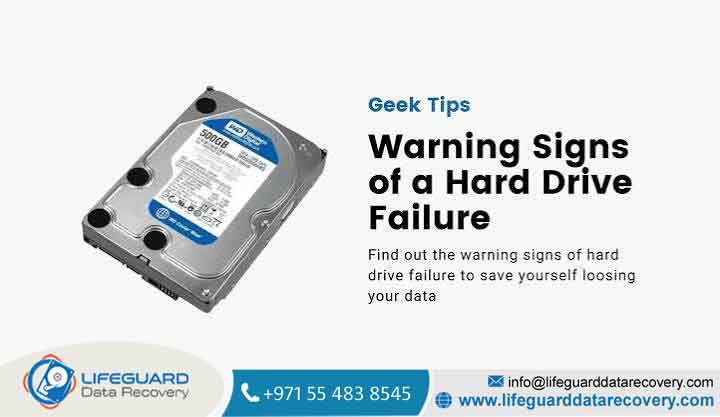
A hard drive does not always die a sudden death. Often, it drops subtle hints, deteriorates over weeks, or begins to “limp” long before it completely crashes. Catching these early indicators can mean the difference between seamlessly moving your data to a new device or paying thousands of dollars to a clean-room data recovery lab.
This guide details the definitive symptoms of hardware degradation, contrasting mechanical Hard Disk Drives (HDDs) with modern Solid State Drives (SSDs), and outlines the exact diagnostic steps to take before your data vanishes.
What Are the First Signs of Hard Drive Failure?
When storage hardware begins to experience underlying health defects, it expresses its degradation through clear behavioral patterns. Identifying these early warning signs allows you to act while the disk remains operational.
1. Slowing Performance and Frequent Freezes
If launching applications, opening documents, or searching files takes noticeably longer, your system may be struggling to read data from deteriorating drive sectors. When an operating system encounters a damaged block, it will repeatedly attempt to read the data, forcing the entire system to freeze or hang temporarily.
2. Corrupted Files and Disappearing Data
As physical or logical sectors break down, data blocks become unreadable. You might notice:
-
Files that suddenly fail to open or report as “corrupted.”
-
Folders or individual directories mysteriously vanishing.
-
Scrambled folder names or random character strings replacing text.
3. S.M.A.R.T. Errors and Boot Failures
Modern motherboards utilize S.M.A.R.T. (Self-Monitoring, Analysis, and Reporting Technology) to monitor internal attributes. If your computer displays a message like “Smart Status Bad, Backup and Replace” or “Disk Failure Imminent” during boot-up, the drive’s internal microcontrollers have already flagged mathematical metrics showing the drive is operating outside safe thresholds.
Signs of SSD vs. HDD Failure
Because HDDs and SSDs operate on fundamentally different engineering principles, their failure paths diverge wildly. An HDD uses physical, spinning magnetic platters and moving actuator arms, whereas an SSD relies strictly on non-volatile flash memory chips.
The HDD Experience: Mechanical Degradation
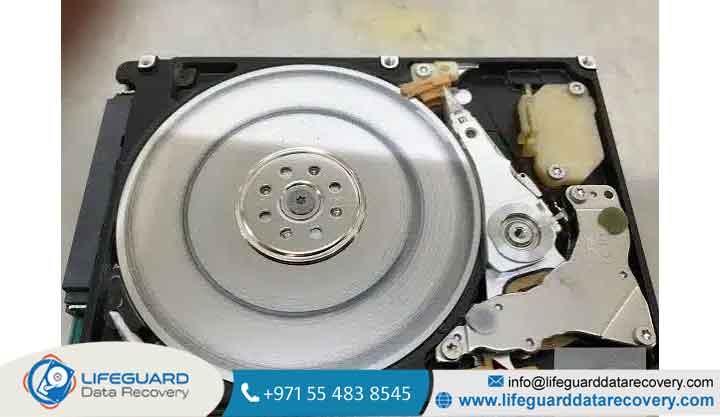
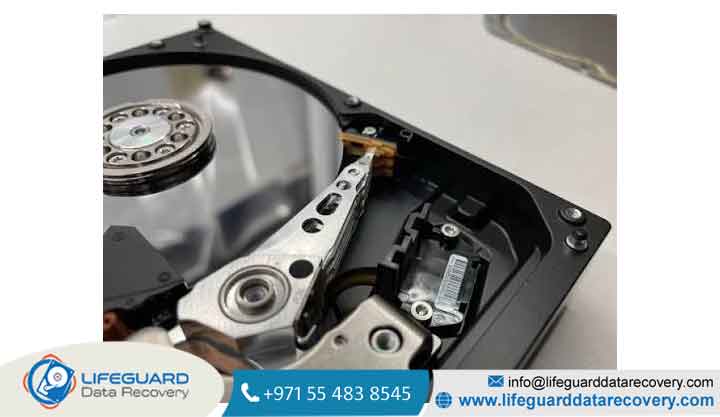
Traditional hard disk failure symptoms are overwhelmingly acoustic. The notorious “Click of Death” occurs when the read/write head assembly malfunctions. The actuator arm tries to find its home position, fails, returns to the start, and hits the physical limiter repeatedly,
creating a rhythmic clicking noise. Grinding sounds indicate that the spindle motor bearings are wearing out or, worst-case, the heads are actively scraping the magnetic media coating off the platters.
The SSD Experience: Silent Electronic Blockage
Because solid-state drives lack moving components, they die in complete silence. Instead of mechanical wear, flash memory blocks have a finite number of Program/Erase (P/E) cycles before they wear out.
When an SSD is facing imminent death, the onboard controller chip will often shift the drive into a protective read-only state. You will be able to view and copy your files, but you will completely lose the ability to save new files, download updates, or modify data.
How to Check Hard Drive Health
If your computer is acting erratically and you suspect hardware degradation, do not wait for a catastrophic crash. Use built-in diagnostic systems to audit the drive’s integrity.
Auditing Drive Health via Windows (Command Prompt)
Windows provides a deep administrative framework to parse hardware status using the Windows Management Instrumentation Command-line (WMIC).
1.Open an Elevated Terminal:Requires Admin.
Press the Windows Key, type cmd, right-click on Command Prompt, and select Run as Administrator.
2.Query the Low-Level Hardware Status:Execute WMIC.
Type wmic diskdrive get status into the terminal window and hit Enter.
3.Interpret the On-Screen Return Value:Analysis.
If the terminal prints OK for every listed drive, your hardware is within standard S.M.A.R.T parameters. If it returns Pred Fail, the internal monitoring logic has detected unrecoverable hardware anomalies.
-
Mechanical Wear and Tear: For HDDs, components simply degrade over time. Actuator springs lose tension, and lubricating fluids inside the spindle motor evaporate, causing the motor to seize.
-
Environmental Extremes: Excess heat is a primary catalyst for electrical deterioration. Operating an HDD above 60°C or an NVMe SSD above 70°C causes severe structural stress. Similarly, sudden electrical power surges can roast the components on a drive’s external Printed Circuit Board (PCB).
-
Logical Corruption and Bad Sectors: Software issues, failed system updates, or malware can scramble your drive’s file allocation metrics. This causes data blocks to drop into a permanent “pending or uncorrectable error” status loop.
How to Recover Data From a Failing Hard Drive
If you confirm your drive is structurally failing, you must pivot instantly from diagnostics to mitigation.
The Golden Rule of Data Rescue: A failing drive has a highly volatile, rapidly closing survival window. The more operations you perform on a physically failing disk, the higher the risk that the read/write heads will cause unrecoverable scratches across the data sectors.
If your drive is still recognized by the operating system, do not run antivirus scans, defragmentation software, or stressful benchmark applications. Instead, execute an emergency backup:
-
Prioritize Vital Files: Do not waste precious time copying massive, replaceable files like application directories or game installs. Manually transfer small, irreplaceable assets first—such as family photographs, tax documents, crypto-wallets, and unique project databases.
-
Clone the Drive Rather Than Copying: The safest way to handle a failing drive is to create a bit-by-bit raw image clone using software like Macrium Reflect or Clonezilla onto a healthy, separate drive. This allows you to safely recover data from the cloned image later without taxing the failing hardware.
-
Know When to Power Down: If a hard drive is actively making grinding noises or if data transfers stall completely at 0 bytes per second, shut the system down immediately. Continuing to run a drive with physical head damage will permanently obliterate the magnetic platters, making professional recovery impossible even in specialized cleanrooms.
If you suspect your drive’s issues are caused by catastrophic server failures, RAID drops, or broken physical connections within corporate hardware environments, consider consulting a professional team of Enterprise Data Recovery Specialists. Trying to run automated recovery applications on unstable multi-disk configurations can overwrite critical parity data, causing permanent data loss.
Frequently Asked Questions
Can a failing hard drive be repaired?
If the failure is logical (file system corruption, bad software partition tables), it can often be fully resolved by reformatting the drive and reallocating data blocks.
However, if the failure is physical or mechanical (damaged read heads, burnt PCB components, degraded flash memory cells), the drive cannot be permanently repaired or reused. It must be temporarily stabilized by specialists to extract the data, then thrown away.
What should I do if my hard drive is not detected at all?
First, eliminate basic external variables. Swap out the data cables (SATA or USB) and try connecting the drive to a completely different port or computer. If it is an external drive, remove it from its plastic enclosure and connect it directly to a desktop motherboard via SATA.
If the drive remains entirely invisible in the system BIOS/UEFI and does not spin up or show signs of life, its control circuit board has likely suffered an electrical failure.
How do I know if my drive is failing or if my PC is just old and slow?
A generic slow system is usually caused by too many background processes, software bloat, or low RAM, and performance will remain consistently sluggish. A failing storage drive, however, causes distinct system anomalies:
long stretches where the disk usage stays locked at 100% in Task Manager, explicit file read/write errors, and system freezes that disappear the moment you disconnect the secondary drive.