Few technical issues are as frustrating or as dangerous to your data as an external hard drive that randomly disconnects and reconnects. Whether you hear the familiar operating system device unplugged chime mid-transfer or watch your drive vanish from File Explorer, constant disconnections put your files at risk.
When an external drive unmounts unexpectedly, active write operations drop instantly. This abrupt termination can corrupt the Master File Table (MFT), turn healthy partitions into RAW drives, or cause read/write heads to land improperly on spinning magnetic platters.
This comprehensive guide breaks down why an external HDD keeps disconnecting, provides an emergency safety protocol to protect your files, and delivers step-by-step fixes for Windows and macOS.
Emergency Checklist: Protecting Your Files First
Before tweaking power management settings or running system repair utilities, protect your data. Repeated disconnections during active transfer sessions multiply the risk of permanent file corruption.
Stop Active Read/Write Operations to Prevent Corruption
If your drive disconnects while moving photos, documents, or video projects, cancel all active transfers immediately. Forcing the operating system to retry reading a dropping drive keeps the actuator arm sweeping across sectors, increasing the chance of physical surface scoring or directory index corruption.
Backup Priority vs. Hardware Scan Sequence
Do not jump straight to invasive disk scans like CHKDSK /f /r or third-party partition repair utilities on an unstable drive. If the root cause is physical mechanical degradation, running a heavy surface scan puts immense stress on damaged drive heads.
-
Secure critical files first during any brief window of stable connectivity.
-
Prioritize small, high-value documents over large media archives.
-
Once essential files are backed up to cloud storage or an internal drive, proceed safely with diagnostic fixes.
Why an External HDD Keeps Disconnecting: Primary Causes
When an external HDD keeps disconnecting from PC setups or laptops, the culprit usually falls into one of four categories: physical connection faults, power throttling, operating system policies, or file system instability.
Mechanical 2.5-inch portable hard drives draw power directly from the computer’s USB bus. Standard USB 2.0 ports deliver a maximum of 500mA (2.5W), whereas USB 3.0 ports provide up to 900mA (4.5W).
If you connect a power-hungry external HDD through an unpowered USB hub, a front-panel case header with insufficient voltage, or an elongated extension cable, the drive may suffer momentary power dips. When the spindle motor spins up to handle heavy read/write operations, these power drops cause the drive controller to reset and temporarily disconnect.
Damaged Cables, Loose USB Ports, and Failing Enclosures
Physical wear and tear on USB connectors is a common failure point. Frayed internal copper strands, oxidized contacts, or loose USB-C/Micro-B ports interrupt the continuous data stream.
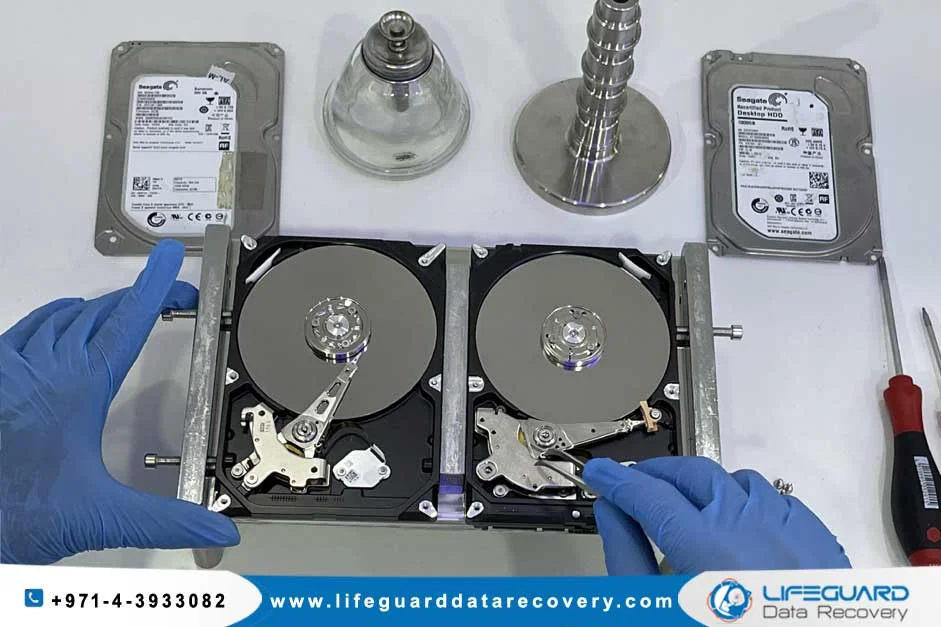
Additionally, external hard drives rely on a internal SATA-to-USB bridge board located inside the drive enclosure. If this bridge chip overheats or experiences solder joint degradation, it will drop the USB connection even if the internal hard drive mechanism remains healthy.
Windows Power Management and USB Selective Suspend
Modern operating systems actively manage power consumption to conserve battery life. Windows features a setting called USB Selective Suspend, which puts idle USB ports into a low-power state.
Unfortunately, this feature often misinterprets background drive indexing or low-level polling as idle time, cutting power to the USB port and causing the drive to drop offline unexpectedly.
Corrupted Drivers and Chipset Software
Outdated or corrupted Universal Serial Bus controller drivers, USB xHCI compliance issues, or outdated motherboard chipset software cause communication errors between the operating system’s storage stack and the external drive’s controller.
Bad Sectors and Physical Drive Wear
If an external HDD disconnects randomly only when accessing specific folders or opening large files, bad sectors may be the cause. When the drive encounters damaged magnetic sectors, the controller re-reads the area repeatedly. If the read attempt exceeds the OS response timeout, the drive stops responding and drops off the system bus.
Step-by-Step Fixes for Disconnecting Hard Drives
Perform Physical Hardware Diagnostics
-
Bypass Unpowered USB Hubs: Connect the drive directly to the computer’s motherboard ports (on desktop PCs, use the rear ports attached directly to the back panel).
-
Switch to High-Bandwidth Cables: Replace the existing USB cable with a short, shielded USB 3.0/3.1 cable.
-
Test a Different Port / PC: Plug the drive into a different USB generation port (e.g., switch from a USB 3.0 blue port to a USB 3.2 port) or connect it to another computer. If the drive remains stable on a secondary system, the issue lies with your PC’s power management or drivers.
Disable USB Selective Suspend in Windows
Turning off aggressive power saving prevents Windows from dropping power to active external storage devices.
-
Press
Win + R, typecontrol, and press Enter. -
Navigate to Power Options and click Change plan settings next to your active power plan.
-
Click Change advanced power settings.
-
Expand USB settings > USB selective suspend setting.
-
Set both On battery and Plugged in to Disabled.
-
Click Apply and OK.
Additionally, prevent Device Manager from turning off root hubs:
-
Right-click the Start menu and select Device Manager.
-
Expand Universal Serial Bus controllers.
-
Right-click USB Root Hub (and Generic USB Hub), then select Properties.
-
Go to the Power Management tab and uncheck “Allow the computer to turn off this device to save power”.
Step 3: Reinstall USB Controllers and Update Drivers
Rebuilding the OS driver stack eliminates corrupted device entries.
-
Open Device Manager (
devmgmt.msc). -
Expand Universal Serial Bus controllers.
-
Right-click your host controller (e.g., Intel USB 3.1 eXtensible Host Controller) and click Uninstall device.
-
Restart your computer. Windows will automatically re-detect the hardware and reinstall fresh USB controllers during startup.
Step 4: Disable Windows Fast Startup
Windows Fast Startup uses a hybrid hibernation file that can keep USB host controllers in a cached state, leading to drive instability upon waking.
-
Open Control Panel > Power Options.
-
Click Choose what the power buttons do in the left sidebar.
-
Click Change settings that are currently unavailable.
-
Uncheck Turn on fast startup (recommended) and click Save changes.
Step 5: Check S.M.A.R.T. Health and Run CHKDSK
Before running file system repairs, evaluate the drive’s internal health metrics using a free diagnostic tool like CrystalDiskInfo:
-
Look at the Health Status indicator. If it displays Caution or Bad (with high counts of Reallocated Sectors Count or Current Pending Sector Count), the drive is failing physically and should be replaced.
-
If S.M.A.R.T. status reports Good, repair file system errors via Command Prompt:
-
Press
Win + Xand select Terminal (Admin) or Command Prompt (Admin). -
Type the repair command (replace
X:with your drive’s actual assigned letter):DOS
chkdsk X: /f /r -
Allow the repair scan to fix file allocation table errors and mark bad sectors.
Mac-Specific Fixes for Random Disconnections
If an external hard drive disconnects and reconnects unexpectedly on macOS, Apple’s power-saving routines or Spotlight indexing may be responsible.
Adjusting macOS Disk Sleep Settings
-
Click the Apple Menu and open System Settings.
-
Navigate to Displays or Battery (or Energy Saver on desktop Macs).
-
Click Options and turn off “Put hard disks to sleep when possible”.
Running First Aid in Disk Utility
-
Open Finder > Applications > Utilities > Disk Utility.
-
Select your external drive in the left sidebar.
-
Click First Aid in the top toolbar and select Run to check the APFS or exFAT volume map for directory errors.
What to Do If the External HDD Is Not Detected After Disconnecting
When an external HDD not detected after disconnecting drops off completely, Windows may have lost track of its assigned drive letter or partition table.
Assigning a New Drive Letter in Disk Management
-
Right-click the Start button and select Disk Management.
-
Locate your external hard drive in the volume list (it will appear as a primary partition).
-
Right-click the drive volume and select Change Drive Letter and Paths…
-
Click Change, assign a new letter (e.g.,
M:orDrive Z:), and click OK.
Handling Drives Showing as RAW
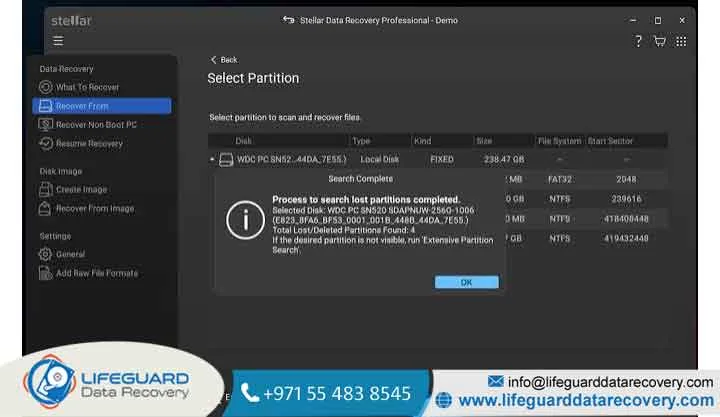
If sudden disconnections corrupt the partition header, your drive may display as RAW in Disk Management. Avoid clicking “Format Disk” when prompted by Windows. Instead, use specialized partition recovery utilities or professional data recovery services to extract files from the unallocated sectors before reformatting the drive.
Proactive Tips to Prevent External Hard Drive Disconnections
Prevent future connection issues by following best practices for storage maintenance:
-
Always Eject Safely: Always use “Safely Remove Hardware and Eject Media” in Windows or the Eject button in macOS Finder before pulling out the USB cable. This flushes the operating system write cache safely to disk.
-
Use Powered USB Hubs: If connecting multiple external drives or peripheral devices to a laptop, use an externally powered USB hub with a dedicated AC wall adapter.
-
Inspect Cables Regularly: Replace loose or worn USB cables at the first sign of intermittent connectivity.
Frequently Asked Questions
Why does my external hard drive disconnect when copying large files?
Copying multi-gigabyte files keeps the mechanical drive heads active and places continuous load on the USB bus power supply. If your motherboard port suffers from voltage drops or the drive bridge controller overheats, the connection drops under load.
Can a bad USB cable cause an external HDD to keep disconnecting?
Yes. Damaged internal wires, worn USB connector pins, or insufficient shielding cause packet loss on the USB controller, leading the operating system to drop and reset the connection.
How do I know if the disconnection issue is caused by the drive or my PC?
Plug the drive into a completely different computer using a different cable. If the drive functions smoothly without unmounting, the issue lies with your original PC’s USB ports, drivers, or power settings. If it drops on the second machine as well, the drive or its cable is failing.
Will formatting the external hard drive fix random disconnections?
Formatting resolves logical file system corruption, bad directory tables, and partition structure errors. However, if the disconnections stem from a damaged cable, failing USB port, or degrading mechanical drive heads, formatting will not fix the underlying physical defect.